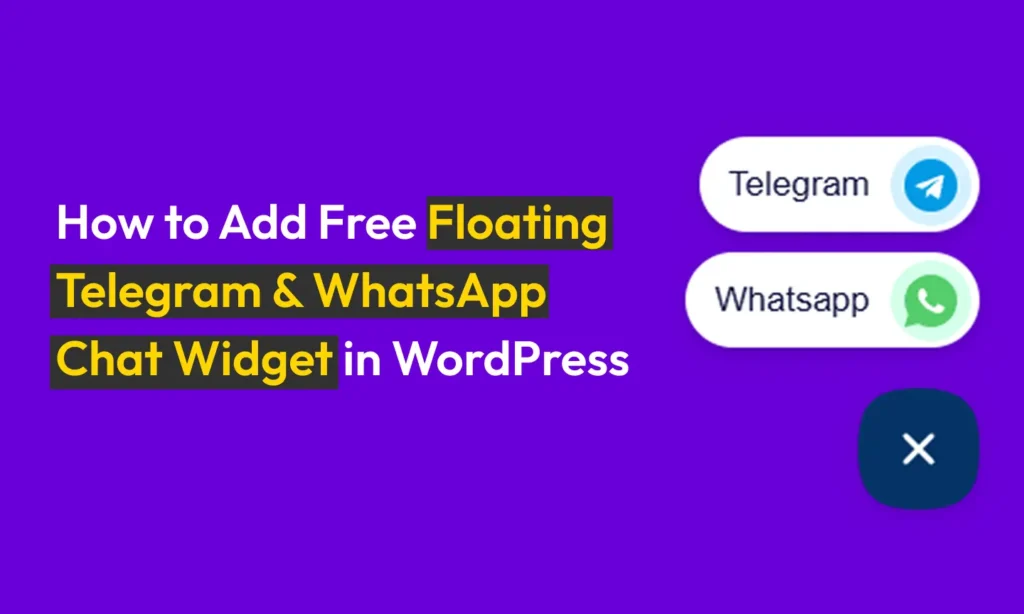
It’s important to connect with people visiting your website. Quick replies make a big difference. If somebody wants to ask a question or needs help now, waiting is frustrating. Old contact forms are slow. Email can take too long. Sometimes, people leave before you even get a chance to help.
So, what’s the better way? Use chats that work right away. People like to use apps such as WhatsApp and Telegram. Your visitors already have them on their phones. But adding these chat buttons to WordPress can look hard. You might think you need to hire someone or write code.
That’s not true. There’s Bit Assist. This plugin is simple. It works with WordPress. You can add chat buttons for WhatsApp and Telegram right to your website. People can message you quickly. You answer right away. That helps everyone.
I’ll show you each step to add floating chat buttons for Telegram and WhatsApp. No expert skills needed. You save time, answer faster, and make your website friendly and helpful.
Why Use Telegram and WhatsApp Widgets?
If you let people message you with Telegram or WhatsApp, it will be easier for them. These apps are popular. Most people already use them every day. The chat buttons mean instant questions and faster answers. You do not wait for emails or fill out long forms. That makes your business look helpful. Fast support means happy visitors. Bit Assist also lets you pick how the chat works and when it’s visible.
Step-by-Step Setup: Add Floating Telegram & WhatsApp Chat in WordPress
1. Install & Activate Bit Assist
Let’s start. First, add the Bit Assist plugin to your site. Open your WordPress dashboard. Find Plugins and click Add New. Type Bit Assist into the search box. Then install and activate the plugin.
A new link for Bit Assist should now appear on your dashboard sidebar.
2. Create a New Widget
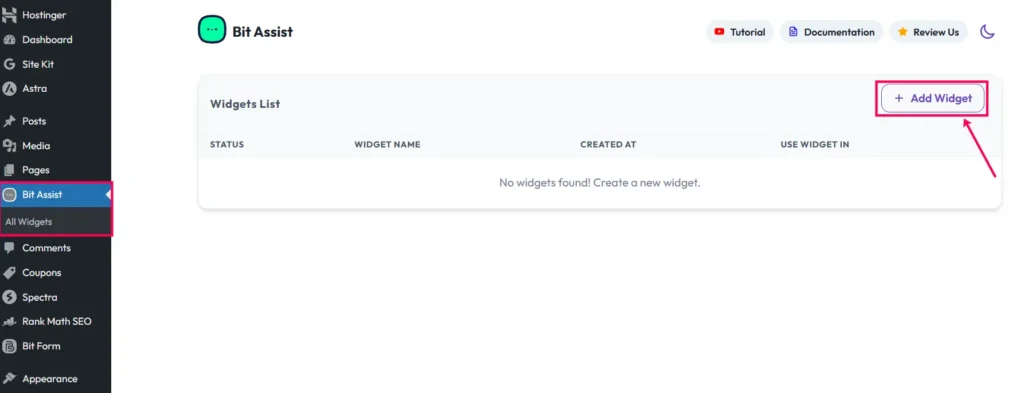
Next, let’s make your chat widget. Go to Bit Assist then pick Widgets. You will see a + Add Widget button. Click it.
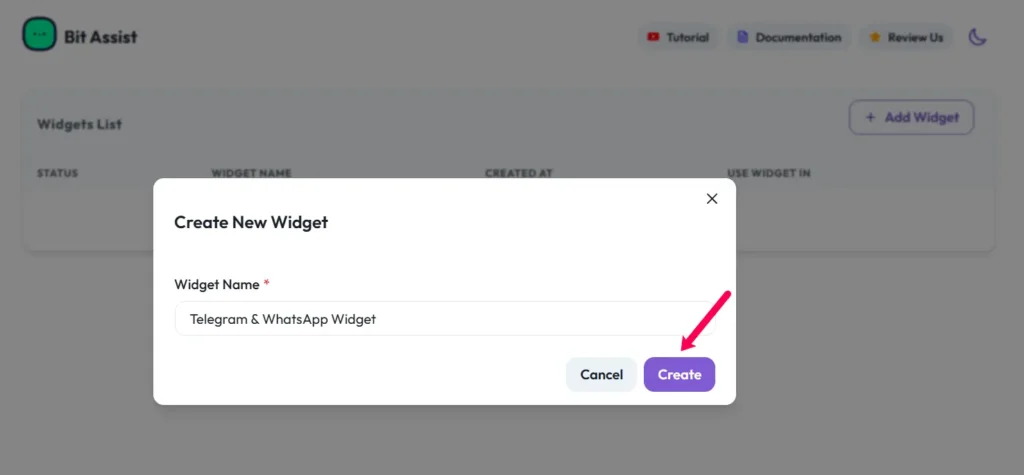
You will type a name for your widget. Use a clear name, like “Telegram & WhatsApp Widget”. This helps you find it later. Then click on the Create button.
Pick where you want the chat button on your page. Many choose the bottom-right or bottom-left. Pick what fits your website. You can change size, color, and icon style too. Match your brand colors if you like. When you finish, save it.
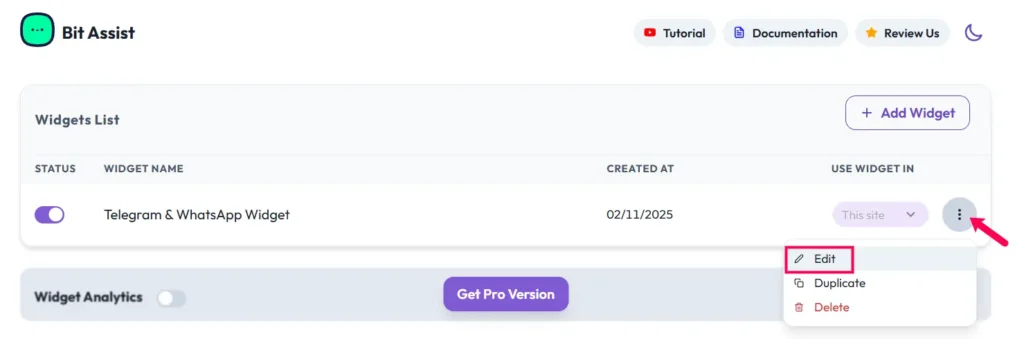
Now click on the three dot icon and select edit.
3. Add the Telegram Chat Channel
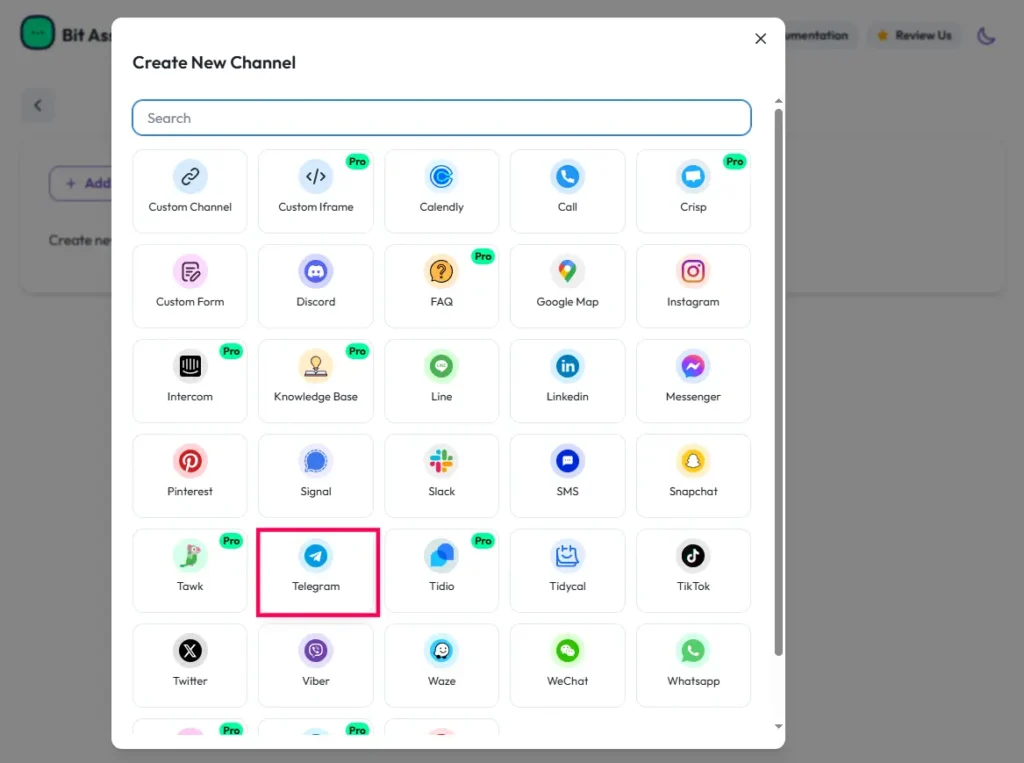
Now add Telegram. Open your new widget by clicking it. Then click Add Channel. Choose Telegram from the list.
Type a Channel Title. This is what people see, like “Chat on Telegram.” Now type your Telegram username after the “@”, for example, @YourUsername.
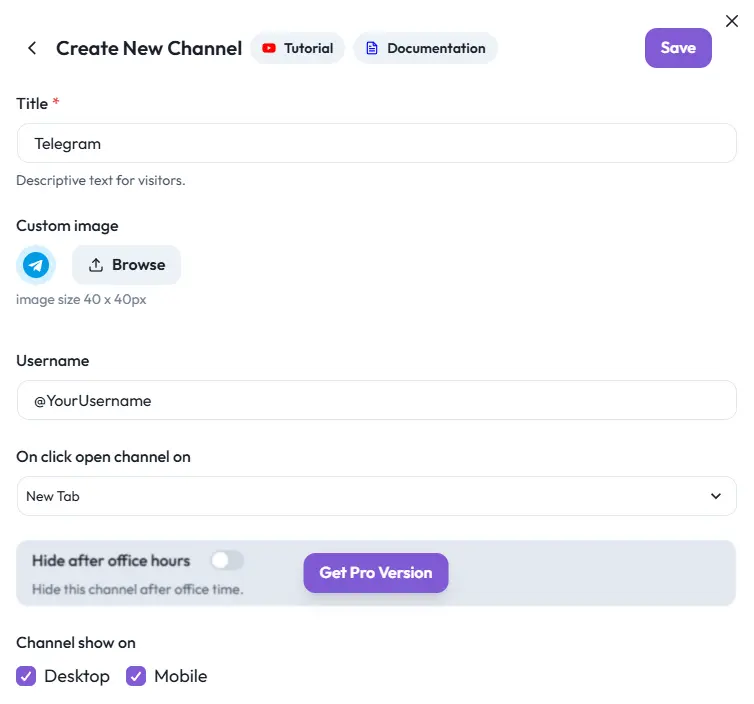
This connects people to you. The chat will open in a new tab by default. Choose another option if you want. When done, press Save.
4. Add the WhatsApp Chat Channel
Next is WhatsApp. Stay in the widget editor. Click Add Channel one more time. Select WhatsApp. Give the channel a name, such as “Chat on WhatsApp.” This label helps visitors know which chat to tap. Now enter your WhatsApp number with the country code, like +15551234567.
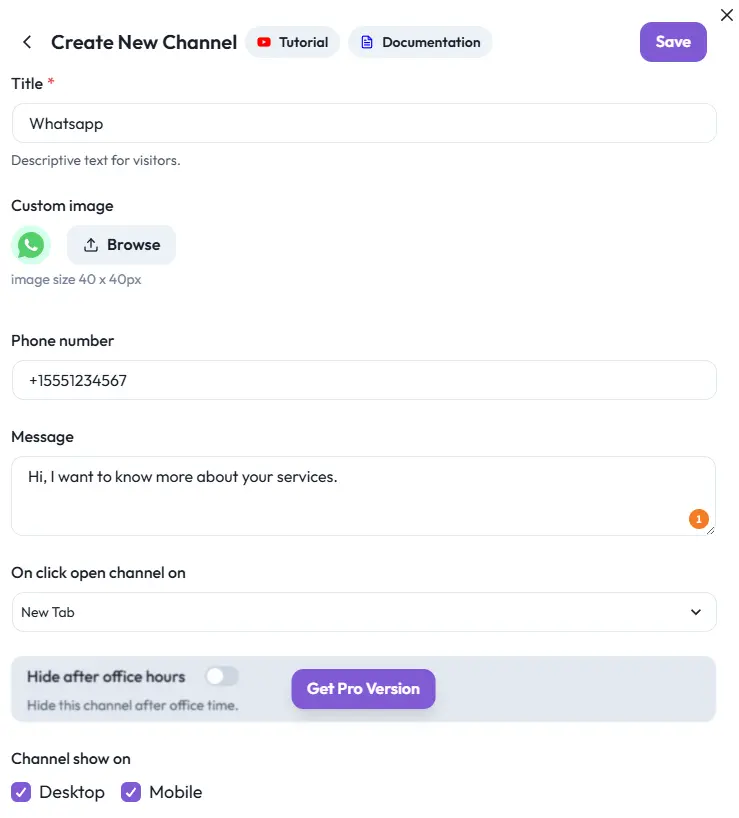
If you want, you can add a preset message. For example, “Hi, I want to know more about your services.” This message pops up automatically in WhatsApp when someone clicks your button. Decide if you want the WhatsApp chat to open in a new tab or the same tab. Click Save.
5. Configure Widget Display & Behavior
Your widget now has both chat options.
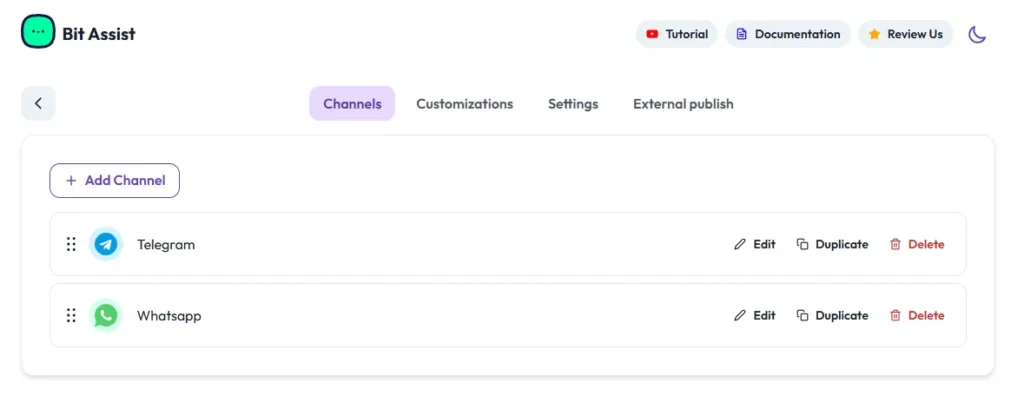
Time to check how it acts on your website. Bit Assist lets you choose the Widget Behavior. For example, should it pop up when someone clicks? On hover? When the page loads? Pick the way you like.
From the customization tab, choose the Widget Position that will not hide any important parts of your website. Bottom corners are common. Select if you want the chat on mobile, desktop, or both. Add an Icon style or an Animation if you want. Animations like “jump” or “wiggle” help get attention.
With the Bit Assist Pro, you will get more options, like showing the widget only during work hours or on special pages. Save your settings before you leave.
6. Publish & Check on Your Website
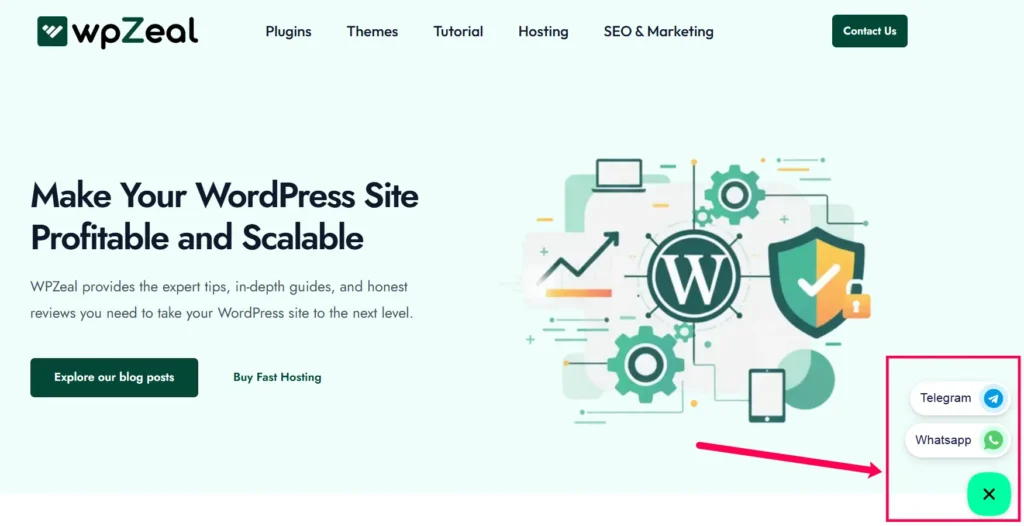
When everything is ready, make sure your widget is set to Active or Published. Go to your website to see if you can spot the chat button. Try to use an “incognito” or private window so you see the newest version. Find the chat icon. Click it. You should see both Telegram and WhatsApp buttons. Tap those. The right app or web page should open, showing your contact info and the preset message if you added one. Test the widget on phones and computers. See if it works everywhere.
Final Thoughts
Adding Telegram and WhatsApp chat to your site means you can answer visitors fast. No long wait. Just a few taps. This makes people feel welcome. It can help you get more leads and grow trust.
Are you ready? Log in to WordPress, install Bit Assist, and try the steps above. Check which chat gets most clicks. Try new colors or messages if you wish. Make your site friendly and easy for everyone.