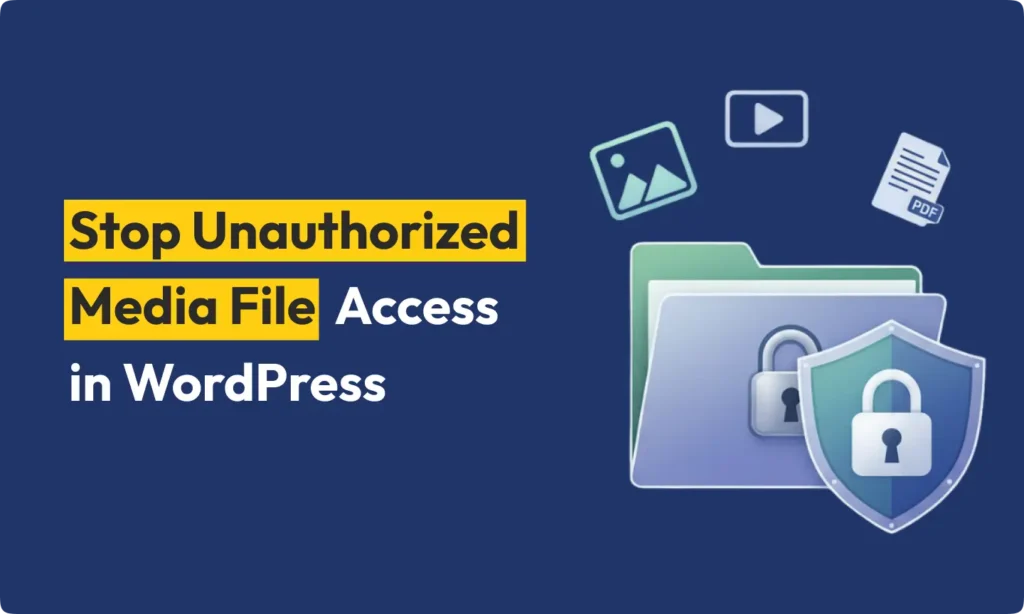
Today, looking after your site and your content is very important. If you are using WordPress, you should know your media files are not just simple files. These are your photos, videos, PDFs, and sounds. Sometimes, these have private details or your own work. If wrong people get them, there can be problems. For example, someone may steal your pictures or download private files. So, you really need to prevent unauthorized access to media files in WordPress and keep everything safe.
This guide will help you learn how to prevent unauthorized access to media files in WordPress the easy way. We talk about simple steps and also some that are more advanced. Do not worry if you are not expert. You can use these tips to prevent unauthorized access to media files in WordPress on your own site.
Why Should You Protect Your Media Files?
Why should you care? Well, there are a few reasons to prevent unauthorized access to media files in WordPress.
- Content Theft: Your photos, videos, and documents are valuable. Anyone could take them and put them somewhere else without your okay.
- Privacy: Sometimes you save invoices or other private files. If someone gets them, your privacy can be at risk. That’s why you must prevent unauthorized access to media files in WordPress.
- Server Strain: Many downloads from strangers can make your site slow or cost you more money.
Now you know why this is important. Let’s check step by step how you stop this problem and prevent unauthorized access to media files in WordPress.
1. Password Protect Folders
The first way is simple. You can set a password for folders where your media is saved. For this, you will use a special file called .htaccess. It will help you prevent unauthorized access to media files in WordPress if you have private folders.
How to Do Password Protection:
Open Your Website Files: You need an FTP program or use your hosting file manager. Find your main folder for WordPress.
Create an .htpasswd File: This file holds username and password.
- Make a new file: name it
.htpasswd. Put this in a hidden folder (not public). - Add username and encrypted password. Many online tools help with this. It can look like:
username:$apr1$KbSbgy0A$Q/Oj8RVYI4L6yV2mZnNOd1Edit the .htaccess File: Go to your folder, usually /wp-content/uploads/. Edit or make a new .htaccess file and add:
<FilesMatch ".*">
AuthType Basic
AuthName "Restricted Access"
AuthUserFile /path/to/.htpasswd
Require valid-user
</FilesMatch>
Remember to put right path for your .htpasswd file.
Try It: Visit a file like yourdomain.com/wp-content/uploads/2025/01/file.jpg. It should ask username and password. This stops outsiders and helps you prevent unauthorized access to media files in WordPress.
2. Use a Plugin for Media Protection
Not everyone likes working with server files. If you prefer, you can use a plugin. There are good plugins that help non-tech users prevent unauthorized access to media files in WordPress fast.
Recommended Plugins
- WP File Access Manager: Set which users can see what files in your media library. You can quickly prevent unauthorized access to media files in WordPress by adjusting few options.
- Prevent Direct Access (PDA): Lets you stop others from using direct links to your media. You lock files with easy settings and prevent unauthorized access to media files in WordPress.
- Media Library Assistant: Gives even more control for protection.
How to Use Prevent Direct Access Plugin:
- Install Plugin: Go to Plugins > Add New in your WordPress dashboard. Type “Prevent Direct Access.”
- Activate Plugin: Click “Activate” after install.
- Set Up Settings: Go to Settings > PDA in dashboard. Choose who can see your files.
- Restrict Files: You can block all media or just some files. You can also make rules by user type or for special pages.
The PDA plugin makes it simple for anyone to prevent unauthorized access to media files in WordPress. You do not need to edit server files.
3. Use Content Delivery Network (CDN) with Rules
A CDN is a network of computers in different places. They send content to people from the closest location. Some CDNs let you set rules for files. This is helpful to prevent unauthorized access to media files in WordPress, especially when you want to stop other sites using your files.
How to Secure Media with CDN:
- Pick a CDN: Try tools like Cloudflare, KeyCDN, or StackPath.
- Set Hotlink Protection: Hotlink means another site uses your file in their page. Blocking this makes sure only your own site can show your media. This is one more way to prevent unauthorized access to media files in WordPress.
- Add Secure Token: With this, a special download link is needed, and it can expire after some time.
This option is good if you want a tech company to handle security for you. It also makes your server work less.
4. Use SSL (HTTPS) for Safe Media
SSL means Secure Sockets Layer, also known as HTTPS. This tool encrypts the things people send or load from your site, so no one can peek. It is a very basic way to prevent unauthorized access to media files in WordPress.
How You Turn On SSL:
- Get SSL Certificate: Most hosting gives it free (for example, Let’s Encrypt). Ask your provider to turn it on.
- Update Website URLs: After SSL is active, go in WordPress to Settings > General. Change your addresses to start with
https://. - Force HTTPS: You can add this in your
.htaccessfile:
RewriteEngine On
RewriteCond %{HTTPS} off
RewriteRule ^ https://%{HTTP_HOST}%{REQUEST_URI} [L,R=301]
Now, all your site traffic is encrypted. This helps you prevent unauthorized access to media files in WordPress and keeps visitors safe.
5. Set the Right File Permissions
Setting file permissions is key. This decides who can see or change files. Wrong permissions may open your folders to everyone, so check them if you want to prevent unauthorized access to media files in WordPress.
How to Check Permissions:
- Look at Settings: Use FTP tool or file manager to see permissions. Files should have
644, folders should have755. - Close Open Folders: Make sure
/wp-content/uploads/has right settings. This blocks uploads from strangers.
Tip: Never use 777 permission. This gives all users too much control. Your files are safer with proper permission if you want to prevent unauthorized access to media files in WordPress.
6. Watch File Access in Server Logs
You can learn a lot by checking server logs. Your host usually lets you see logs that show who tries to open files. Doing this helps you find problems early and prevent unauthorized access to media files in WordPress.
- Check for Strange Actions: Many attempts to open one file or odd access means maybe someone is trying to break in.
- Block Bad IPs: If you see bad access, block the IP with a plugin or from the server.
Conclusion
If you want to prevent unauthorized access to media files in WordPress, you need to act. You give security for your photos, videos, and documents. You also make your website faster and safer. There are many tools. You can do it with password protection, plugins, SSL, CDNs, or by setting permissions and watching logs. Beginners and advanced users can all use these ways to prevent unauthorized access to media files in WordPress and keep things private.
Please use the tips in this guide. When you prevent unauthorized access to media files in WordPress, you protect your hard work and the privacy of your site visitors. Remember, security is not just one job. Check often and keep your site up-to-date.
Go now and make your media files safe. You will feel better when you prevent unauthorized access to media files in WordPress!