



Code tutorials become hard to follow when snippets wrap badly, lose indentation or render every language as plain text. A good WordPress code block plugin should preserve code, highlight syntax clearly, work with the editor you use and avoid loading a heavy front-end bundle on pages that contain no code. These picks focus on publishing code—not running arbitrary snippets in WordPress.
TL;DR
Code Block Pro is the strongest Gutenberg-first choice for polished, VS Code-style output. Highlighting Code Block is a proven Prism.js option with 10,000+ installs. Enlighter offers deep customization and Classic Editor support. Syntax-highlighting Code Block is excellent when server-side rendering and performance matter, while Urvanov remains useful for sites that prefer the classic Crayon-style feature set.
Quick Comparison
| Plugin | Best for | Pricing |
|---|---|---|
| Code Block Pro | polished Gutenberg code blocks | Free + Pro options |
| Highlighting Code Block | simple Prism.js highlighting | Free |
| Enlighter | deep customization and mixed editor support | Free |
| Syntax-highlighting Code Block | server-side highlighting and performance | Free |
| Urvanov Syntax Highlighter | feature-rich classic syntax highlighting | Free |
How I Chose These WordPress Syntax Highlighters
I separated code-display plugins from code-execution/snippet managers. I checked current WordPress.org maintenance, editor integration, syntax engine, language/theme options, front-end performance and adoption. A plugin belongs here only if its main job is presenting readable source code to visitors.
1. Code Block Pro — Best for polished Gutenberg code blocks
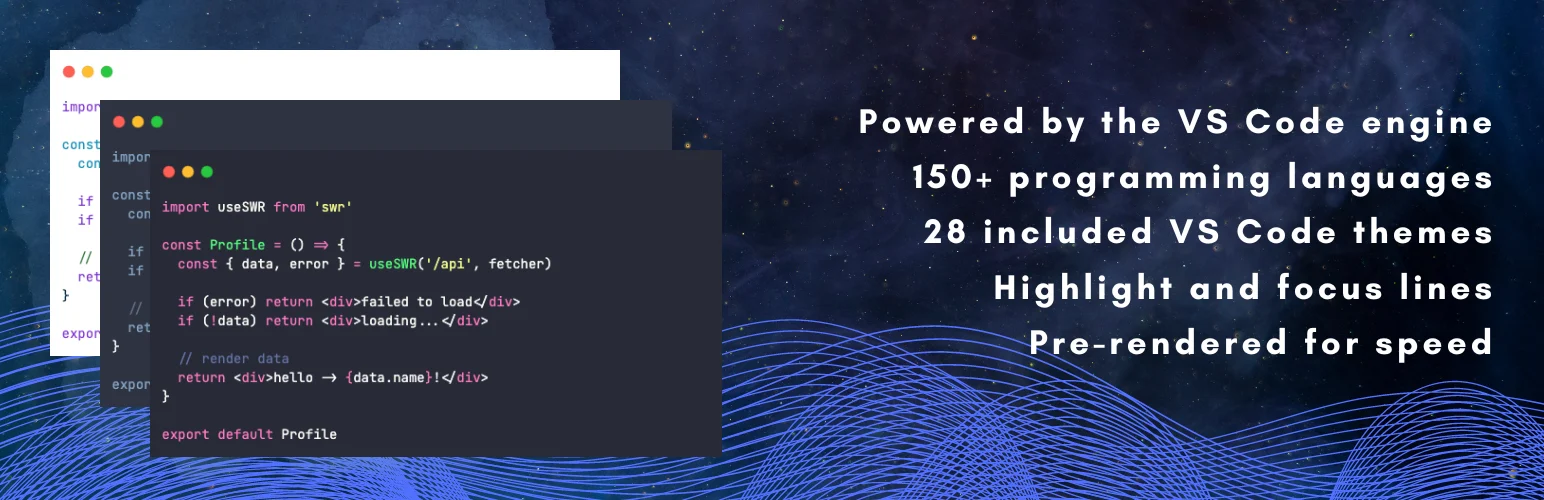
Code Block Pro has 10,000+ active installs and current WordPress 7.1 compatibility when checked. It uses the VS Code highlighting engine and is explicitly performance-focused. For developers publishing tutorials in Gutenberg, it offers a modern block experience without relying on old shortcode workflows.
Key features
- Native Gutenberg code-block experience
- VS Code/Shiki-style highlighting engine
- Multiple language support
- Theme and presentation controls
- Performance-focused rendering
- Copy-friendly code presentation
- 10,000+ active installs and current maintenance
What I like
The editor experience and output feel modern, and the VS Code-style highlighting is familiar to technical readers.
Limitations
It is most attractive to Gutenberg users. If your archive depends on Classic Editor shortcodes, a more legacy-friendly plugin may be easier to adopt.
Pricing
A free WordPress.org version is available; the developer offers additional Pro capabilities. Check the current official listing before purchase or deployment.
2. Highlighting Code Block — Best for simple Prism.js highlighting

Highlighting Code Block is another established option with 10,000+ active installs. It uses Prism.js and supports Gutenberg as well as the Classic Editor, making it a practical bridge for sites with mixed old and new content.
Key features
- Prism.js syntax highlighting
- Gutenberg support
- Classic Editor support
- Multiple programming languages
- Code block styling options
- 10,000+ active installs
- Current WordPress compatibility
What I like
The mixed-editor support is valuable for long-running technical blogs that still have Classic Editor content.
Limitations
Client-side highlighting can add JavaScript work compared with server-rendered approaches. Measure it if Core Web Vitals are sensitive.
Pricing
Highlighting Code Block is free on WordPress.org. Check the current official listing before purchase or deployment.
3. Enlighter — Best for deep customization and mixed editor support
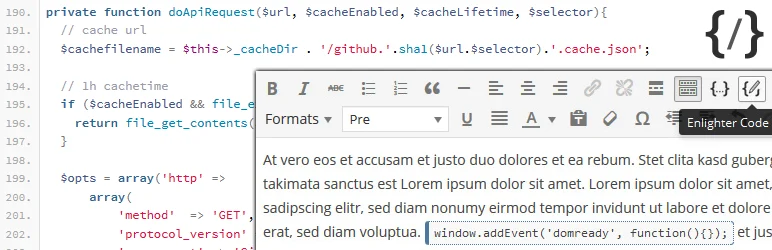
Enlighter has 10,000+ active installs and a long history in WordPress syntax highlighting. It supports Gutenberg and Classic Editor and includes a graphical theme customizer based on EnlighterJS. It is a strong fit when presentation control matters more than a minimal setup.
Key features
- Gutenberg integration
- Classic Editor integration
- EnlighterJS syntax engine
- Graphical theme customizer
- Multiple languages and themes
- Inline and block code workflows
- Established 10,000+ install base
What I like
Customization is the main strength. Technical publications can make code examples match their design system without hand-editing every block.
Limitations
Its tested WordPress version was slightly behind the newest release when checked. Verify your current editor setup before a large migration.
Pricing
Enlighter is free on WordPress.org. Check the current official listing before purchase or deployment.
4. Syntax-highlighting Code Block — Best for server-side highlighting and performance
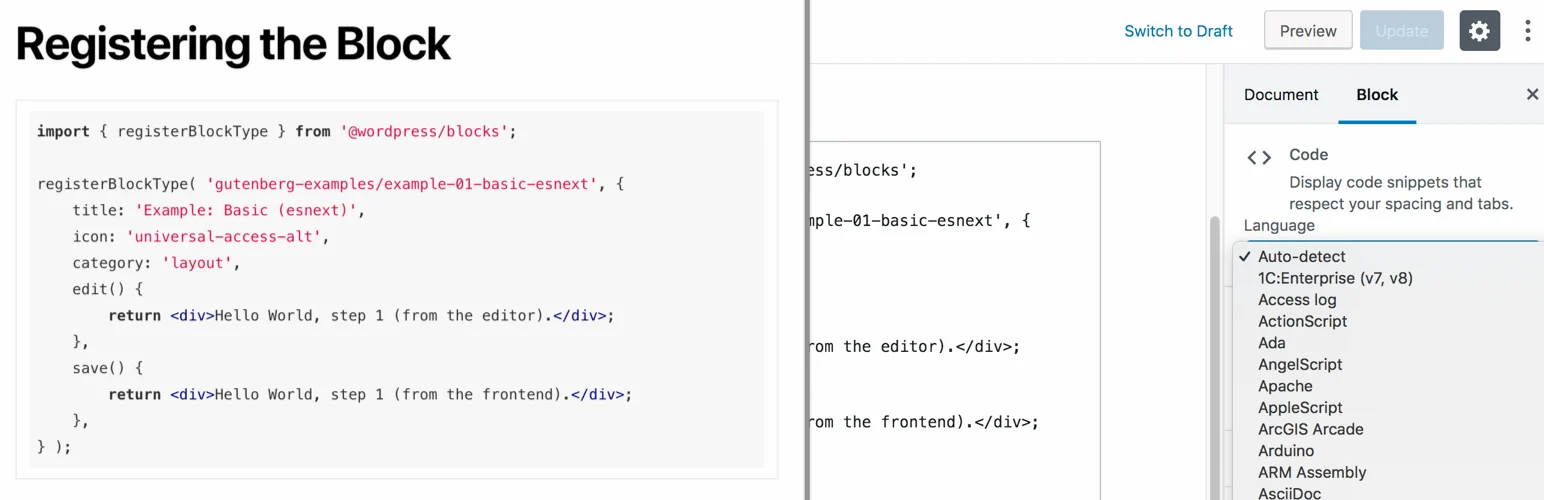
This plugin extends the native Code block and renders syntax highlighting on the server. That removes the need for a highlighting JavaScript library on the front end and can be attractive for AMP-like setups, strict content-security policies or performance-sensitive documentation. It had 1,000+ active installs when checked.
Key features
- Extends the native WordPress Code block
- Server-side syntax highlighting
- No front-end highlighting JavaScript required
- AMP-compatible approach
- Multiple language support
- Keeps content aligned with native blocks
- 1,000+ active installs
What I like
Server rendering is the clearest differentiator. Deactivation also leaves you closer to standard WordPress code-block content than proprietary shortcode systems.
Limitations
If you want highly interactive front-end behavior, a client-side Prism or dedicated code-block plugin may offer more presentation features.
Pricing
The plugin is free on WordPress.org. Check the current official listing before purchase or deployment.
5. Urvanov Syntax Highlighter — Best for feature-rich classic syntax highlighting
Urvanov is the continuation/reincarnation of the older Crayon Syntax Highlighter approach and still has around 3,000 active installs. It supports many languages, themes and highlighting from post text or URLs. It is most relevant to sites with older technical-content workflows rather than new block-first publications.
Key features
- Multiple programming languages
- Multiple themes and fonts
- Highlight code from post content
- URL-based highlighting options
- Legacy-friendly syntax-highlighter workflow
- 3,000+ active installs when checked
- Current 2026 update activity
What I like
It offers a familiar path for publishers coming from older Crayon-style syntax highlighting.
Limitations
Its architecture and editor experience are less block-native than Code Block Pro. New Gutenberg-first sites should usually start with a modern block solution.
Pricing
Urvanov Syntax Highlighter is free. Check the current official listing before purchase or deployment.
Code Publishing vs Code Execution
These plugins are for presenting code, not running it. That distinction matters because a syntax highlighter can safely format PHP, JavaScript, CSS or Python as text without giving visitors or editors a way to execute arbitrary code on the server. If your real goal is adding functional PHP snippets to WordPress, use a dedicated code-snippet tool instead.
Code Block Pro is the strongest Gutenberg-first choice when presentation quality matters and you want a polished VS Code-style look. Highlighting Code Block is simpler and works well for authors who mainly want Prism-based highlighting. Enlighter is the better fit when customization, themes and multi-language code groups matter. The newer server-side highlighting option is attractive for performance-focused sites because it can avoid front-end highlighting JavaScript. Urvanov remains useful for sites that need a feature-rich classic syntax-highlighting workflow.
Test a long line of code, mobile overflow, copy-to-clipboard behavior, line numbers, highlighted lines and dark mode before choosing. Also inspect the page source and performance waterfall. A code plugin should not load large assets on every page when only a small part of the site contains code examples.
How to Choose a WordPress Code Block Plugin
Choose the rendering model first. Client-side libraries such as Prism can enable interactive features but add JavaScript. Server-side highlighting can reduce front-end work. Then check whether your writers use Gutenberg, Classic Editor or both, and whether existing code can migrate without rewriting hundreds of posts.
Do not confuse syntax highlighting with code execution. A code-display plugin should safely present examples to readers. If you need to run PHP or add site customizations, use a dedicated code-snippet tool and apply stricter security controls.
What Matters Most for Technical Publishing?
For a documentation site or developer blog, readability and maintenance matter more than decorative themes. Code Block Pro is the best fit when authors live in Gutenberg and want polished output with minimal setup. Enlighter is stronger for publishers who need extensive themes and code-group features. Highlighting Code Block is a good lightweight middle ground. Server-side highlighting deserves attention when Core Web Vitals or strict content-security policies matter, because it can reduce reliance on client-side highlighting scripts.
Think about migration before standardizing on a custom block. If hundreds of tutorials depend on a proprietary block, changing plugins later can become a content-cleanup project. Plugins that enhance or gracefully fall back to WordPress core code markup reduce that risk. Test deactivation on a staging post to see whether the code remains readable.
Finally, make sure the editor workflow matches the people writing the tutorials. Language selection, line highlighting, copy buttons and filenames are valuable only if authors can use them quickly. A technically powerful highlighter that slows down every article is not necessarily the best publishing tool.
Conclusion
Code Block Pro is the strongest modern default for Gutenberg. Highlighting Code Block and Enlighter suit mixed-editor sites, while server-side highlighting is the better architectural choice when front-end performance and native block portability are priorities.
Frequently Asked Questions
What is syntax highlighting?
It colors parts of source code such as keywords, strings and comments so readers can scan examples more easily.
Does syntax highlighting slow WordPress?
It can if a large client-side library loads unnecessarily. Server-side rendering or conditional asset loading can reduce the impact.
Can these plugins run PHP code?
No, and they should not. This roundup is about displaying code safely, not executing snippets on the server.
Which plugin is best for Gutenberg?
Code Block Pro and native-code-block extensions are strong choices because they fit directly into the block editor.
If you need to execute site customizations rather than display examples, compare our WordPress code snippet plugins.

