



A WordPress file manager can be useful when you need to upload, rename, archive, extract, or edit a file quickly and FTP or cPanel is not convenient. It can also be dangerous because it gives wp-admin direct access to files that can break or compromise the site.
I only use file-manager plugins when the permission model is clear, the plugin is actively maintained, and there is a recent backup. For routine development work, SFTP or SSH is still my preferred path. A dashboard file manager is best treated as a controlled convenience tool, not as a permanent replacement for proper server access.
These five options cover simple file operations, code editing, role restrictions, recovery tools, and document-style workflows. For media-library folders rather than server files, see our WordPress media library plugins. For safer PHP customizations, compare our WordPress code snippet plugins.
TL;DR
- Filester: best overall free option for file operations, role restrictions, archives, and a clean dashboard interface.
- File Manager by mndpsingh287: best established option for broad file operations and a familiar elFinder-style workflow.
- Advanced File Manager: best for advanced access controls, document-library features, and developer-oriented file management.
- WPIDE: best for developers who want a file manager plus code editor, syntax checking, backups, and recovery tools.
- File Manager by Bit Apps: best lightweight modern option for common file operations and code editing from wp-admin.
Quick Comparison
| Plugin | Best for | Code editor | Pricing |
|---|---|---|---|
| Filester | Free all-round file management | Yes | Free |
| File Manager | Established file operations | Yes | Free + Pro |
| Advanced File Manager | Access controls and document workflows | Yes | Free + Pro |
| WPIDE | Developer editing and recovery | Yes | Free + Pro |
| File Manager by Bit Apps | Modern lightweight file operations | Yes | Free |
How I Chose These Plugins
I compared current maintenance, file operations, role restrictions, code editing, archive handling, recovery or backup features, and how much server access each plugin exposes. Because this category has a history of security incidents, current maintenance and permission controls matter more than decorative features.
1. Filester – Best Overall Free File Manager

Filester is one of the strongest free choices in 2026. It can upload, download, move, copy, rename, edit, delete, preview, duplicate, and archive files without FTP. It also includes user-authority settings for root paths, file visibility, allowed extensions, and other access controls.
I like that the core feature set is not intentionally crippled. The current WordPress.org listing says Filester is completely free with no paid tier, while still providing role restrictions and a built-in editor.
Key features
- Upload, download, copy, move, rename, and delete files
- Create and extract archives
- Built-in code editor
- Role-based root path and file restrictions
- Drag-and-drop interface
- Multiple views and themes
Pros: Strong free feature set, current maintenance, and useful authority settings.
Cons: Giving any wp-admin account filesystem access increases the impact of a compromised administrator session.
Best for: Site owners who occasionally need full file operations without FTP and want role restrictions included.
Pricing: Free.
2. File Manager – Best Established File Operations Plugin
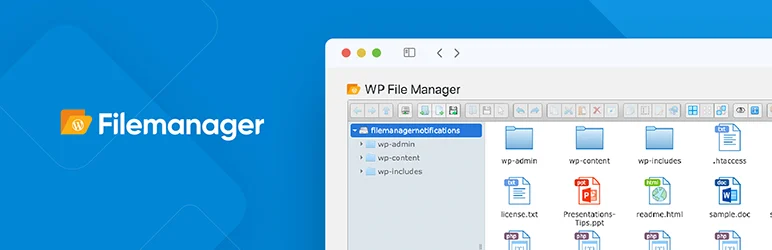
File Manager by mndpsingh287 is the most widely installed option in this comparison. It supports common server-file operations such as moving, copying, uploading, downloading, editing, deleting, and archive creation directly from WordPress.
The large install base makes it familiar, but I would still treat it as privileged software. Keep it updated, restrict access, and remove it when the site no longer needs browser-based file management.
Key features
- Copy, move, upload, download, rename, and delete
- Drag-and-drop file operations
- Archive creation and extraction
- Built-in file editing
- Multi-file selection
- Commercial extensions and Pro features available
Pros: Mature, feature-rich, and familiar to many WordPress administrators.
Cons: The interface exposes powerful filesystem actions, so it should never be available to unnecessary user roles.
Best for: Administrators who want a proven dashboard file browser with broad standard operations.
Pricing: Free version available, with commercial add-ons and Pro options.
3. Advanced File Manager – Best for Access Controls and Document Workflows
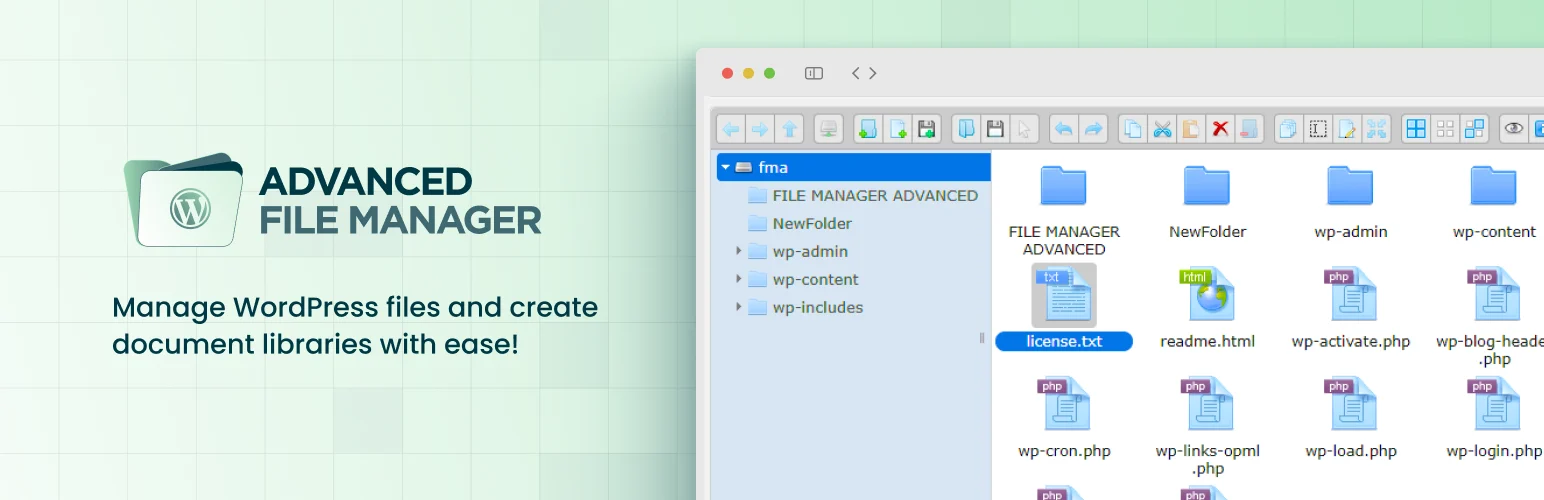
Advanced File Manager combines normal file operations with stronger access-control and document-library features. It can restrict actions by role, hide paths, control uploads or downloads, and support front-end or document-oriented workflows through its extended feature set.
I would consider it when the file manager is part of a deliberate internal document workflow rather than only an emergency way to edit one server file.
Key features
- Dashboard file browser
- Role and permission controls
- Archive creation and extraction
- Integrated code editor
- Path and action restrictions
- Document-library and cloud features in paid editions
Pros: More access-control depth than basic file managers and useful for structured document workflows.
Cons: Broader feature scope means more configuration and a larger privileged surface inside wp-admin.
Best for: Teams that need controlled file access, document libraries, or more advanced role restrictions.
Pricing: Free version available. Paid plans are available for advanced features.
4. WPIDE – Best for Developers and Safer Code Editing
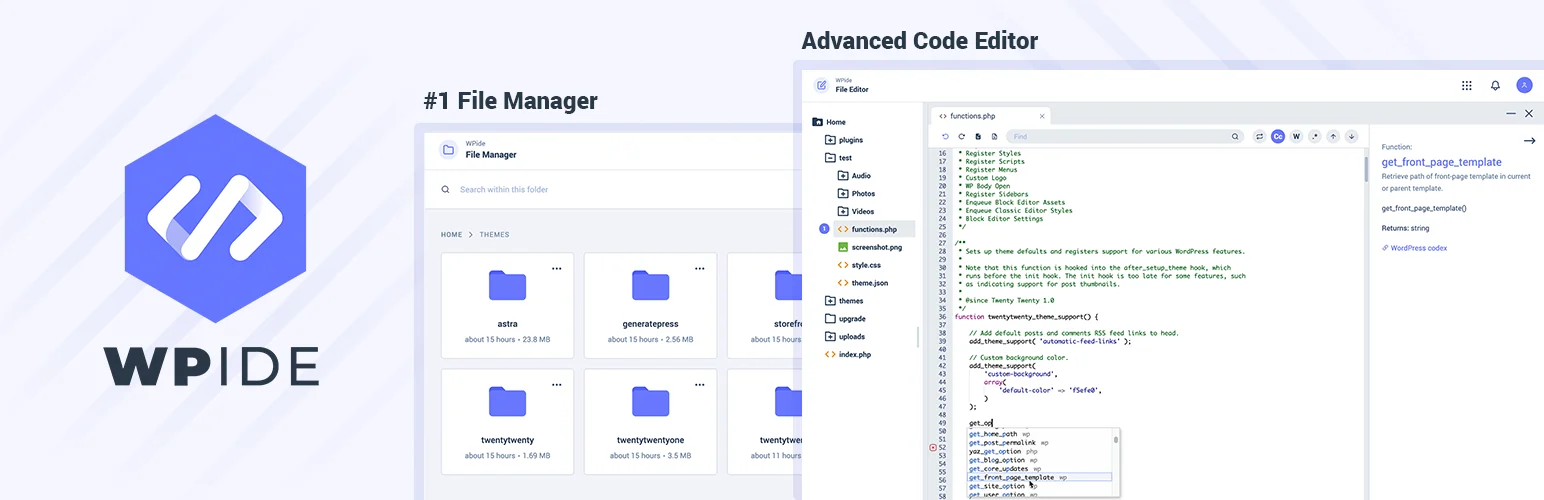
WPIDE is closer to a lightweight development environment than a normal file manager. It includes a file tree, tabbed code editor, syntax highlighting, search, archive tools, PHP validation, automatic backups, and a recovery workflow.
The backup-before-save and recovery approach is why I would choose it for code editing. Editing PHP from a browser is still risky, but syntax checking and restore points reduce the chance that one typo immediately leaves you with a white screen and no easy recovery path.
Key features
- File manager and tabbed code editor
- Syntax highlighting and code completion
- PHP parsing and validation
- File backups before saves
- File recovery wizard
- Archive, upload, download, and deep-search tools
Pros: Best development-oriented editor in this list and includes useful recovery safeguards.
Cons: More power also means more risk if the plugin is exposed to users who should not edit code.
Best for: Developers making occasional theme, plugin, or configuration edits when SFTP is not practical.
Pricing: Free version available, with a Pro edition for additional editor, config, image, and database features.
5. File Manager by Bit Apps – Best Modern Lightweight Option
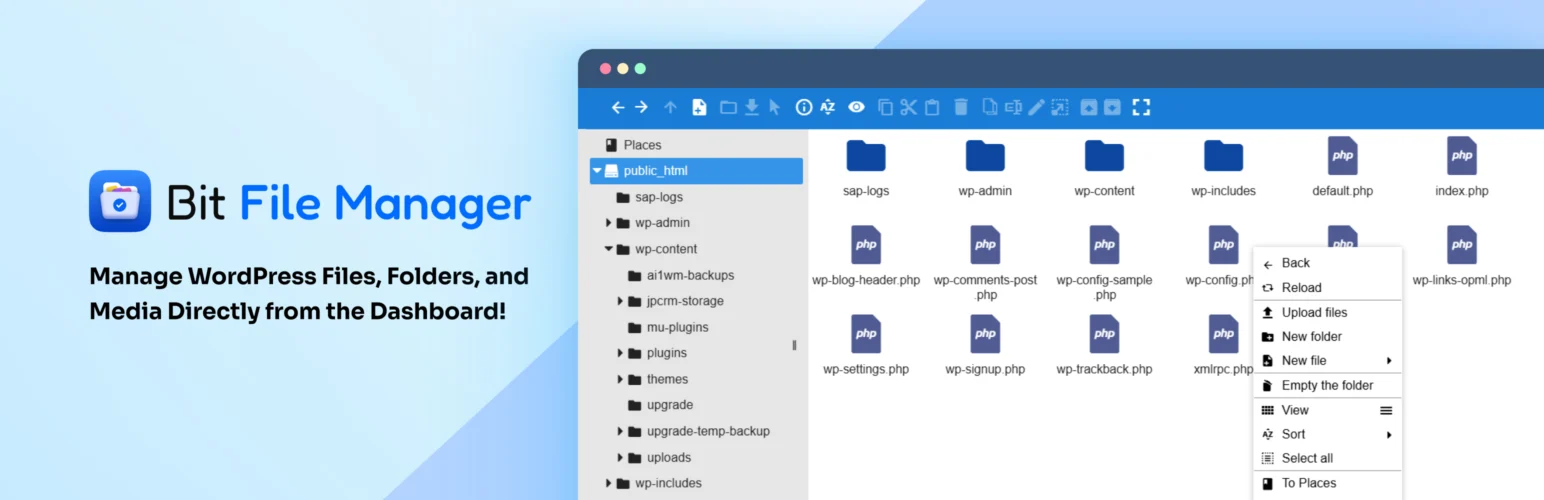
File Manager by Bit Apps provides common filesystem operations and a built-in code editor in a cleaner modern interface. It supports editing, uploading, deleting, moving, renaming, archiving, and extracting files from the WordPress dashboard.
I would consider it when the goal is a straightforward modern file manager rather than a document-management system or browser-based IDE. The current WordPress.org listing is tested with WordPress 7.1.
Key features
- Upload, edit, delete, move, and rename files
- Archive and extract files
- Built-in code editor
- Drag-and-drop file operations
- Responsive dashboard interface
- No FTP or cPanel required for routine file tasks
Pros: Clean interface, current WordPress compatibility, and a focused feature set.
Cons: Smaller install base and ecosystem than the longest-established options.
Best for: Users who want a modern file manager for occasional routine filesystem work.
Pricing: Free.
Which One Should You Choose?
Filester is my first choice for a free all-round file manager. WPIDE is better when code editing and recovery matter most. Advanced File Manager fits controlled document workflows, while the two File Manager plugins cover more traditional dashboard file browsing.
For security, give file-manager access only to trusted administrators, keep the plugin updated, take a backup before editing code, and deactivate or remove the plugin when the task is finished if you do not need permanent browser-based filesystem access.
Conclusion
A WordPress file manager is useful precisely because it is powerful, and that is also why it needs careful access control. Filester is the best free all-round option here, WPIDE is stronger for developer editing, and Advanced File Manager suits more structured permission workflows. Use the smallest tool that solves the task and remove unnecessary filesystem access when the job is done.
Frequently Asked Questions
What is the best WordPress file manager plugin?
Filester is the strongest free all-round choice here. WPIDE is better if your main use case is editing code with validation and recovery tools.
Are WordPress file manager plugins safe?
They can be safe when actively maintained and tightly restricted, but they increase the power available inside wp-admin. Keep them updated and limit access to trusted administrators.
Should I use a file manager instead of FTP or SFTP?
For ongoing professional development, SFTP or SSH is usually preferable. A WordPress file manager is more useful for occasional tasks when external server access is inconvenient.
Can a WordPress file manager edit wp-config.php?
Some plugins can expose wp-config.php or other root files depending on their settings. That access is powerful and should be restricted carefully.
Can I edit PHP safely from wp-admin?
There is always risk. Use a backup, syntax validation where available, and a recovery path such as SFTP. WPIDE adds file backups and PHP validation to reduce common mistakes.

