



Automatic updates reduce maintenance work, but handing every WordPress update the same level of trust can create a different problem. A good update manager lets you decide what updates automatically, what waits for review, and what should stay pinned until you have tested it.
TL;DR
Easy Updates Manager is the strongest all-round control panel. Companion Auto Update is a practical choice for straightforward automation. Update Control and WP Auto Updater suit users who want narrower update rules, while Disable Updates is useful when a staging or managed environment needs updates deliberately suppressed.
Quick comparison
| Plugin | Best for | Active installs |
|---|---|---|
| Easy Updates Manager | Granular update control | 300,000+ |
| Companion Auto Update | Simple automation | 40,000+ |
| Disable Updates | Freezing managed environments | 9,000+ |
| Update Control | Focused update rules | 4,000+ |
| WP Auto Updater | Scheduled automatic updates | 7,000+ |
How I chose these update managers
I focused on plugins whose main job is controlling WordPress core, plugin, or theme updates. Backup plugins and remote site-management dashboards were excluded unless update control is central to the plugin. Current maintenance and WordPress.org adoption were also considered.
1. Easy Updates Manager
Best for: site owners who want one dashboard for fine-grained update policy.
Easy Updates Manager is the most established dedicated option in this group, with 300,000+ active installations. It can control core, plugin, theme, and translation updates, making it useful when you want different rules for different parts of WordPress rather than one global auto-update switch.
- Granular core, plugin, theme, and translation controls
- Per-plugin and per-theme update decisions
- Useful for staging, client, and production sites with different risk levels
- Strong adoption and active maintenance
Limitation: more controls also mean more settings to review. Keep a clear update policy instead of disabling updates casually.
2. Companion Auto Update

Best for: users who mainly want automatic updates without a complex maintenance stack.
Companion Auto Update focuses on automating WordPress updates and has 40,000+ active installations. It is a better fit when the goal is to reduce repetitive update work rather than build a highly customized approval workflow.
- Automatic update controls for WordPress components
- Simple maintenance-oriented workflow
- Useful for lower-risk sites with reliable backups
- Free WordPress.org plugin
Limitation: automatic updates should still be paired with backups and post-update checks, especially on WooCommerce or heavily customized sites.
3. Disable Updates
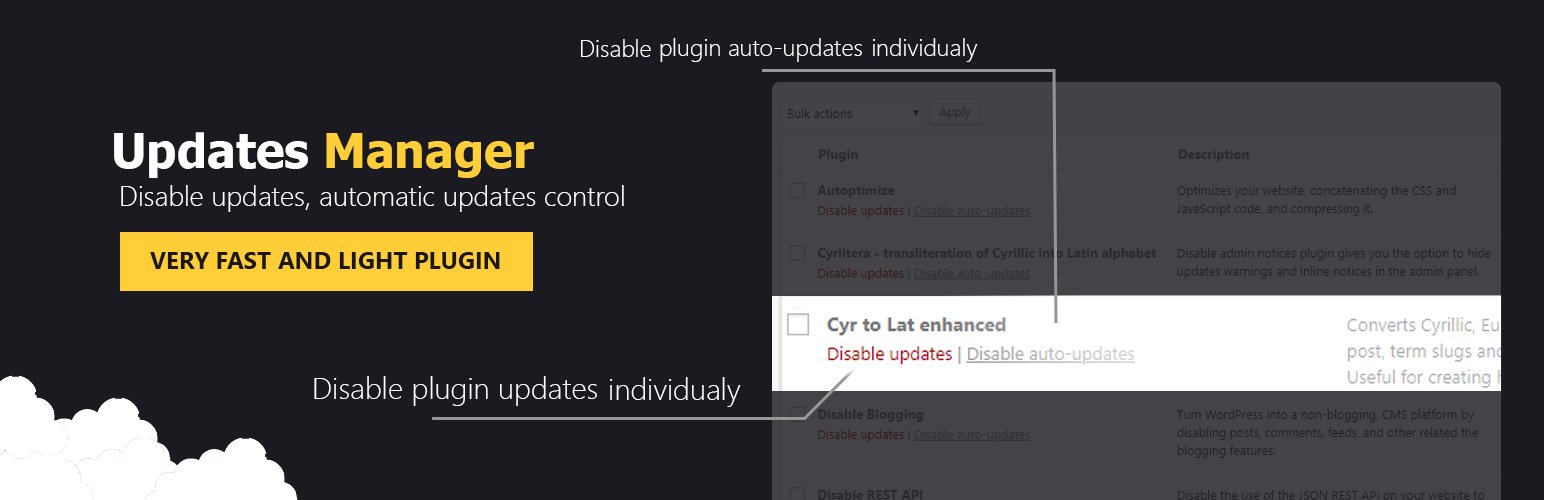
Best for: staging sites and centrally managed installations where WordPress itself should not initiate updates.
This plugin takes the opposite approach: it can suppress update behavior and notices. That can be appropriate when updates are deployed through a controlled external process, but it is not a reason to leave production software unpatched.
- Controls automatic update behavior
- Can disable update checks and notices
- Useful in controlled deployment workflows
- 9,000+ active installations
Limitation: disabling updates increases security and compatibility risk if there is no separate maintenance process.
4. Update Control
Best for: users who want a lightweight plugin dedicated to update behavior.
Update Control is a smaller plugin with 4,000+ active installations. It is worth considering when you do not need a broad remote-management platform and prefer to keep update decisions inside WordPress.
Limitation: its ecosystem and adoption are much smaller than Easy Updates Manager. WordPress.org currently provides no official banner for this listing, so no unrelated image has been added here.
5. WP Auto Updater
Best for: sites that want scheduled automatic update handling.
WP Auto Updater is another focused alternative with 7,000+ active installations. It targets administrators who want more deliberate automatic update handling than the default WordPress toggles provide.
Limitation: WordPress.org does not currently expose an official banner for the plugin. As with any automated updater, test the workflow against your backup and rollback process first.
Update controls that actually change the decision
Easy Updates Manager goes beyond a simple on/off switch: its current WordPress.org listing includes per-plugin and per-theme decisions, update logs, email controls, core and translation settings, and a one-click automatic-update mode. Its commercial edition adds scheduling, delayed updates, compatibility-oriented safe mode, and pre-update backup integration with UpdraftPlus.
Companion Auto Update is also more capable than its name suggests. It can schedule update checks, exclude individual plugins or themes, delay updates, keep logs, and send notifications about pending or completed updates. Disable Updates is the better fit for the opposite policy: centrally managed or staging environments where WordPress should not act independently, with controls for plugin, theme, translation, and different core-update types.
The practical choice is therefore not “automatic versus manual.” It is how much policy you need inside WordPress and whether another maintenance system already owns the update process.
Which update manager should you choose?
Choose Easy Updates Manager when you need detailed rules. Choose Companion Auto Update when simplicity matters more. Use a disable-updates tool only when another process is responsible for patching the site. For critical sites, combine update control with a dependable WordPress backup plugin and a rollback plan.
A practical update policy for different WordPress sites
A brochure site with a standard theme can usually automate more updates than a busy WooCommerce store with payment, shipping, subscription, and checkout customizations. On lower-risk sites, enable automatic maintenance and minor core updates, then consider trusted plugin updates once backups are proven. On revenue-critical sites, keep major core and high-impact plugin updates behind a staging check.
Also separate security urgency from feature updates. A known security patch may justify a faster deployment than a major feature release. Whichever manager you choose, keep administrator email alerts useful, remove abandoned plugins, and review failed updates rather than assuming automation completed successfully.
Final Take
Update management is really risk management. The safest setup is not “update everything” or “update nothing”; it is a documented policy that matches the site, backed by recovery options and a quick post-update check.
WordPress Update Manager FAQs
Does WordPress already support automatic updates?
Yes. WordPress includes native automatic update controls. Dedicated plugins add more centralized or granular rules.
Should every plugin update automatically?
Not necessarily. Low-risk sites may automate more aggressively, while stores and customized sites often benefit from testing important updates first.
Do I need a backup before updates?
For important sites, yes. A recent restorable backup gives you a recovery path if an update causes a compatibility problem.
Is disabling updates safe?
Only when another controlled process keeps the site patched. Permanently ignoring updates can expose security and compatibility problems.

