



Plugin updates are necessary, but even a legitimate update can introduce a regression on a specific site: a PHP conflict, broken JavaScript, changed markup, incompatible add-on or unexpected database behavior. A rollback plugin gives you a faster route back to a known working version while you investigate the root cause.
Rollback is not a replacement for backups or staging. It is a recovery tool for version-specific problems. Before changing versions on a production site, keep a current backup and understand whether the plugin update also changed database data that an older version may not understand. Our WordPress backup plugin guide covers that separate safety layer.
TL;DR: Best WordPress Rollback Plugins in 2026
WP Rollback is the most established choice for rolling WordPress.org plugins and themes backward or forward to specific versions. Core Rollback is purpose-built for WordPress core and intentionally limits choices to secure core releases. PlugVersions is useful for premium or custom plugins because it retains copies when plugins are updated. Version Locker combines update blocking with core downgrade and version-pinning controls. RIS Version Switcher can switch WordPress core, plugin and theme versions from one interface, but its small install base makes it better suited to careful testing than a default production choice.
Quick Comparison
| Plugin | Rolls back | Best use | Pricing |
|---|---|---|---|
| WP Rollback | Plugins and themes | WordPress.org version rollback | Free; Pro available |
| Core Rollback | WordPress core | Core-version recovery/testing | Free |
| PlugVersions | Plugins | Premium/custom plugin history | Free version |
| Version Locker | Core plus update controls | Pinning and delaying updates | Free |
| RIS Version Switcher | Core, plugins, themes | Compatibility testing | Free |
How We Evaluated These Tools
The current WordPress.org listings were checked for active maintenance, supported rollback targets, version-selection behavior and the safeguards described by each developer. We also separated repository rollback from archived-copy rollback: those are different methods with different implications for premium plugins that do not publish their historical packages to WordPress.org.
1. WP Rollback
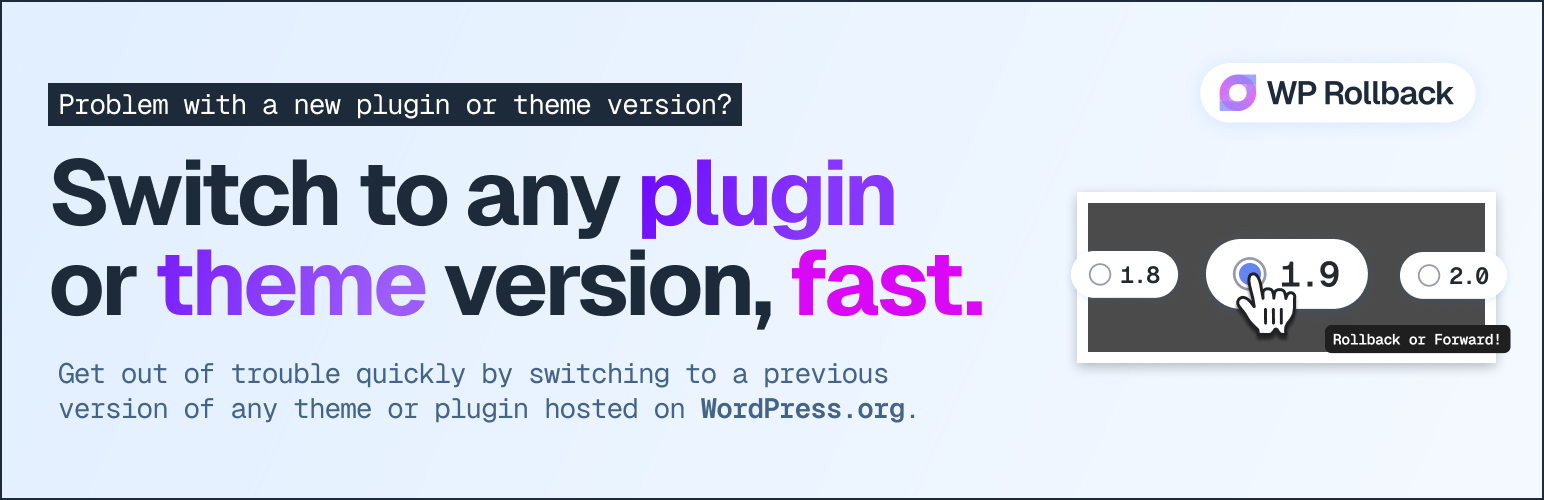
WP Rollback is the established specialist in this category, with 300,000+ active installations, version 3.1.2 and a 98% WordPress.org rating. For plugins and themes hosted on WordPress.org, it adds a familiar version-selection flow so you can install an earlier or newer repository version without manually downloading ZIP files or using FTP.
The free plugin is strongest when the package history already exists in the official repository. WP Rollback Pro extends the model to premium plugins and themes through local version archives, Plugin Vault, activity logs and additional professional tooling. The official documentation also describes integrity checks and version preservation.
Key features
- Rollback or forward WordPress.org plugins and themes
- Version-selection interface inside wp-admin
- Repository package installation without manual FTP
- Pro support for premium plugin/theme archives
- Activity logging and rollback notes in Pro
- Multisite and developer tooling
Pros
- Large install base and long track record
- Very clear single-purpose workflow
- Useful free version for WordPress.org packages
Cons
- Premium-package rollback requires Pro or your own archived package
- A rollback cannot undo every database/schema change made by an update
Pricing: The WordPress.org version is free; WP Rollback Pro is sold separately by the developer. Best for: routine plugin/theme rollback when a repository update causes a regression.
2. Core Rollback

Core Rollback handles a different layer: WordPress core itself. Version 1.4.3 has 20,000+ active installations and is tested through WordPress 7.1.1. The plugin uses the WordPress Core Update API and deliberately offers the latest release plus older releases still marked secure by WordPress.org’s stable-check service.
The developer warns clearly that downgrading core can leave a site unusable or expose plugin/theme compatibility issues. That warning is important. Core rollback should be treated as a controlled recovery or testing action, not a way to permanently avoid security updates.
Key features
- Rollback WordPress core using native update methods
- Only exposes latest or older releases marked secure
- Uses current site locale
- Simple Tools/Settings workflow
- Compatible with multisite administration
Pros
- Purpose-built for core rather than mixing several update jobs
- Restricts options using WordPress.org security status
- No paid upgrade required
Cons
- Core downgrades carry higher compatibility risk than ordinary plugin rollback
- Does not roll back plugins or themes
Pricing: Free. Best for: administrators who specifically need to move WordPress core to another currently supported secure release.
3. PlugVersions
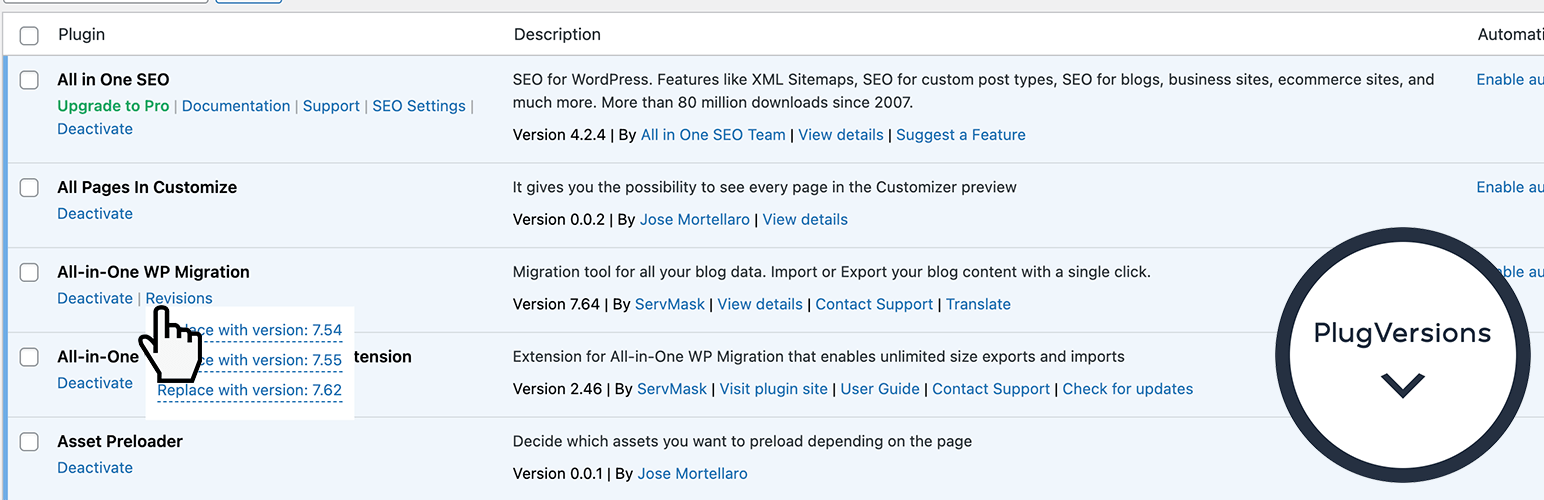
PlugVersions takes an archive-first approach. Instead of depending on a public repository’s older packages, it retains copies when you update a plugin. Version 0.2.1 currently has 1,000+ active installations. The free version stores up to three previous versions per plugin.
That makes it particularly interesting for premium and custom plugins. Those packages often do not have public version archives on WordPress.org, so keeping your own copies can be more reliable than trying to locate the exact previous ZIP during an outage.
Key features
- Retains plugin copies during updates
- Works with WordPress.org, premium and custom plugins
- Up to three previous versions in the free version
- One-click restore from the Plugins screen
- No complex settings required
Pros
- Solves a real limitation of repository-only rollback
- Useful for custom agency plugins
- Simple revision-style mental model
Cons
- Cannot restore a version that was never archived
- Smaller install base and younger project than WP Rollback
Pricing: Free version available. Best for: sites using premium or custom plugins whose old packages may be hard to retrieve later.
4. Version Locker
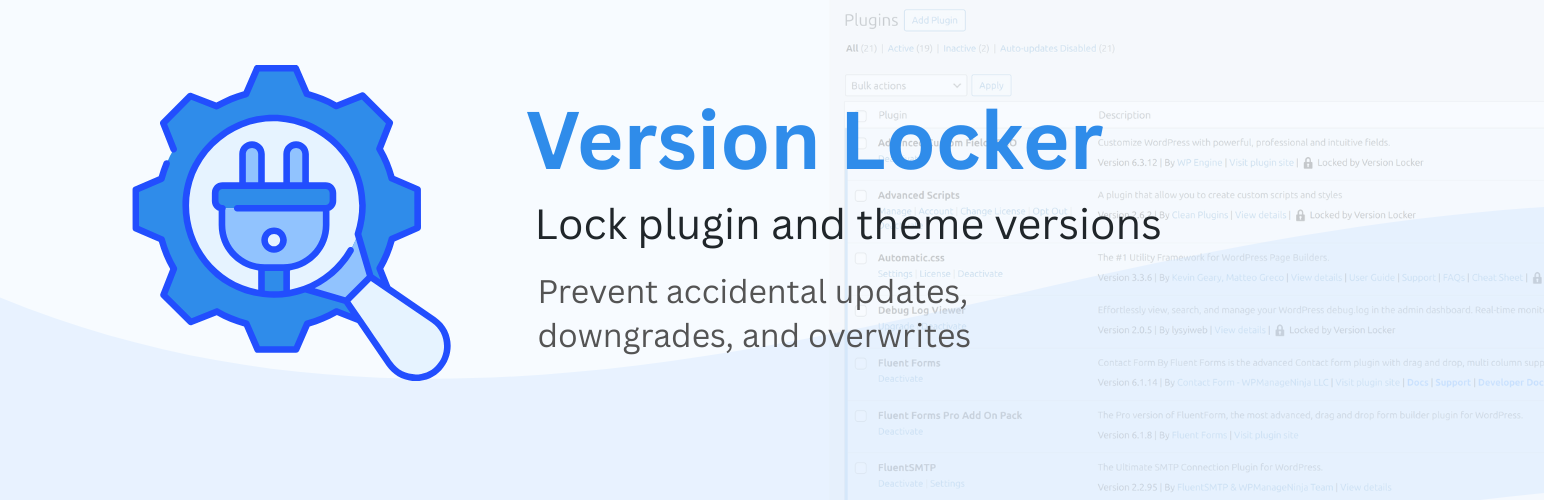
Version Locker is more of an update-control tool than a pure rollback utility. Version 1.3.1 is tested through WordPress 7.1.1. It can disable updates for individual plugins, all plugins, themes or core while still showing which update is being held back.
It also supports core downgrade and lets administrators record why something is pinned and optionally set a date for the lock to release. That can be useful when a known compatibility problem requires a temporary pause rather than a permanent update block.
Key features
- Disable automatic updates by component
- Hold plugin, theme or core versions
- Keep pending-update visibility while locked
- Notes explaining why a version is pinned
- Optional release date for a lock
- WordPress core downgrade workflow
Pros
- Good for temporary update holds
- More transparent than simply hiding update notices
- Useful during compatibility investigations
Cons
- Very small active install base
- Holding updates too long can create security risk
- Not a substitute for package archives or backups
Pricing: Free. Best for: administrators who need temporary version pinning while waiting for compatibility fixes.
5. RIS Version Switcher
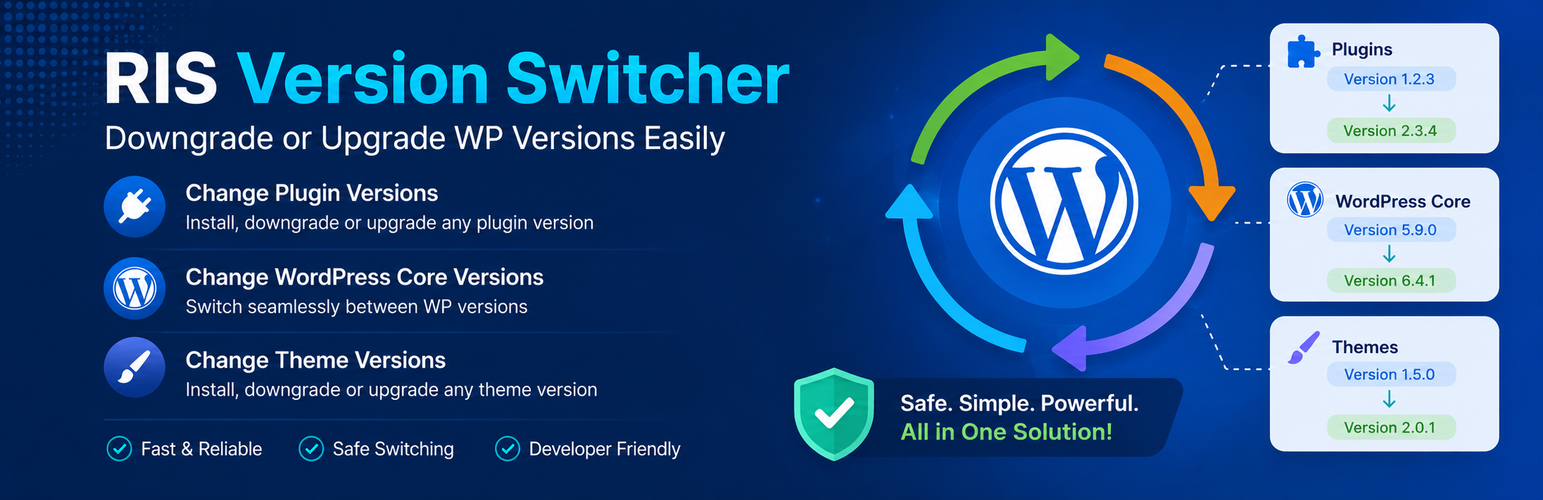
RIS Version Switcher version 1.2 can switch WordPress core, plugins and themes to specific versions and is designed mainly around compatibility testing and troubleshooting. It includes warnings around active themes and critical components plus a progress interface during version changes.
Its scope is broad, but the current WordPress.org install base is only around 100 sites. That does not make the plugin automatically unsafe, but it is a reason to be conservative: test it on staging and keep a full backup before using it on an important production site.
Key features
- Core version switching
- Plugin rollback to WordPress.org versions
- Theme rollback
- One-click version selection
- Built-in warnings and progress display
Pros
- One interface covers core, plugins and themes
- Useful for development and compatibility testing
- Simple version-switch concept
Cons
- Very small active install base
- Broad version switching increases the need for disciplined backups and staging
Pricing: Free. Best for: development and staging environments where several WordPress components need version testing.
Rollback Is Not the Same as Restore
A rollback replaces code with another version. A backup restore can recover code, database content, uploads and configuration from an earlier point in time. If an update ran a database migration, deleting or transforming data, simply installing an older plugin version may not reverse that database change.
For important sites, the safer sequence is: make a backup, test updates on WordPress staging, update production, and use rollback only when you need a fast code-level recovery while diagnosing the issue.
Final Take
WP Rollback is the clearest starting point for ordinary WordPress.org plugin and theme regressions. Core Rollback should be reserved for core-specific cases. PlugVersions is particularly useful when premium or custom packages matter because it preserves copies you may not be able to download later. Update-locking tools can buy time, but do not let a temporary compatibility hold turn into months of missed security updates.
WordPress Rollback FAQs
Is it safe to roll back a WordPress plugin?
It can be a reasonable recovery step when a specific update breaks the site, but make a backup first. Database changes introduced by the newer version may not always be reversible by replacing plugin files.
Can I roll back a premium WordPress plugin?
Yes, but you need access to the older premium package. Tools such as PlugVersions archive updated plugins, while WP Rollback Pro provides additional premium-package rollback features.
Should I keep an old plugin version permanently?
Usually no. Rollback is best used as a temporary recovery measure while you identify the issue, contact the developer, or wait for a fixed release. Old versions may contain known vulnerabilities.
Can I downgrade WordPress core?
Yes, tools such as Core Rollback can do it, but core downgrades carry meaningful compatibility risk. Use a current backup and prefer secure releases supported by WordPress.org.
What should I do before rolling back?
Create a current backup, record the version you are leaving and the version you plan to install, check whether the update changed the database, and use staging when the site is business-critical.

