



A glossary should reduce friction, not create more of it. If readers have to leave an article, search a knowledge base and then find their way back just to understand one acronym, technical content becomes exhausting. A good WordPress glossary keeps the explanation close to the unfamiliar term while also creating a browsable home for definitions.
I focused on plugins for terms, tooltips, definitions and A–Z indexes. This is intentionally different from a full knowledge-base plugin, which is designed for support articles and documentation rather than reusable term definitions.
TL;DR
CM Tooltip Glossary is the strongest option for automatic term linking and a mature tooltip/index system. Glossary by Codeat is a well-maintained freemium alternative with automatic linking and customizable tooltips. Heroic Glossary is the easiest choice when you want to build glossaries visually with Gutenberg blocks rather than auto-inject definitions across every article. Glossary Tooltip is a smaller but very actively developed option with live search, aliases and granular parsing controls.
Quick Comparison
| Plugin | Best for | Pricing model |
|---|---|---|
| CM Tooltip Glossary | Large sites that want automatic term linking and tooltip controls | Free + premium editions |
| Glossary by Codeat | SEO/UX-focused automatic glossary linking | Free + Pro |
| Heroic Glossary | Block-editor users building curated glossary pages | Free |
| Glossary Tooltip | Modern searchable glossary with detailed parsing controls | Free + Pro from $39/year when checked |
How I Chose These WordPress Glossary Plugins
I looked for plugins that actually manage reusable definitions and help readers discover them. Automatic term detection, tooltip behavior, A–Z navigation, search, aliases, exclusions and control over where parsing happens all mattered. I also rechecked maintenance and removed the older Encyclopedia recommendation from the main four because its current compatibility signal is weaker than actively maintained glossary-specific alternatives.
1. CM Tooltip Glossary — Best overall for automatic term linking
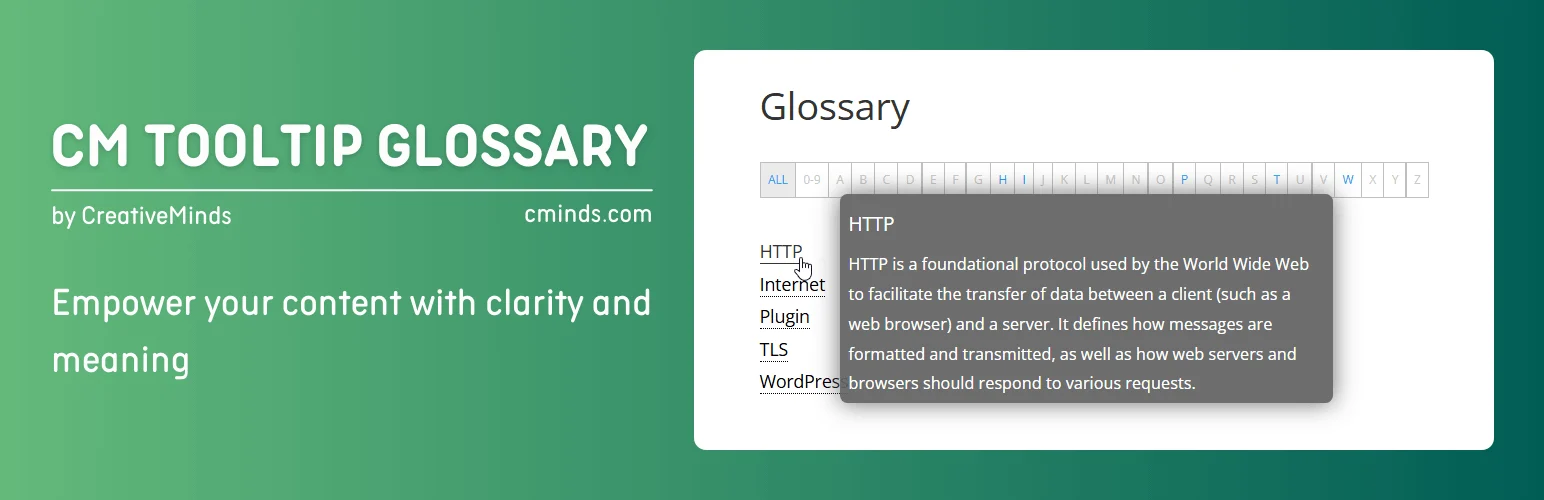
CM Tooltip Glossary is the strongest fit when you want definitions to appear throughout an existing content library. You create glossary terms and the plugin can identify matching words in posts, connect them to definition pages and show the explanation in a tooltip. That reduces the manual work of adding links every time a technical term appears.
Its maturity is a major advantage. WordPress.org currently shows 7,000+ active installations and recent compatibility testing. The premium editions extend the core with more control over parsing, templates, imports/exports and other professional features.
Key features
- Automatic detection and linking of glossary terms
- Tooltip definitions inside content
- Dedicated term pages
- Glossary index and navigation
- Controls for where terms are parsed
- Custom post type support depending on configuration
- Premium import/export and advanced display options
Pros
- Large established install base for this niche
- Good for sites with hundreds of existing articles
- Automatic linking can strengthen contextual navigation between content and definitions
Cons
- Automatic parsing needs careful exclusions around headings, code, links or sensitive text
- Advanced styling and administration features are spread across premium editions
Pricing
CM Tooltip Glossary has a free WordPress.org version and commercial editions/add-ons from CreativeMinds. Pricing varies by package, so choose based on the tooltip, import/export and integration features you actually need.
2. Glossary by Codeat — Best freemium alternative for SEO and UX
Glossary by Codeat combines automatic linking with a more modern freemium workflow. It creates glossary terms, links matching words from posts and pages to their definitions, and can show styled tooltips so readers do not have to leave the article.
The maintenance signal is strong: WordPress.org currently lists version 2.3.17, an update from the past week, 2,000+ active installations and WordPress 7.1 compatibility. That makes it a safer current recommendation than older glossary plugins that still exist but have not kept pace with recent WordPress versions.
Key features
- Automatic glossary term linking
- Customizable tooltips
- Glossary or dictionary section for definitions
- Mobile-oriented tooltip settings
- Term and parsing controls
- Free and Pro editions
- Current WordPress 7.1 compatibility
Pros
- Active development and good WordPress.org adoption
- Strong balance between automatic linking and front-end usability
- Freemium model lets you test the workflow first
Cons
- Automatic term insertion can be too aggressive until exclusions are tuned
- Some advanced options require Pro
Pricing
Glossary by Codeat has a free core and a Pro edition. The WordPress.org listing confirms commercial upgrades are available; check the current Codeat pricing page for site limits and renewal terms.
3. Heroic Glossary — Best Gutenberg glossary builder

Heroic Glossary takes a different approach. Rather than making automatic tooltip injection the center of the product, it gives block-editor users a visual way to build a polished glossary, dictionary or lexicon with search and alphabetical navigation.
That makes it a better fit for a curated “Glossary” page where presentation matters and editors want direct control over entries. WordPress.org lists 3,000+ active installations. Its latest release in January 2026 fixed modern script issues and updated the block implementation used by recent WordPress versions.
Key features
- Native Gutenberg block workflow
- Drag-and-drop glossary building
- Search within a glossary
- A–Z alphabetical navigation
- Multiple glossary layouts/templates
- Reusable glossary blocks
- Alphabetical sorting of terms
Pros
- Very approachable for Gutenberg editors
- Good front-end browsing experience without complex auto-linking rules
- Useful when you want several curated glossaries on one site
Cons
- Not the first choice if the main requirement is automatic tooltip injection throughout thousands of posts
- Current listing is tested to WordPress 6.9 rather than 7.1
Pricing
Heroic Glossary is free on WordPress.org. HeroThemes sells other knowledge-base products, but the glossary plugin itself can be used without buying a knowledge-base suite.
4. Glossary Tooltip — Best newer option for parsing controls and live search
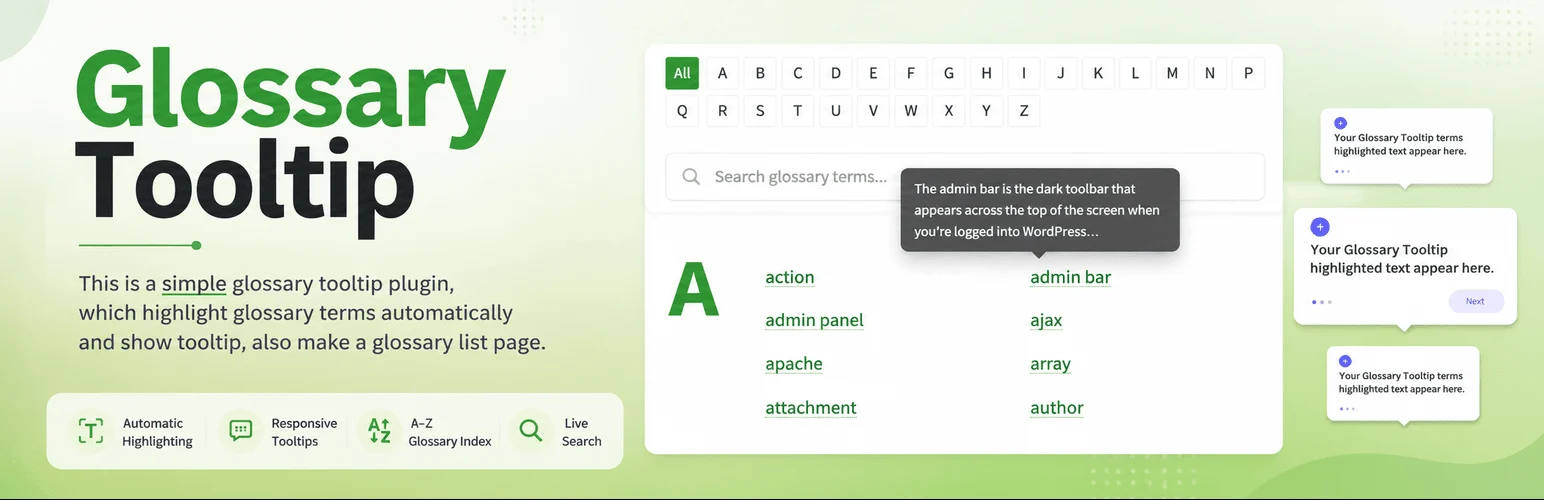
Glossary Tooltip is a smaller plugin, but it is moving quickly. It automatically detects terms, converts them into links, displays responsive tooltips and creates a searchable A–Z index. Recent releases added aliases and synonyms, import/export tools, migration features, performance controls and more detailed parsing settings.
The current WordPress.org listing shows only 100+ active installations, so I would not rank it above CM Tooltip Glossary on track record. However, it was updated only days ago and is tested through WordPress 7.1. For a new project, that combination of modern controls and active development makes it worth testing.
Key features
- Automatic term highlighting and links
- Responsive definition tooltips
- Searchable A–Z glossary index with live search
- Synonyms and aliases
- Per-term visibility controls
- Import/export and migration tools
- Parsing, performance and asset-loading settings
Pros
- Very current maintenance
- Strong controls for a lightweight glossary plugin
- Live search and aliases are useful on terminology-heavy sites
Cons
- Much smaller installed base than the top alternatives
- Newer feature set has less long-term field history
Pricing
The free version covers automatic highlighting, tooltips and the glossary index. When checked, Pro started at $39/year for one site, with higher tiers for 3, 5 and 10 sites.
How to Choose a WordPress Glossary Plugin
Decide whether the glossary should be automatic or editor-curated. Automatic parsers are valuable on large content sites because a definition can appear wherever the term is used. But they also need exclusion rules so acronyms do not become distracting links in headings, buttons, code samples or every repeated sentence.
For a smaller glossary, a block-based page may be cleaner. Heroic Glossary lets an editor shape the glossary experience intentionally without running a parser across every post. That is often enough for a SaaS site with 50 product terms or an educational site with a fixed vocabulary.
Also think about URLs. If glossary terms have their own indexable pages, make sure each definition contains enough unique value to deserve a search result. Very short one-sentence definitions can create large numbers of thin pages, so use noindex or a consolidated glossary page where appropriate.
If your definitions are turning into full troubleshooting or how-to articles, you may have outgrown a glossary. In that case, compare our WordPress knowledge base plugins instead of forcing long documentation into tooltip-sized entries.
Conclusion
CM Tooltip Glossary is the safest overall pick for a mature automatic glossary system. Glossary by Codeat is a strong actively maintained alternative, Heroic Glossary is best for Gutenberg-first curated pages, and Glossary Tooltip is the newer option I would test when aliases, live search and parsing controls matter.
The best glossary makes difficult content easier without turning every paragraph into a field of underlined links. Start with the reader experience, then choose how much automation you really need.
Frequently Asked Questions
What is a WordPress glossary plugin?
It lets you create reusable terms and definitions, usually with a glossary index, dedicated term pages, automatic links, tooltips or a combination of those features.
Can a glossary plugin help SEO?
It can improve internal linking and topical clarity, but it is not automatically an SEO win. Avoid creating hundreds of thin definition pages and keep automatic links useful rather than repetitive.
Should glossary definitions open in tooltips or separate pages?
Use tooltips for quick context and separate pages when a term deserves a fuller explanation, examples or related resources. Many sites use both.
Can glossary plugins automatically link terms in old posts?
Yes. CM Tooltip Glossary, Glossary by Codeat and Glossary Tooltip can detect configured terms in existing content. Test parsing rules first so links do not appear in unwanted locations.
Is a glossary the same as a knowledge base?
No. A glossary defines terms, usually in short entries. A knowledge base organizes longer support, documentation and how-to articles. They can complement each other, but their content structure and search intent are different.

