



A floor plan, product diagram, anatomy image, venue map, or infographic can carry far more information than a row of text links. The problem is making each area clickable without hard-coding coordinates that break on mobile. WordPress image hotspot plugins solve that by storing responsive positions or shapes and attaching tooltips, popups, links, or media to them.
TL;DR
Draw Attention is the best overall option for polished interactive image maps and custom shapes. Image Hotspot by DevVN is the most established free-first hotspot plugin in the directory. Image Hotspot – Map Image Annotation balances responsive markers, media and builder compatibility. Image Map Pro is the premium choice when you need layers, SVG importing, APIs and more complex interactive diagrams.
Quick Comparison
| Plugin | Best for | Pricing |
|---|---|---|
| Draw Attention | Interactive floor plans, diagrams and shaped clickable regions | Free + Pro |
| Image Hotspot by DevVN | Simple free hotspot pins with a long install history | Free |
| Image Hotspot – Map Image Annotation | Responsive hotspots with media-rich tooltip content | Free + Pro |
| Image Map Pro | Complex commercial image maps, layers and SVG-based interaction | $49 one-time WordPress license |
How I Chose These WordPress image hotspot plugins
I looked for plugins built around actual image coordinates, shapes or markers rather than generic popups. Responsive behavior, tooltip content, visual editing, maintenance history and the ability to handle diagrams or floor plans all mattered. I excluded 360-degree panorama plugins because that is a different interaction model.
1. Draw Attention — Best for Interactive floor plans, diagrams and shaped clickable regions
Draw Attention — Draw Attention stands out because hotspots do not have to be simple dots. You can draw polygons, rectangles and circles around real regions in an image, which is much better for floor plans, maps and technical diagrams.
Best For
Interactive floor plans, diagrams and shaped clickable regions.
Key Features
- Polygon, rectangle and circle hotspots
- Zoom and pan while editing
- Clickable highlighted regions
- Responsive interactive images
- Pro multiple image maps
- Pro tooltip/lightbox layouts
- Pro multiple highlight styles
Pros
Mature, highly rated and much more precise than pin-only hotspot plugins.
Cons
The free version is intentionally limited to a simpler project scope; multiple maps and richer layouts require Pro.
Pricing
Draw Attention has a free version. Pro starts at $99 per year for 1 site, while the unlimited-site plan is $199 per year.
2. Image Hotspot by DevVN — Best for Simple free hotspot pins with a long install history
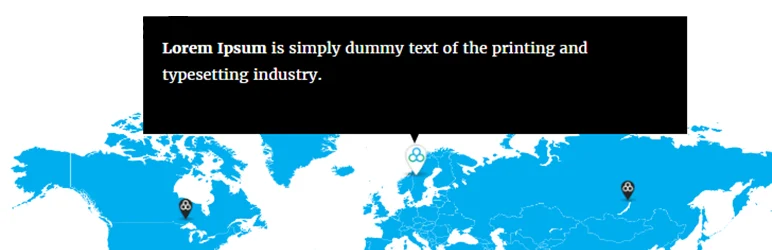
Image Hotspot by DevVN — Image Hotspot by DevVN has 20,000+ active installs and focuses on the classic pin-and-tooltip workflow. It is a sensible choice when you do not need complex vector regions or a full interactive-map builder.
Best For
Simple free hotspot pins with a long install history.
Key Features
- Create image hotspots from WordPress admin
- Drag/reposition hotspot points
- Tooltip content
- Shortcode embedding
- Custom hotspot icons
- Responsive positioning in common layouts
Pros
Free, lightweight and established enough for simple product diagrams or annotated images.
Cons
Its interface and feature set are more basic than Draw Attention or Image Map Pro, and the plugin has had security fixes in its recent history, so keep it updated.
Pricing
Image Hotspot by DevVN is free on WordPress.org. There is no separate Pro plan.
3. Image Hotspot – Map Image Annotation — Best for Responsive hotspots with media-rich tooltip content
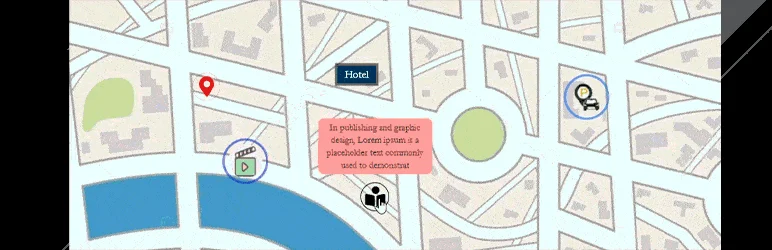
Image Hotspot – Map Image Annotation — This plugin is useful when hotspot content needs more than a sentence. It supports custom icons or text markers, embedded media, multiple templates and broad builder/theme compatibility.
Best For
Responsive hotspots with media-rich tooltip content.
Key Features
- Responsive hotspot positions
- Custom icons or text markers
- Image, video and title/description content
- Built-in templates
- Custom templates
- Elementor, Gutenberg, WPBakery and Visual Composer support
- Zoom controls and tooltip positioning
Pros
Good mix of content flexibility and easy embedding, with current WordPress 7.1 compatibility.
Cons
Some of the richer design options live in Pro, and the amount of styling can be excessive for very simple diagrams.
Pricing
Image Hotspot – Map Image Annotation has a free version. Paid lifetime licenses start at $27.99 for 1 site, $38.99 for 2 sites, $48.99 for 5 sites, and $68.99 for 100 sites.
4. Image Map Pro — Best for Complex commercial image maps, layers and SVG-based interaction
Image Map Pro — Image Map Pro is the premium power-user option. It supports layered maps, SVG imports, zooming, a side menu and JavaScript/HTML APIs, which makes it suitable for property plans, seating maps, product configurators and complex diagrams.
Best For
Complex commercial image maps, layers and SVG-based interaction.
Key Features
- Visual interactive image builder
- Multiple layers/floors
- Zooming and fullscreen mode
- Import SVG files
- Preserve SVG object hierarchy
- Group interactive objects
- JavaScript and HTML API
Pros
The deepest feature set in this group and a one-time license with lifetime updates.
Cons
Overkill for a basic image with three or four tooltips, and it is commercial-only.
Pricing
Image Map Pro is a paid CodeCanyon plugin. The regular license is currently $49 and includes future updates plus 6 months of support; the extended license is $189.
How to Choose the Right WordPress image hotspot plugins
Use pins when the user only needs to identify points; use drawn shapes when the clickable area itself matters. Draw Attention is usually the best balance for diagrams. Image Hotspot by DevVN is enough for simple pin maps. Image Map Pro is justified when you need multiple layers, SVG object control or custom application logic. Test every hotspot on a phone: tiny targets and tooltip overflow are the most common real-world failures.
For ordinary image file management, see our media library plugins. If your interactive image belongs inside a more complex landing page, compare the best WordPress page builders.
Choose the Interaction Model Before the Plugin
A hotspot interface can use point markers, larger shapes, or both. Pins work well when the image contains obvious objects such as parts of a machine. Shape-based maps are better when users need to understand an area, room or region. For a floor plan, clicking anywhere inside a room is more natural than hitting a tiny dot in the center. This is one reason Draw Attention and Image Map Pro are stronger for maps than simple marker plugins.
Tooltips also need a content rule. If each hotspot contains a title and one sentence, a hover/click tooltip is fine. If you need video, a gallery, product details or a large call to action, use a plugin with modal or richer content support. Trying to fit too much content into a small tooltip usually creates a poor mobile experience.
Mobile and Accessibility Testing
Desktop hover behavior does not translate directly to touchscreens. Test whether a first tap opens the hotspot and a second tap follows a link, and make sure visitors can close overlays without hunting for a tiny icon. Keyboard users should be able to focus interactive points, and important information should not exist only inside an image with no textual alternative.
Common Image Map Use Cases
- Real-estate floor plans with room details.
- Product diagrams that identify components or replacement parts.
- Museum, travel or venue maps with location information.
- Anatomy and education graphics with explanatory labels.
- Shoppable lifestyle images linking to products.
- Infographics where sections reveal deeper context.
Who Should Avoid Hotspots?
Hotspots are not automatically better than normal content. If every visitor must read the information, hiding it behind markers adds friction. They work best when the base image is meaningful on its own and the annotations are optional detail. A product-exploded view, venue map or floor plan fits this pattern; a pricing comparison usually does not.
Search engines and assistive technologies also need normal text context. Do not rely on a hotspot image as the only place where a product feature, room name, safety instruction or address appears. Add a nearby text summary or accessible list that mirrors critical information. This also makes the page more useful when JavaScript fails.
For analytics, decide whether hotspot clicks actually matter before adding tracking to every marker. On a shoppable image, click data can reveal which products attract attention. On an educational diagram, completion or downstream navigation may be more meaningful. Keep the interaction purposeful instead of measuring every hover.
Conclusion
The best WordPress image hotspot plugins depend on the workflow you are trying to simplify, not the longest feature list. Use the comparison above to narrow the field, verify the current vendor documentation, and test the most important workflow on staging before making it part of a production site.
Frequently Asked Questions
What is the difference between an image hotspot and an image map?
A hotspot is usually a point marker. An image map can also use larger clickable shapes or regions. Many modern plugins support both ideas.
Are WordPress image hotspots responsive?
Good plugins store coordinates as percentages or otherwise scale positions with the image. Always test mobile because tooltip size and touch targets can still cause problems.
Can I use hotspots for WooCommerce products?
Yes, but make sure the plugin supports your product-page layout and that the interaction does not replace essential product information needed for accessibility.
Are image hotspots accessible?
They can be, but accessibility varies. Use keyboard-focusable controls, readable labels, sufficient target sizes and a non-visual alternative for critical information.
Practical Setup Checklist
- Back up the site before installing a plugin that changes content or media behavior.
- Test the core workflow on staging with real content, not only demo data.
- Check mobile behavior and keyboard accessibility on the public front end.
- Review plugin update history, support activity and export options before committing.
- Document any paid add-ons or external services the workflow depends on.

