



Maintenance mode is one of those WordPress tasks that looks trivial until search engines, logged-in users, caching, bypass links, and client previews get involved. A plugin should do more than replace the homepage with a pretty screen. It should let the right people in, keep public visitors out, and avoid creating unnecessary SEO problems during planned downtime.
I prefer tools that make the maintenance state obvious and reversible. Before enabling one, I check who can bypass it, whether specific URLs can stay public, what status code or robots behavior is used, and whether the plugin conflicts with caching or a CDN.
These four plugins cover the strongest distinct use cases in 2026. If you are making risky site changes, also see our WordPress staging plugins and WordPress backup plugins. Maintenance mode should never be your only rollback plan.
TL;DR
- SeedProd: best overall when you want polished maintenance and coming-soon pages with a visual builder, access controls, and lead capture.
- LightStart: best free option for flexible maintenance rules, role-based access, exclusions, redirects, templates, and subscriber collection.
- Maintenance by WebFactory: best for a fast, simple maintenance page with minimal setup and a large active install base.
- Password Protected: best when the real need is temporarily locking a site or selected content behind a password rather than designing a public maintenance page.
Quick Comparison
| Plugin | Best for | Free version | Starting paid price |
|---|---|---|---|
| SeedProd | Designed maintenance and coming-soon pages | Yes | Currently from $39.50/year |
| LightStart | Flexible free maintenance controls | Yes | Free |
| Maintenance | Simple maintenance screen | Yes | Free core plugin |
| Password Protected | Temporary site access lock | Yes | Pro available |
How I Chose These Plugins
I compared maintenance and coming-soon controls, logged-in access, URL exclusions, design flexibility, subscriber options, SEO and robots controls, current maintenance status, and how easily a site owner can turn the mode off without leaving visitors stuck on the wrong page.
1. SeedProd – Best Overall Maintenance Mode Builder

SeedProd is much larger than a maintenance plugin now, but its coming-soon and maintenance features remain one of the easiest ways to build a polished temporary page. The visual builder gives you templates, blocks, subscriber management, and access controls without needing a separate page builder for the downtime screen.
I would choose SeedProd when the temporary page is part of a launch or campaign. If you need branding, email capture, social proof, a countdown, or a client-ready design, the extra builder features are useful rather than unnecessary.
Key features
- Coming-soon and maintenance modes
- Drag-and-drop visual page builder
- Maintenance and launch templates
- Access controls
- Subscriber management
- Email marketing integrations on higher plans
Pros: Best design flexibility in this list, strong launch-page workflow, and useful marketing features if downtime is part of a campaign.
Cons: Too much plugin if you only need a plain maintenance notice for thirty minutes.
Best for: Product launches, redesigns, agencies, and businesses that want a branded temporary page rather than a basic maintenance message.
Pricing: Free version available. SeedProd Basic is currently promoted at $39.50 per year for one site; public promotional pricing can change.
2. LightStart – Best Free Option for Flexible Maintenance Rules
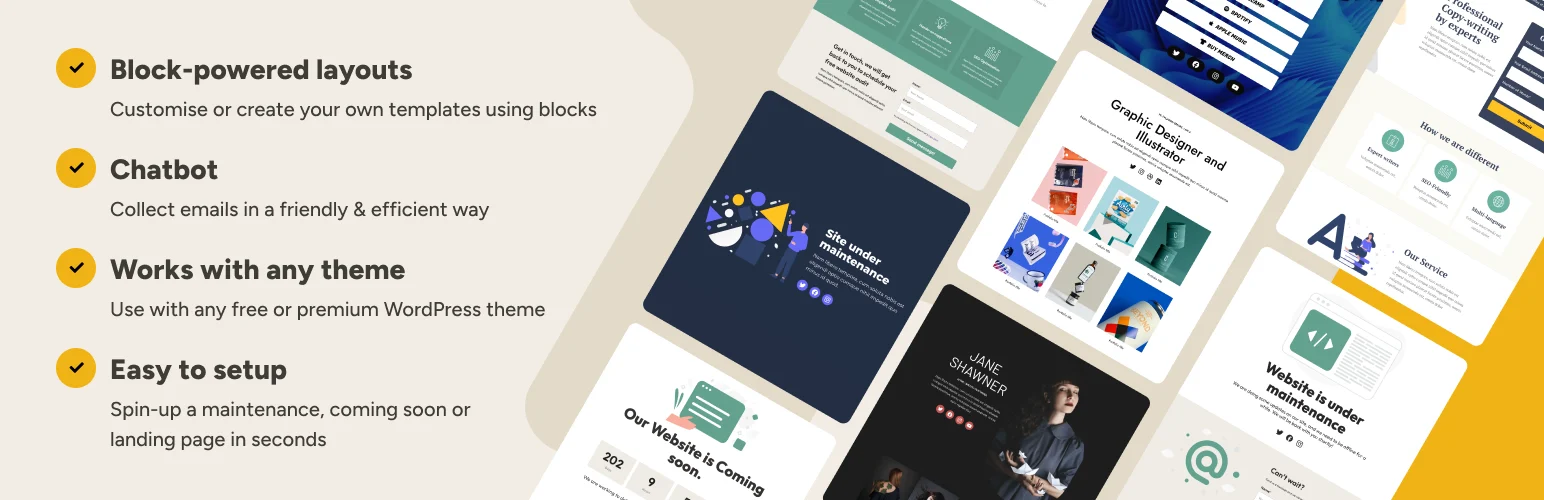
LightStart by Themeisle gives you much more control than its free price suggests. You can choose which backend and frontend roles bypass maintenance mode, exclude specific paths or IP addresses, set redirects, control robots metadata, collect subscribers, and use built-in templates.
I like it for real maintenance work because the access rules are practical. Developers can stay logged in and work normally while public visitors see the temporary page, and selected URLs can remain accessible when needed.
Key features
- Maintenance and coming-soon modes
- Frontend and backend role access
- URL path and IP exclusions
- Redirect and robots controls
- Subscriber collection and export
- Templates and optional block integrations
Pros: Free, flexible, role-aware, and much better suited to real maintenance workflows than a simple splash screen.
Cons: You should explicitly set maintenance status to Deactivated and save before deactivating the plugin; Themeisle documents this to avoid leaving the homepage in maintenance mode.
Best for: Developers, site owners, and agencies that need detailed bypass and exclusion controls without paying for a landing-page builder.
Pricing: Free.
3. Maintenance by WebFactory – Best for Fast, Simple Setup
Maintenance by WebFactory is one of the most widely installed dedicated maintenance plugins. Its appeal is speed: activate a maintenance screen, add branding and content, and keep the public site unavailable while administrators continue working.
This is the type of plugin I would choose for short planned downtime where the goal is clarity rather than a marketing campaign. A simple maintenance page is often better than installing a full landing-page system just to cover a plugin update or migration window.
Key features
- Maintenance and under-construction page
- Logo, background, and text customization
- Responsive maintenance layout
- Logged-in administrator access
- Simple enable and disable workflow
- Large current WordPress.org install base
Pros: Fast to configure, purpose-built, and a good fit when maintenance mode only needs to communicate downtime clearly.
Cons: Less flexible than SeedProd or LightStart for campaigns, advanced exclusions, and complex access rules.
Best for: Short maintenance windows, migrations, and routine technical work where a simple public notice is enough.
Pricing: Free core plugin.
4. Password Protected – Best for Temporarily Locking Site Access
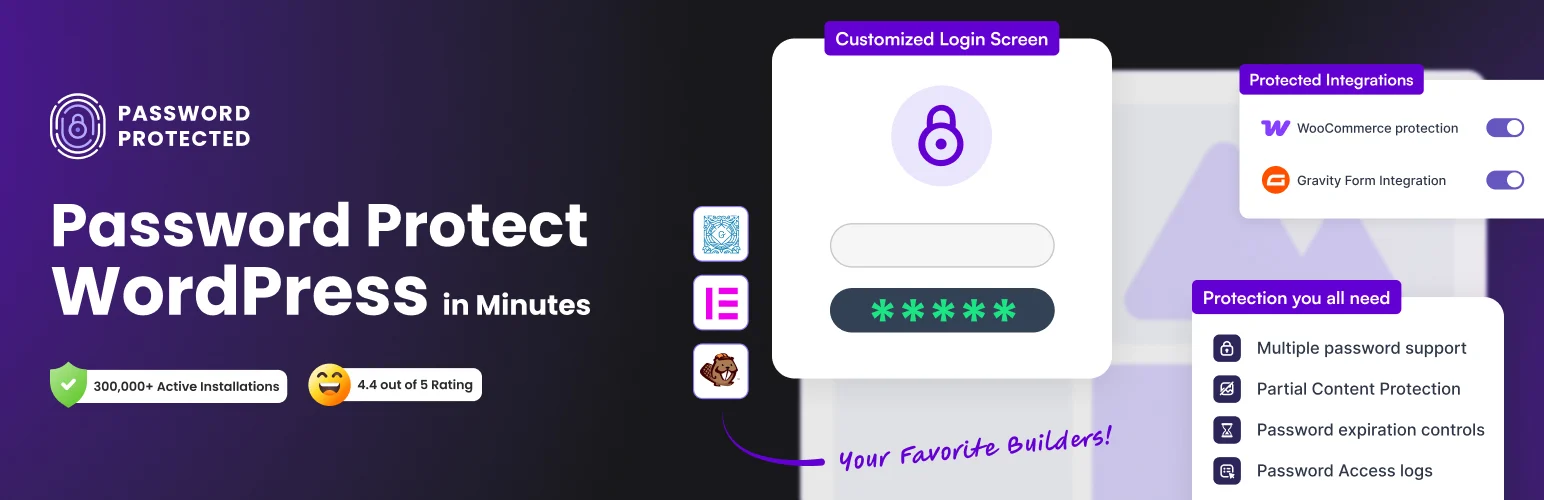
Password Protected solves a slightly different problem. Instead of designing a maintenance page, it can protect a WordPress site or selected content behind a password so approved visitors can still access it.
I use this approach for client previews, pre-launch reviews, internal sites, and temporary access restrictions. It is not a replacement for HTTP authentication or a full membership system, but it is often the cleanest option when the site should remain viewable only to people who know the password.
Key features
- Password-protect a WordPress site
- Allow authenticated users to bypass protection
- Selective protection options
- Simple temporary access workflow
- Useful for staging-like client previews
- Commercial Pro options available
Pros: Very clear use case, easy for client previews, and avoids building a public-facing maintenance campaign when private access is the real need.
Cons: It is an access-lock tool, not a full maintenance-page builder with templates, countdowns, or subscriber marketing.
Best for: Pre-launch sites, client review links, private temporary environments, and projects where selected people still need frontend access.
Pricing: Free core plugin. A commercial Pro version is available for additional protection options; check the current vendor pricing.
Which One Should You Choose?
Use SeedProd when the temporary page is part of a launch or brand experience. Use LightStart when you need the most practical free access and exclusion rules. Maintenance is the simpler choice for short technical downtime. Password Protected is better when the goal is private preview access instead of a public maintenance message.
For longer planned downtime, make sure search engines receive an appropriate temporary response and avoid leaving the site in maintenance mode longer than necessary. Also clear page cache, server cache, and CDN cache after disabling maintenance mode so visitors do not keep seeing a stale temporary page.
Conclusion
Maintenance mode should reduce risk during a change, not create another problem to debug. SeedProd is the best fit for polished launch-style pages, LightStart gives the strongest free operational controls, Maintenance keeps short downtime simple, and Password Protected is the better choice for private previews. Whichever tool you use, keep a working backup, test bypass access, and verify the public site again after caches are cleared.
Frequently Asked Questions
What is the best WordPress maintenance mode plugin?
SeedProd is the best overall option when design and lead capture matter. LightStart is the strongest free choice for detailed maintenance access rules and exclusions.
Is maintenance mode bad for SEO?
Short, properly configured maintenance periods are normal. Problems arise when a maintenance page stays live too long, blocks crawling incorrectly, or returns the wrong response for an extended period.
Can administrators still access WordPress during maintenance mode?
Yes. Most maintenance plugins let logged-in administrators bypass the public maintenance screen so they can continue working.
Should I use maintenance mode or a staging site?
Use staging for development and testing whenever possible. Maintenance mode is better for the short period when production must be temporarily unavailable during deployment, migration, or a live change.
Why do visitors still see maintenance mode after I disable it?
Cached pages are a common reason. Clear your WordPress cache, server cache, CDN cache, and browser cache, then verify the maintenance plugin itself is fully disabled or set to inactive.

