



WordPress does not treat SVG like an ordinary image because SVG files can contain executable markup. Simply enabling the MIME type can create a security problem if uploads are not sanitized. The best WordPress SVG plugins therefore do more than “allow SVG”: they sanitize uploads, provide safe previews, or handle a specialized SVG workflow such as animation.
TL;DR
Safe SVG is the safest default for most sites because sanitization is the core feature and it has more than one million active installs. SVG Support is a mature alternative when you also want inline SVG handling. Enable SVG, WebP, and ICO Upload is a broader file-type utility that now includes SVG cleaning. SVGator is a different kind of tool for teams publishing interactive SVG animations created in SVGator.
Quick Comparison
| Plugin | Best for | Pricing |
|---|---|---|
| Safe SVG | Secure SVG uploads and media-library previews | Free |
| SVG Support | SVG uploads plus inline SVG workflows | Free |
| Enable SVG, WebP, and ICO Upload | Sites that want one utility for several blocked image formats | Free |
| SVGator | Publishing animated and interactive SVG projects from SVGator | Free plugin; SVGator account plan applies |
How I Chose These WordPress SVG plugins
Security came first. I favored plugins that are actively maintained and explicit about sanitization or their upload path. I also separated normal static SVG upload from animated SVG publishing because JavaScript-enabled SVGs need a different trust model than a logo file.
1. Safe SVG — Best for Secure SVG uploads and media-library previews

Safe SVG — Safe SVG by 10up is the default recommendation because it treats SVG as a security problem first. It sanitizes files before allowing them through supported upload paths and gives WordPress proper media-library previews.
Best For
Secure SVG uploads and media-library previews.
Key Features
- SVG upload support
- SVG/XML sanitization
- Media Library previews
- Optional SVGO optimization
- Actively maintained by 10up/community contributors
- Tested with WordPress 7.1
- Careful handling of supported upload paths
Pros
Huge adoption, active maintenance, and a security-first design make it the easiest recommendation for normal SVG files.
Cons
Its deliberate upload restrictions can be less convenient when another plugin uses a non-standard sideload path.
Pricing
Safe SVG is free on WordPress.org. There is no separate Pro plan.
2. SVG Support — Best for SVG uploads plus inline SVG workflows
SVG Support — SVG Support is another established plugin with more than one million active installs. It is attractive when designers want SVG upload support and the ability to work with inline SVG behavior for styling or animation.
Best For
SVG uploads plus inline SVG workflows.
Key Features
- Enable SVG uploads
- Media-library handling
- Inline SVG support
- CSS-targetable SVG workflows
- Large established install base
- Works with standard WordPress content workflows
Pros
Mature and widely deployed, with more front-end SVG flexibility than a pure uploader.
Cons
Inline SVG adds complexity. Only enable the capabilities you need and keep upload permissions restricted.
Pricing
SVG Support is free and open source on WordPress.org. There is no separate Pro plan.
3. Enable SVG, WebP, and ICO Upload — Best for Sites that want one utility for several blocked image formats

Enable SVG, WebP, and ICO Upload — This plugin is useful when SVG is not the only format you need to enable. Recent releases added malicious-code cleaning for SVG files and multiple security fixes, making the current version more relevant than older versions of the plugin.
Best For
Sites that want one utility for several blocked image formats.
Key Features
- Enable SVG uploads
- Enable WebP and ICO where needed
- Media Library previews for new uploads
- Per-format enable/disable settings
- SVG malicious-code cleaning added in current branch
- Recent security-fix releases
Pros
Convenient when one small plugin can replace separate MIME-type helpers.
Cons
Its changelog includes past security fixes, so staying current is especially important and Safe SVG remains the more conservative choice for SVG-only needs.
Pricing
Enable SVG, WebP, and ICO Upload is free on WordPress.org. There is no separate Pro plan.
4. SVGator — Best for Publishing animated and interactive SVG projects from SVGator
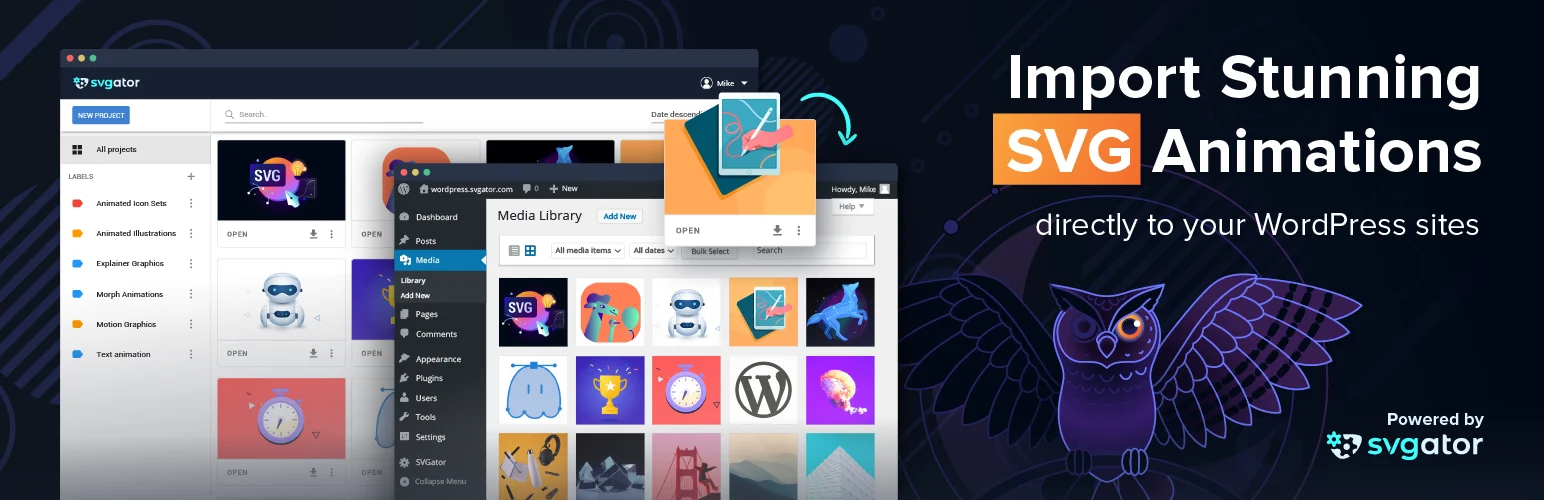
SVGator — SVGator is not a generic SVG sanitizer. It connects WordPress to the SVGator service so animated SVG projects can be imported and embedded with a dedicated block. That makes it useful for motion designers, but it belongs in a different workflow from Safe SVG.
Best For
Publishing animated and interactive SVG projects from SVGator.
Key Features
- Connect WordPress to an SVGator account
- Import animation projects to Media Library
- Dedicated Gutenberg block
- Support interactive SVG animations
- Update projects through the SVGator workflow
- Works with CSS or JavaScript animation exports
Pros
The cleanest option here for teams already creating interactive SVG animation in SVGator.
Cons
It depends on an external SVGator account/service and is unnecessary for ordinary logos, icons or static illustrations.
Pricing
The SVGator WordPress plugin is free. SVGator's separate web app has its own account plans, but the WordPress plugin itself does not have a Pro license.
How to Choose the Right WordPress SVG plugins
For logos, icons and static illustrations, use Safe SVG unless you have a specific reason not to. Choose SVG Support when inline SVG is part of the design system. Use SVGator only for its animation workflow. Most importantly, do not enable unrestricted SVG uploads for untrusted user roles: sanitization and upload permissions matter more than convenience.
SVG is often chosen for performance, but it is only one part of front-end weight. See our WordPress image optimization plugins for raster images and our media library plugins for asset organization.
Why SVG Security Is Different From PNG or JPEG
An SVG is text-based XML, not just a collection of pixels. It can contain links, style rules, scripts and other markup. That is why blindly adding image/svg+xml to the allowed MIME types is not the same as enabling another harmless image extension. A malicious SVG uploaded by an untrusted account can become a cross-site scripting or content-injection path if the file is rendered without proper sanitization.
For most editorial sites, only trusted administrators or designers should upload SVG files. Even with a sanitizer, keep the plugin current because sanitization libraries evolve as new bypasses are discovered. If users upload files from the front end, test that exact upload path; some plugins sanitize normal Media Library uploads but cannot intercept every custom sideload implementation.
When Inline SVG Is Actually Useful
Inline SVG lets CSS inherit colors and lets scripts or interactions target elements inside the vector. That is useful for icons, diagrams and animations, but it also means the SVG becomes part of the page DOM. If you only need a logo or illustration, a normal image element is simpler and creates fewer styling surprises. Turn on inline behavior because the design needs it, not because the plugin offers it.
Safe SVG Workflow Checklist
- Limit SVG upload capability to trusted roles.
- Sanitize files on upload rather than trusting the source.
- Keep original design files outside WordPress in case sanitization changes the markup.
- Check Media Library previews and front-end rendering after upload.
- Use SVGO or another optimizer carefully and inspect complex illustrations after optimization.
- Do not confuse animated SVG service integrations with general SVG security plugins.
Safe SVG vs SVG Support: A Practical Choice
If your only goal is uploading logos and vector illustrations, Safe SVG is the easiest default because its purpose is clear: allow the file only when it can be sanitized through the supported path. SVG Support makes more sense when the front-end design depends on inline SVG behavior, such as changing icon colors with CSS or targeting internal SVG elements.
Do not install multiple SVG enablers at the same time unless you know exactly how their MIME filters and sanitizers interact. Two plugins trying to allow the same file type can make troubleshooting difficult and may create a path where one assumes the other has already sanitized the file. Pick one main SVG policy and document it for editors.
Animated SVG is another category entirely. SVGator is useful because it packages an authoring-and-publishing workflow, but it intentionally connects to an external service. That trade-off can be acceptable for marketing animation, while a security-conscious corporate site may prefer static sanitized SVGs and locally hosted animation assets.
Conclusion
The best WordPress SVG plugins depend on the workflow you are trying to simplify, not the longest feature list. Use the comparison above to narrow the field, verify the current vendor documentation, and test the most important workflow on staging before making it part of a production site.
Frequently Asked Questions
Why does WordPress block SVG uploads?
SVG is XML-based and can contain scripts or other unsafe markup. WordPress therefore does not allow it like a normal JPEG or PNG by default.
Is Safe SVG enough for security?
It is a strong safeguard for supported upload paths, but you should still limit upload permissions, update the plugin, and avoid accepting SVG files from untrusted users.
Can I style an SVG with CSS?
Yes when the SVG is rendered inline and structured for styling. An SVG inserted as a normal image behaves differently.
Is SVG always faster than PNG?
No. Simple vector artwork can be very small, but a complex SVG can be heavier than an optimized raster image. Choose the format based on the asset.
Practical Setup Checklist
- Back up the site before installing a plugin that changes content or media behavior.
- Test the core workflow on staging with real content, not only demo data.
- Check mobile behavior and keyboard accessibility on the public front end.
- Review plugin update history, support activity and export options before committing.
- Document any paid add-ons or external services the workflow depends on.

