


Most WordPress SEO problems do not start with a dramatic outage. They start quietly: a page becomes noindex, a canonical changes after a template update, schema disappears, a redirect begins pointing somewhere unexpected, or an old internal link starts returning a 404.
That is why SEO monitoring is different from SEO optimization. A WordPress SEO plugin helps you create titles, canonicals, schema, sitemaps, and other search settings. A monitoring tool helps you notice when those outputs, links, rankings, traffic signals, or WordPress settings change after the setup is already in place.
I would not treat every tool in this guide as a direct competitor. They monitor different layers of the same system. For a serious WordPress site, the useful question is not “which single plugin monitors SEO?” but “which SEO risks do I need to detect quickly?”
TL;DR: Best WordPress SEO Monitoring Plugins & Tools
- SEO Sentry: best for detecting changes to rendered SEO output such as noindex, canonicals, schema, redirects, robots.txt, and sitemaps.
- Site Kit by Google: best for monitoring search visibility and traffic data from Search Console and Analytics inside WordPress.
- Rank Math SEO: best when you want SEO management plus 404 monitoring, redirects, analytics, and paid rank-tracking features in one suite.
- Broken Link Checker: best for continuously finding dead links, redirects, and missing images across older content.
- WP Activity Log: best for answering “who changed this?” after another monitoring tool detects a problem.
What Should a WordPress SEO Monitoring Tool Actually Monitor?
For technical SEO, I would divide monitoring into five layers. This prevents a common mistake: installing one tool and assuming it protects every SEO signal.
| Monitoring layer | What can go wrong | Best fit in this guide |
|---|---|---|
| Rendered SEO output | Noindex appears, canonical changes, schema disappears, sitemap breaks | SEO Sentry |
| Google search performance | Clicks, impressions, CTR, position, or organic traffic decline | Site Kit by Google |
| SEO management + diagnostics | 404s, redirect issues, ranking changes, configuration problems | Rank Math SEO |
| Link health | Internal/external URLs break, images disappear, redirects accumulate | Broken Link Checker |
| Change attribution | You know something changed but not who or what caused it | WP Activity Log |
The most useful monitoring stack usually combines two or three of these layers rather than installing several tools that do the same job.
1. SEO Sentry — Best for SEO Change and Regression Monitoring
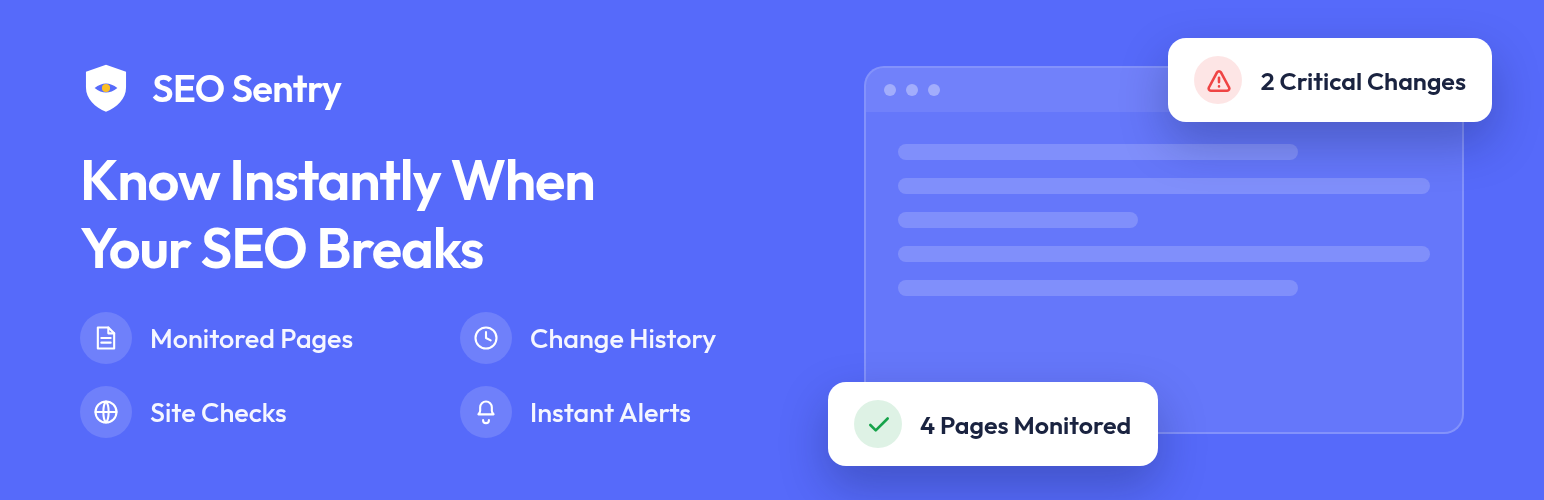
SEO Sentry is the most specialized SEO monitoring plugin in this list. It does not try to write your titles, generate schema, or replace Rank Math, Yoast, AIOSEO, or another SEO system. Its job is to record a known SEO state and tell you when that state changes.
The workflow is particularly useful around WordPress updates. A plugin, theme, or core update can change front-end output without producing an obvious visual error. SEO Sentry schedules a re-check about 90 seconds after those updates, which gives you a much shorter feedback loop than waiting for Google Search Console to reveal the consequence later.
What SEO Sentry monitors
- Robots meta directives, including unexpected
noindexornofollowchanges - SEO titles and meta descriptions
- Canonical URLs, including canonicals that disappear or move to another domain
- JSON-LD and schema types, including malformed JSON-LD
- Open Graph and X/Twitter card tags
- H1 changes and multiple/missing H1s
- Significant content-size drops
- HTTP status errors and redirect changes
- robots.txt changes, including full-site crawl blocking
- XML sitemap reachability, validity, and significant URL-count drops
- WordPress “Discourage search engines” visibility setting
- Supported AI crawler rules and crawler activity
How I would use it in a real maintenance workflow
Before a major update window, I would monitor the homepage, highest-traffic landing pages, important product or service pages, and a few representative content templates. After the update, the useful question is not just “does the page load?” but “did the SEO output stay the same?” A baseline-and-diff tool is designed for that second question.
The severity model is also practical. A changed meta description may deserve review, while a new noindex directive, broken sitemap, missing canonical, or external redirect can justify immediate attention. Grouping findings by critical, warning, and informational severity reduces the temptation to treat every change as an emergency.
Pros: Purpose-built for SEO regressions; monitors rendered output rather than only plugin settings; post-update checks; local WordPress data storage; no external monitoring account required; email digests; multisite support.
Cons: It is a monitoring layer, not an SEO optimization suite; more monitored pages and shorter schedules create more background work for WordPress; the plugin is new and has a short public track record compared with established SEO suites.
Pricing: Free in version 1.0.0. The current plugin does not require an SEO Sentry account or API key.
Best for: Agencies, publishers, SaaS sites, stores, and SEO teams where accidental technical SEO regressions after updates would be expensive.
Official source: SEO Sentry on WordPress.org.
2. Site Kit by Google — Best for Search Console and Traffic Monitoring

Site Kit by Google monitors a different layer: what Google and your users are actually doing. It connects WordPress with Search Console and can also connect Analytics, PageSpeed Insights, AdSense, Google Ads, Tag Manager, and other supported Google services.
Search Console is especially valuable because it answers performance questions that an on-site change monitor cannot: Did impressions fall? Did clicks change? Which queries are losing visibility? Did a specific landing page drop after a migration or content update?
What Site Kit gives you inside WordPress
- Search Console clicks, impressions, CTR, position, and query data
- Analytics traffic and engagement reporting
- Page-specific metrics through the WordPress toolbar and Site Kit dashboard
- PageSpeed Insights data
- Automatic Google tag/snippet setup for supported services
- Dashboard sharing and role-based access options for teams
A practical use case is post-change validation. After a redesign or migration, I would watch Search Console impressions, clicks, and page-level visibility while separately checking the site itself for technical regressions. The important distinction is timing: Site Kit shows performance data after Google has processed and reported it, while a WordPress-side monitor can detect some technical changes immediately.
Pros: Official Google plugin; free; no need to manually wire every Google snippet; useful site-wide and page-level dashboards; combines search, traffic, speed, and monetization data.
Cons: It reports Google data rather than monitoring every technical SEO tag; it requires Google account permissions and site verification; advanced analysis still often requires opening Search Console or Analytics directly.
Pricing: Free.
Best for: Site owners and marketing teams that want official Google search and traffic data available without leaving WordPress.
Official source: Site Kit by Google.
3. Rank Math SEO — Best for an All-in-One SEO Suite with Monitoring Features
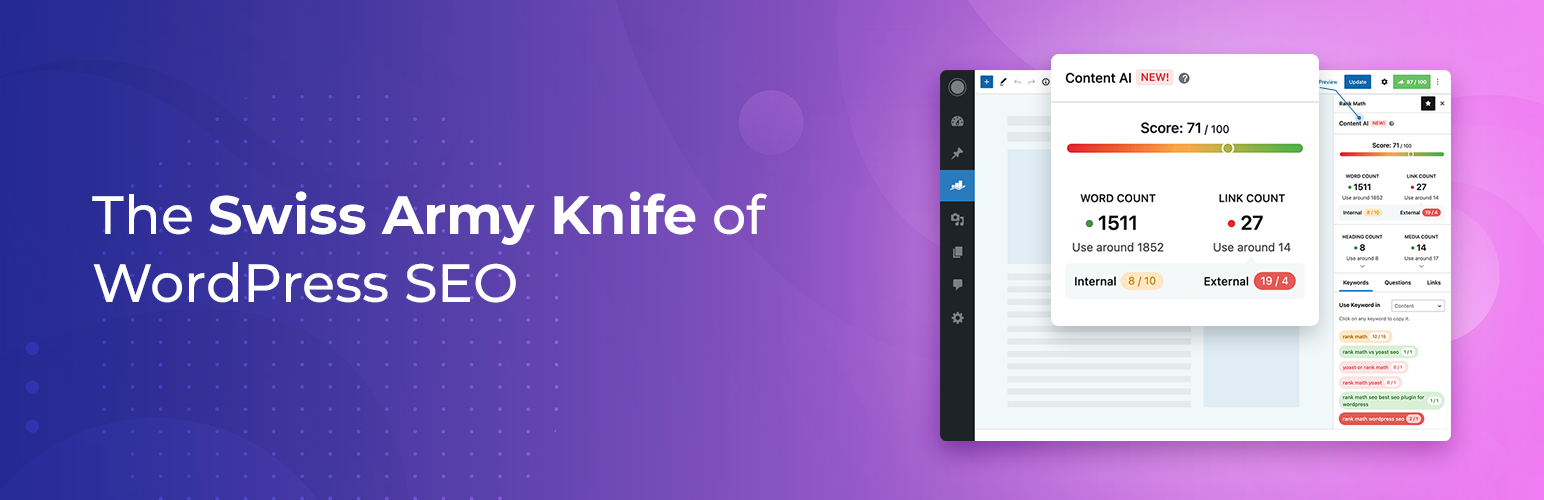
Rank Math SEO is different from the other tools here because monitoring is only one part of a much larger SEO system. Its core job is SEO management, but the suite also includes several diagnostic and monitoring-oriented features such as 404 monitoring, redirects, analytics, and rank tracking in paid plans.
Monitoring-related features that matter
- 404 Monitor for URLs generating not-found errors
- Redirection Manager for handling redirected URLs
- SEO analytics and Search Console-related reporting
- Keyword rank tracking in paid plans
- Index status and broader reporting features depending on plan
- Schema, sitemap, metadata, robots, and indexing controls in the same plugin
The main advantage is consolidation. If Rank Math is already your primary SEO plugin, it can reduce the number of separate utilities you need for 404s, redirects, analytics, schema, and rank tracking. The trade-off is that an all-in-one suite has a much larger settings surface than a dedicated monitor.
I would not use Rank Math’s feature breadth as a reason to enable every module. On production sites, a cleaner approach is to enable only the modules that solve a real requirement. That keeps the SEO stack easier to debug later.
Pros: Strong free tier; combines SEO configuration with multiple monitoring/diagnostic tools; broad schema and sitemap capabilities; useful for teams that prefer one SEO ecosystem.
Cons: Broader than a dedicated monitoring tool; more configuration to maintain; some analytics and tracking features require paid plans; it manages SEO output as well as monitoring it, so it serves a different role from a read-only change detector.
Pricing: Free version available. Rank Math PRO is currently €7.99/month billed annually (about €95.88 for the first year, ex VAT) for unlimited personally owned websites and 500 tracked keywords. The official pricing page lists renewal at €8.99/month billed annually, or €107.88/year plus taxes. Business is €24.99/month billed annually and Agency is €54.99/month billed annually at the current promotional rates.
Best for: WordPress users who want one primary SEO suite with technical controls, diagnostics, and optional paid tracking features.
Official source: Rank Math pricing and features.
4. Broken Link Checker — Best for Link Health Monitoring
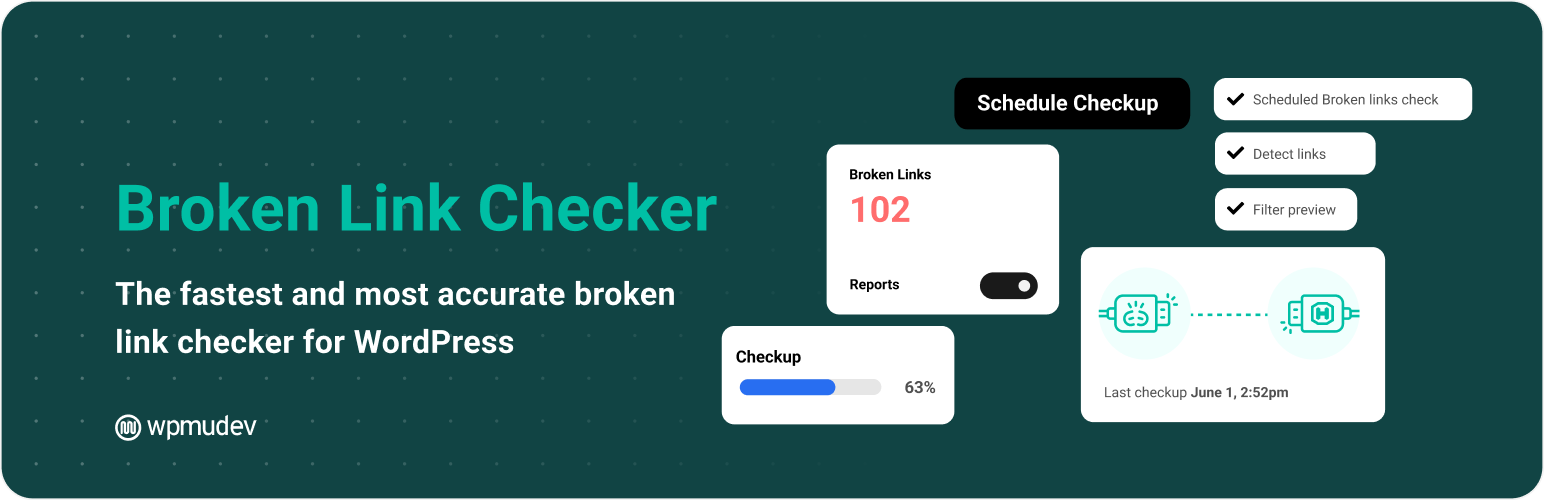
Broken Link Checker addresses one of the least glamorous but most persistent SEO maintenance problems: link decay. A site can publish perfectly valid links today and accumulate hundreds of dead destinations over the next few years.
The WPMU DEV plugin can scan posts, pages, comments, custom fields, images, and other content for broken or redirected URLs. Its cloud-based checking mode is useful on larger sites because the crawl workload does not have to be handled entirely by the WordPress server.
Where it becomes especially useful
- Large blogs with years of outbound links
- Documentation or knowledge-base sites
- Affiliate and resource-heavy content
- Sites that frequently rename or move internal URLs
- Sites with many embedded images or linked media resources
A useful maintenance pattern is to treat broken links by priority. Internal 404s and links in high-traffic pages usually deserve attention first. Temporary external timeouts are different from permanently dead resources, so I would review the status before automatically removing every flagged URL.
Pros: Focused link-health workflow; recurring checks; detects broken images as well as links; centralized repair actions; cloud and local checking options; email alerts.
Cons: It does not monitor canonicals, schema, noindex, or other core SEO output; large link inventories still need human review because not every temporary failure means a link should be removed.
Pricing: Free. WPMU DEV states that the Broken Link Checker cloud version is available with a free Hub account; premium WPMU DEV membership is not required to use the cloud checker. If you want WPMU DEV’s broader Pro plugin suite, the current official Pro Basic offer is $36/year for 1 site (regularly $60/year).
Best for: Publishers, affiliate sites, documentation sites, and established WordPress installations where old links continuously decay.
Official source: Broken Link Checker on WordPress.org.
5. WP Activity Log — Best for Finding Who or What Changed the Site
WP Activity Log is not an SEO monitoring plugin in the conventional sense. Its value appears after another tool tells you something changed. It can help answer the next question: who changed it, when did it happen, and what else happened around the same time?
The plugin records user and system activity such as logins, content changes, plugin/theme changes, WordPress setting changes, and many third-party plugin events. Its documented integrations include Rank Math and Yoast-related events, which makes it more relevant to SEO troubleshooting than a generic audit log might appear at first.
A practical SEO troubleshooting example
Suppose an important page suddenly serves a different meta title or robots directive. An SEO change monitor can identify the output difference. WP Activity Log may then show that an editor changed the SEO metabox, an administrator updated a plugin, a settings page changed, or another tracked action occurred in the same window. That shortens the investigation.
- Tracks user, role, timestamp, IP, and affected object for logged events
- Logs plugin, theme, content, user, and WordPress system changes
- Configurable retention policies
- Premium notifications, reports, session management, and advanced search
- Enterprise options for external databases and SIEM/log mirroring
Pros: Excellent change attribution; valuable for agencies and multi-user sites; free edition does not artificially limit the events it can log; useful security and troubleshooting overlap.
Cons: It does not independently verify rendered SEO output; detailed logging increases database data over time, so retention policy matters; advanced reporting, notifications, and external storage require paid editions.
Pricing: Free edition available. Melapress’s latest officially published one-site pricing lists WP Activity Log Premium at $139/year and Enterprise at $189/year. For 10 sites, Premium is $249/year and Enterprise is $299/year. The vendor confirms these are yearly subscriptions with automatic renewal unless cancelled.
Best for: Agencies, editorial teams, WooCommerce stores, membership sites, and any WordPress site where several people or systems can make changes.
Official source: WP Activity Log by Melapress.
Side-by-Side Comparison
| Tool | Primary job | Monitors rendered SEO output? | Search/traffic data? | Change attribution? | Price entry point |
|---|---|---|---|---|---|
| SEO Sentry | SEO regression detection | Yes | No | Limited to monitoring context | Free |
| Site Kit by Google | Google performance visibility | No | Yes | No | Free |
| Rank Math SEO | SEO management + diagnostics | Manages output rather than baseline-diff monitoring | Yes, depending on feature/plan | Limited | Free |
| Broken Link Checker | Link health | Links/resources only | No | No | Free |
| WP Activity Log | Audit trail and attribution | No | No | Yes | Free |
The SEO Monitoring Stack I Would Build for Different Sites
Small business website
Keep it simple: one primary SEO plugin, Site Kit for Google visibility, and a focused change monitor if losing indexability or canonical accuracy would materially affect leads.
Content-heavy publisher
Use Google performance monitoring plus link-health monitoring. Add SEO regression monitoring to important templates and high-traffic pages. Large content archives accumulate broken links and template-level SEO regressions faster than small sites.
WooCommerce store
Monitor product/category templates, canonical behavior, schema, robots directives, redirects, and Search Console performance. Stores also benefit from an activity log because plugin updates, product edits, and admin changes happen frequently.
Agency or multi-user site
This is where combining monitoring with attribution is strongest. Detect the SEO change first, then use an audit log to investigate what happened around the same time. That workflow is more useful than simply collecting more dashboards.
What to Monitor First
You do not need to monitor every URL with the same intensity on day one. I would start with pages where an unnoticed SEO regression would cause the biggest business impact:
- Homepage
- Top organic landing pages
- Money pages, service pages, and product/category pages
- Representative pages from each major template
- Important XML sitemaps and robots.txt
- URLs involved in recent migrations or redirect changes
Then expand coverage based on actual risk. A 20-page business site and a 50,000-URL publisher should not have identical monitoring strategies.
Final Take
The strongest WordPress SEO monitoring setup is not the one with the most plugins. It is the one that covers the failures you actually care about: rendered SEO regressions, Google performance changes, broken links, 404s, and unexplained WordPress changes.
For most sites, one primary SEO plugin plus one or two focused monitoring layers is enough. The same principle applies to the broader essential WordPress plugin stack: avoid overlapping tools unless each one solves a distinct problem. If the site changes frequently, the combination of SEO output monitoring, Search Console visibility, and a reliable audit trail can turn a vague “traffic dropped” investigation into a much faster technical diagnosis.
SEO Monitoring FAQs
What is a WordPress SEO monitoring plugin?
An SEO monitoring plugin watches SEO-related conditions after your initial setup. Depending on the tool, that can include noindex directives, canonicals, schema, redirects, sitemaps, broken links, search traffic, rankings, or WordPress configuration changes.
Is SEO monitoring different from using an SEO plugin?
Yes. An SEO plugin usually creates or manages SEO settings. Monitoring checks whether those settings, rendered outputs, links, or performance signals change later. Some suites such as Rank Math combine parts of both jobs.
Can a WordPress update hurt SEO without breaking the page visually?
Yes. Updates can change metadata, schema, canonical output, redirects, indexing directives, or sitemap behavior while the visible page still appears normal. That is one reason post-update SEO checks are useful.
Does SEO Sentry replace Rank Math, Yoast, AIOSEO, or SEOPress?
No. SEO Sentry monitors SEO output and changes. A primary SEO plugin manages the output. They serve different roles and can be used together.
Is Site Kit enough for technical SEO monitoring?
No. Site Kit is strong for Google Search Console, Analytics, PageSpeed, and related Google data, but it does not continuously baseline and compare every technical SEO tag on your pages.
How often should I check SEO changes?
It depends on the site. Frequently updated stores, publishers, and agency-managed sites may justify daily or post-update checks. Stable small sites can often use a less frequent schedule. The most important time to check is after meaningful software, template, redirect, or migration changes.
Should I monitor every URL on my site?
Not necessarily. Start with important organic landing pages and representative templates, then expand coverage according to business risk, site size, and server resources.
Why use an activity log if I already have SEO monitoring?
Monitoring can tell you what changed. An activity log can help explain who or what changed the WordPress site around the same time. The combination is especially useful on multi-user sites.


