


Most WordPress sites do not need dozens of plugins. They need a small, deliberate stack where every plugin has a clear job.
That matters because the phrase “must-have WordPress plugins” can be misleading. A WooCommerce store, a SaaS marketing site, a publisher, and a small local-business website do not need the same tools. Installing every popular plugin usually creates overlap, more settings to maintain, and more places for conflicts to appear.
This guide takes a more practical approach. I have organized the plugins by the problem they solve, explained which categories are genuinely essential, and separated the core stack from optional tools you should add only when your website needs them.
WordPress is still a major part of the web. According to W3Techs data from September 2026, WordPress powers about 40% of all websites and close to 59% of websites whose content management system is known. That scale is one reason the plugin ecosystem is so large, but a large ecosystem makes plugin selection more important, not less.
TL;DR: The WordPress Plugin Stack Most Sites Actually Need
- SEO: Rank Math or Yoast SEO. Use one main SEO plugin, not several.
- SEO monitoring: SEO Sentry if you want alerts when important SEO output changes unexpectedly.
- Performance: LiteSpeed Cache on LiteSpeed hosting, or another well-matched caching/optimization plugin such as WP Rocket or WP-Optimize.
- Backup: UpdraftPlus or another reliable off-site backup system.
- Security: Choose protection based on your hosting stack and risk profile rather than installing several overlapping security suites.
- Forms: Bit Form or another lightweight form builder if the site needs contact, lead, registration, survey, or payment forms.
- Analytics: Site Kit by Google for an official connection to Search Console and Google Analytics.
- Email delivery: An SMTP/mail delivery plugin if WordPress email reliability matters.
- Everything else: Add eCommerce, multilingual, automation, custom fields, advanced search, social publishing, or page-building tools only when the project requires them.
How I Think About “Must-Have” WordPress Plugins
A plugin becomes essential when it handles a job that the website genuinely needs and WordPress, the theme, or the hosting stack does not already handle well enough.
In practice, I use five questions before adding anything:
- What exact problem does this plugin solve? If the answer is vague, I do not install it.
- Is that job already handled elsewhere? Hosting, themes, SEO suites, WooCommerce extensions, and builders often duplicate features.
- Will the plugin still matter a year from now? Foundational tools deserve more scrutiny than temporary campaign plugins.
- What happens if I remove it? Avoid unnecessary lock-in, especially for page builders, custom fields, shortcodes, and proprietary content structures.
- Can I maintain it safely? Updates, backups, permissions, email configuration, cron jobs, and integrations all create ongoing maintenance work.
The most reliable WordPress stacks are usually boring in a good way. They have one SEO system, one caching strategy, one backup strategy, one form solution, and only a few specialized tools on top.
Quick Comparison: 30+ Useful WordPress Plugins by Job
| Need | Plugins to Consider | When You Actually Need Them |
|---|---|---|
| SEO | Rank Math, Yoast SEO | Almost every public website |
| SEO change monitoring | SEO Sentry | Sites where accidental noindex, canonical, schema, redirect, or sitemap changes would be costly |
| Analytics | Site Kit by Google, WP Statistics | When you need traffic/search visibility data |
| Performance | LiteSpeed Cache, WP Rocket, WP-Optimize | When caching and optimization are not fully handled by the host/CDN |
| Backup | UpdraftPlus, All-in-One WP Migration and Backup | Every production website needs a dependable backup plan |
| Security | Wordfence, Sucuri Security, MalCare | Based on hosting protection, site value, user roles, and threat profile |
| Forms | Bit Form | Contact, lead, registration, survey, payment, or application forms |
| Chat/support | Bit Assist | When visitors need quick access to chat or support channels |
| Automation | Bit Flows, Bit Integrations | When repetitive WordPress tasks or app-to-app data movement can be automated |
| Page building | Elementor, Breakdance | When the theme/block editor does not provide enough visual layout control |
| Block building | Spectra, Kadence Blocks | When you prefer Gutenberg but need more design blocks |
| Custom data | Advanced Custom Fields, Meta Box | Directories, listings, structured content, dynamic websites, custom editorial workflows |
| Search | SearchWP Live Ajax Search, Relevanssi, Ajax Search Lite | Content-heavy sites where default WordPress search is not enough |
| eCommerce | WooCommerce | Products, payments, orders, subscriptions, or other commerce workflows |
| Marketplace | Dokan | When multiple vendors need their own stores/dashboard |
| Multilingual | TranslatePress, WPML, GTranslate, Loco Translate | Only when the site needs multiple languages or translation management |
| Social publishing | Bit Social | When WordPress content should be scheduled or automatically shared to social channels |
| Activity logging | WP Activity Log | Multi-user sites, agencies, stores, or sites where accountability matters |
| Broken-link monitoring | Broken Link Checker | Established content sites with lots of internal/external links |
1. SEO Plugins: Choose One Primary SEO System
For most public websites, an SEO plugin is foundational. The important part is choosing one main plugin to manage titles, meta descriptions, canonical URLs, XML sitemaps, indexing controls, schema, and other search-facing settings.
Rank Math SEO
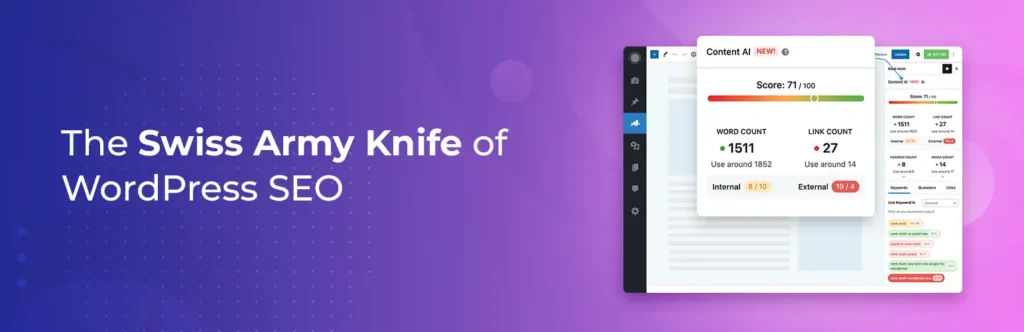
Rank Math is a good fit when you want broad SEO controls inside one modular plugin. It covers on-page optimization, schema, XML sitemaps, redirects, 404 monitoring, breadcrumbs, image SEO options, WooCommerce SEO features, and analytics-related features depending on the plan and modules you enable.
The practical advantage is consolidation. A site that already uses Rank Math may not need separate plugins for redirects, basic 404 monitoring, breadcrumbs, or certain schema tasks. The trade-off is that there are many settings. I would enable only the modules the site actually uses instead of switching everything on.
Practical take
Rank Math is strongest when one SEO system should cover metadata, schema, sitemaps, redirects, 404 monitoring and reporting instead of stacking several small utilities. The trade-off is configuration depth: use the modules the site actually needs.
Key features
- On-page SEO and focus-keyword analysis
- XML sitemaps, schema, redirects and 404 monitoring
- GA4/reporting integrations in paid plans
- Keyword rank tracking and Google Index Status in PRO
- AI Link Genius and broken-link tools in current paid plans
Pros: Broad feature coverage and a strong free tier.
Cons: Many modules can create setup overhead; the personal PRO license excludes client sites.
Pricing: Free version available. PRO is currently €7.99/month billed annually and renews at €8.99/month plus taxes.
Verified from the official product source.
Yoast SEO
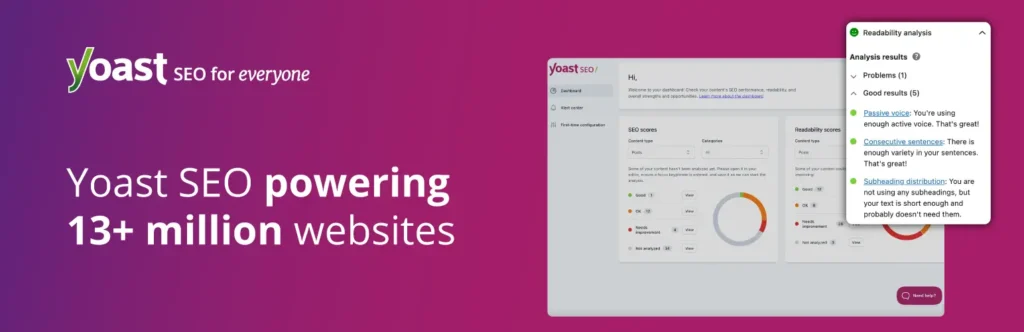
Yoast SEO remains a strong option for teams that value a familiar editorial workflow, readable on-page guidance, XML sitemaps, canonical handling, schema output, and a long-established ecosystem.
I would choose between Rank Math and Yoast based on the workflow you prefer, not because one has a longer feature checklist. Migrating SEO plugins later is possible, but changing the core SEO layer creates unnecessary risk if the current system already works.
For a broader comparison, see our best WordPress SEO plugins roundup.
Practical take
Yoast suits teams that value an opinionated editorial workflow and readable guidance. Writers get SEO and readability feedback while much of the technical markup is handled in the background.
Key features
- Real-time SEO and readability guidance
- XML sitemaps and automatic structured data
- Internal-link suggestions in Premium
- Redirect automation in Premium
- AI-assisted titles and meta descriptions
- Premium includes Local, Video and News SEO
Pros: Mature workflow and clear guidance for non-specialists.
Cons: One Premium subscription covers one site, and several workflow tools require Premium.
Pricing: Free version available. Yoast SEO Premium is currently $118.80/year for one site, excluding VAT where applicable.
Verified from the official product source.
2. SEO Monitoring: Catch Regressions After the Site Changes
Traditional SEO plugins help create and manage SEO settings. Monitoring is a different job: it tells you when those settings or the rendered output change unexpectedly.
SEO Sentry
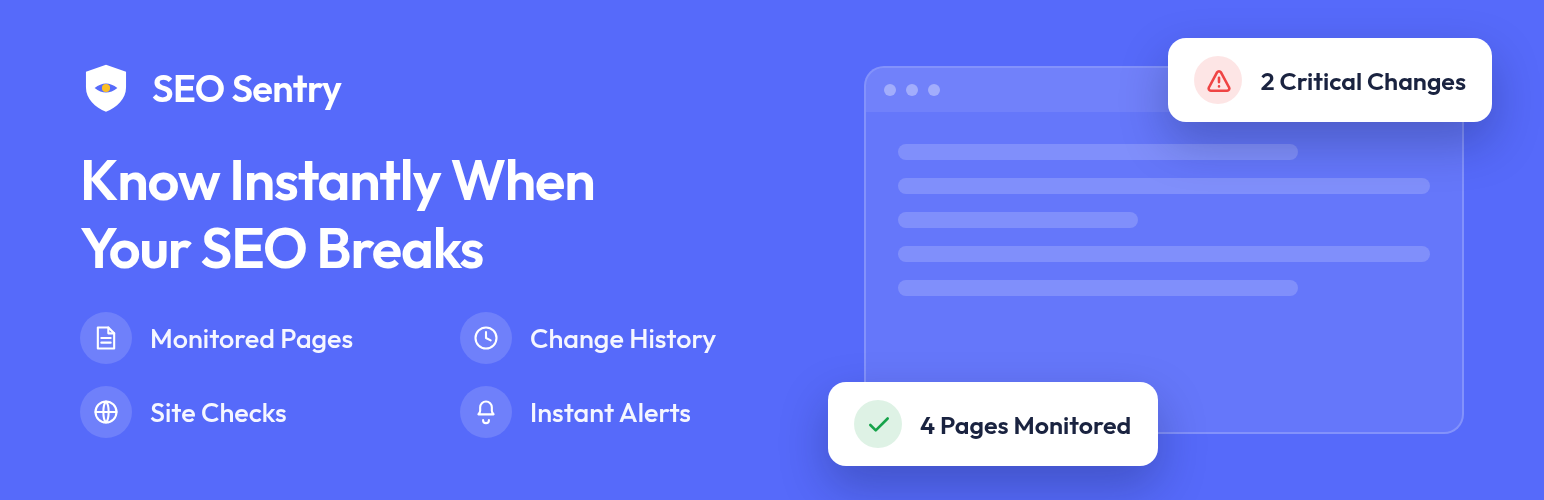
SEO Sentry is useful for sites where a plugin update, theme change, migration, content edit, or settings mistake could quietly change important SEO signals. It monitors items such as robots directives, titles, descriptions, canonical URLs, schema/JSON-LD, redirects, robots.txt, XML sitemaps, H1 output, WordPress search visibility, and supported AI crawler rules.
This is especially relevant for agency sites, publishers, WooCommerce stores, and larger websites where nobody is manually rechecking every important page after each update. SEO monitoring does not replace Rank Math or Yoast. It complements them by watching for regressions.
We cover this category in more depth in our WordPress SEO monitoring tools guide.
Practical take
SEO Sentry monitors for regressions after site changes rather than replacing a main SEO plugin. It is useful when updates, redirects or editorial changes can silently alter search-facing output.
Key features
- Baseline and change-history monitoring
- Robots, title, description and canonical checks
- Schema/JSON-LD and social metadata monitoring
- HTTP status, redirects, robots.txt and sitemap checks
- Scheduled and post-update rechecks
- AI crawler rules and activity monitoring
Pros: Focused monitoring role and local WordPress data storage.
Cons: New plugin with a short public track record; it detects changes but does not automatically fix them.
Pricing: Free on WordPress.org at the time of this review.
Verified from the official product source.
3. Performance Plugins: Match the Tool to Your Hosting Stack
Performance plugins are one of the easiest areas to overcomplicate. I would never start by installing three optimization plugins and hoping they work together. First check what the host, server, CDN, and theme already handle.
LiteSpeed Cache

LiteSpeed Cache makes the most sense when the server uses LiteSpeed technology because that is where its server-level caching can provide the strongest benefit. It also includes front-end optimization features such as image optimization, lazy loading, CSS/JS optimization, database tools, and QUIC.cloud integration.
Practical take
LiteSpeed Cache is most compelling on LiteSpeed hosting because it can use server-level caching. On other web servers, many optimization features still work, but the exclusive cache layer does not.
Key features
- Server-level page caching on LiteSpeed
- CSS/JS/HTML minification
- Critical CSS and delayed/deferred JavaScript
- Image optimization and WebP/AVIF
- Object-cache compatibility
- Database cleanup, lazy loading and CDN integrations
Pros: Very broad optimization toolkit and the plugin itself is free.
Cons: Large settings surface; strongest caching features depend on LiteSpeed or QUIC.cloud.
Pricing: Plugin is free. QUIC.cloud and hosting services can have separate costs.
Verified from the official product source.
WP Rocket

WP Rocket is a practical premium choice when you want a more guided caching and optimization workflow without relying on LiteSpeed-specific server integration. It is often easier for non-technical site owners because many useful optimizations can be enabled from a relatively focused interface.
Practical take
WP Rocket is built for fast results with less tuning. It automatically enables several core performance optimizations, then gives deeper controls for CSS, JavaScript, media and preload behavior.
Key features
- Automatic page/mobile caching
- Browser caching and GZIP
- Lazy rendering and critical-image optimization
- Remove Unused CSS and CSS minification
- Delay JavaScript and preload controls
- Rocket Insights performance monitoring
Pros: Quick setup and broad compatibility.
Cons: No free version; advanced CSS/JS optimizations still need visual testing.
Pricing: Single is currently $59.95/year for one site; Plus is $119.95/year for three sites.
Verified from the official product source.
WP-Optimize

WP-Optimize combines caching, database cleanup, and image-related optimization in one plugin. It can be useful for smaller sites that want several maintenance/performance tasks in the same interface.
Practical rule: use one primary page-caching system. Stacking multiple page caches is more likely to create hard-to-diagnose behavior than extra speed.
See our WordPress speed optimization plugin comparison for more options.
Practical take
WP-Optimize is useful when caching, database maintenance, image compression and minification should live under one dashboard. It can replace several small maintenance plugins on a straightforward site.
Key features
- Page caching
- Database cleanup and scheduled optimization
- Image compression
- CSS and JavaScript minification
- Premium lazy loading and preload controls
- Premium unused-image cleanup
Pros: Combines several common maintenance jobs and has a capable free version.
Cons: It can overlap with host-level optimization or another cache plugin, so duplicate features should stay disabled.
Pricing: Free version available. Premium currently starts at $49/year for up to two sites.
Verified from the official product source.
4. Backup Plugins: Essential Even When Your Host Has Backups
Backups are the category I consider genuinely essential for every production WordPress site. Hosting backups are useful, but I prefer having an independent recovery path for business-critical websites. If the hosting account itself has a problem, a backup stored only inside the same environment is less reassuring.
UpdraftPlus

UpdraftPlus is a popular choice for scheduled WordPress backups and restoration. The important operational detail is not just installing it; configure a remote destination and confirm that restoration works before you actually need it.
Practical take
For backups, restore reliability matters more than whether the plugin can create an archive. UpdraftPlus combines scheduled backups, restore, remote storage and migration, with Premium adding more granular options.
Key features
- Scheduled files/database backups
- Remote-storage destinations
- One-click restore
- Premium migration
- Premium incremental backups
- Automatic pre-update backups
- Premium component-level restore and multiple storage locations
Pros: Established backup workflow and broad remote-storage support.
Cons: Large sites still need sensible schedules and off-site storage planning.
Pricing: Free version available. Premium Personal is currently $70/year for up to two sites; Business is $95/year for up to ten sites.
Verified from the official product source.
All-in-One WP Migration and Backup

All-in-One WP Migration is especially useful when the job is moving or cloning a WordPress site. I think of it more as a migration/portable-export tool than as the only long-term backup strategy for every site.
For more choices, see our best WordPress backup plugins guide.
Practical take
All-in-One WP Migration is strongest when the job is moving an entire site in a predictable package. The export/import workflow is easier to hand off than a manual files-plus-database migration.
Key features
- Full-site export/import
- Search-and-replace during migration
- WPRESS archive format
- Paid hosting-limit bypass
- Pro scheduled and incremental backups
- Cloud destinations and WP-CLI in paid products
Pros: Simple migration workflow; the free core handles many straightforward moves.
Cons: Hosting upload limits can become the bottleneck in the free workflow.
Pricing: Free core. Unlimited Extension starts at $69/year for up to 50 sites; Pro starts at $99/year.
Verified from the official product source.
5. Security Plugins: Do Not Duplicate What the Host Already Does
Security is essential, but a security plugin is not always the first or only layer. Strong hosting isolation, timely updates, restricted admin access, two-factor authentication for privileged roles, secure backups, least-privilege user accounts, and good credential hygiene matter just as much.
Wordfence Security

Wordfence combines firewall, malware scanning, login protection, and security monitoring features. It is useful when you want a substantial amount of security visibility directly inside WordPress.
Practical take
Wordfence is a strong all-in-one security layer when firewall, malware scanning and login protection should live together. The main practical consideration is server load on smaller hosting plans.
Key features
- WordPress-aware firewall
- Malware/file-integrity scanning
- Login security and 2FA
- IP blocking
- Premium real-time rules/signatures
- Audit log in paid plans
Pros: Broad WordPress-specific protection with a useful free version.
Cons: Scans consume server resources, and the free tier does not get the same real-time update timing as Premium.
Pricing: Free version available. Premium is currently $149/year for one site.
Verified from the official product source.
Sucuri Security
Sucuri Security focuses on auditing, integrity checks, hardening guidance, and security monitoring, while Sucuri’s broader service offering includes external protection options.
I would not run multiple heavy security suites just because each one has a useful feature. Start with the host’s security stack, identify the missing layer, then fill that gap deliberately.
See our WordPress security plugin roundup.
Practical take
The free Sucuri plugin is primarily a monitoring, hardening and recovery companion. Its remote scanner keeps much of the scanning work off the local server; the paid platform adds the cloud firewall and professional cleanup.
Key features
- Activity auditing
- File-integrity monitoring
- Remote malware scanning
- Blocklist monitoring
- Security hardening/post-hack tools
- Paid WAF/CDN and malware removal
Pros: Lightweight free monitoring and hardening.
Cons: The free plugin does not include the paid cloud firewall or professional cleanup.
Pricing: Plugin is free. Security platform plans currently start at $229/year; firewall-only plans start at $9.99/month.
Verified from the official product source.
6. Forms and Lead Capture: One Good Form Builder Goes a Long Way
Bit Form
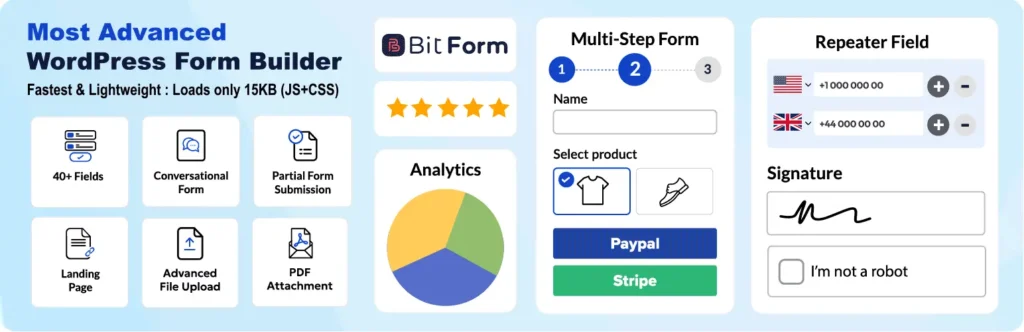
Bit Form is useful when a site needs more than a simple email field. You can use it for contact forms, lead capture, registrations, surveys, conditional forms, multi-step workflows, and payment-related use cases depending on the configuration and integrations.
The practical reason to standardize on one capable form builder is maintenance. If every department installs a different form plugin, you end up maintaining multiple validation systems, email notifications, spam controls, integrations, and styling layers.
Compare alternatives in our WordPress form builder plugins guide.
Practical take
Bit Form is a stronger fit when forms need to become workflows rather than simple contact boxes. Multi-step forms, calculations, payments, conditional logic and front-end editing let one form handle registrations, quotes, orders or structured submissions.
Key features
- 50+ fields and drag-and-drop builder
- Conditional logic and multi-step forms
- Advanced calculations
- Frontend view/edit and partial submissions
- Stripe, PayPal, Mollie and Razorpay payments
- reCAPTCHA, Turnstile and honeypot protection
- Form-to-PDF, scheduling, registration and API/action hooks
Pros: Wide feature set without relying on a collection of paid add-ons.
Cons: Complex forms still need careful logic planning; the feature depth is unnecessary for a simple contact form.
Pricing: Free version available. Current Starter annual offer is $25/year for one site; Starter Lifetime is $99 one-time.
Verified from the official product source.
Bit Assist for Chat and Support Access
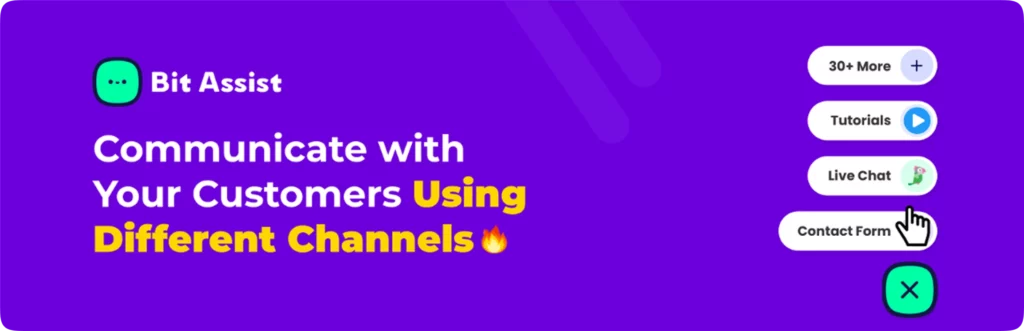
Bit Assist is not essential for every site, but it becomes useful when visitors need quick access to WhatsApp, Messenger, Telegram, support forms, FAQs, or other contact channels from a floating widget. Add it when the business genuinely supports those channels; otherwise a well-designed contact page may be enough.
Practical take
Bit Assist works best as a contact-channel launcher rather than a full help-desk replacement. Visitors get one floating entry point for messaging apps, calls, forms, FAQs, maps and scheduling while conversations continue in the services you already use.
Key features
- 30+ communication and utility channels
- WhatsApp, Messenger, Telegram, Slack, Discord, SMS and calls
- Custom forms, FAQ, knowledge base and WooCommerce-related widgets
- Brand styling and multilingual support
- Business-hours controls
- Webhook and automation connections
Pros: Centralizes many contact options without forcing visitors into one chat system.
Cons: It does not replace a ticketing platform with a unified conversation history across every external channel.
Pricing: Free version available. Current Starter annual offer is $19/year for one site; Agency annual is $59/year for unlimited sites.
Verified from the official product source.
7. Analytics and Search Performance: Use Data You Will Actually Read
Site Kit by Google

Site Kit is Google’s official WordPress integration for connecting services such as Search Console, Google Analytics, AdSense, and PageSpeed Insights. I like it most as a setup and visibility layer: it puts useful Google data inside WordPress without turning WordPress into the only analytics interface you use.
For serious analysis, you will still use the full Google tools. But having headline metrics inside WordPress helps site owners notice traffic or search-performance changes sooner.
See our WordPress analytics plugins comparison.
Practical take
Site Kit is the official bridge between WordPress and Google products. It reduces setup friction and gives site owners a readable dashboard, but it should be treated as a reporting layer rather than a replacement for the full Search Console or Analytics interfaces.
Key features
- Search Console
- Google Analytics
- PageSpeed Insights
- AdSense
- Google Ads and Tag Manager support
- Sign in with Google and Reader Revenue Manager
- Site-wide and page-specific metrics
- Dashboard sharing and reporting tools
Pros: Free, official Google integration with straightforward setup.
Cons: It surfaces a curated subset of Google data; deeper analysis still belongs in the individual Google products.
Pricing: Free.
Verified from the official product source.
8. Email Delivery: WordPress Email Should Not Depend on Luck
Contact-form confirmations, password resets, WooCommerce order emails, membership notices, and admin alerts are operational messages. If they do not arrive, users usually blame the website, not the mail server.
An SMTP or transactional-email plugin helps route WordPress mail through a proper email service instead of relying only on the server’s default PHP mail configuration. Whichever plugin you choose, test real delivery to multiple providers and keep an eye on authentication records such as SPF, DKIM, and DMARC at the domain level.
See our best WordPress SMTP plugins guide for current options.
9. Automation: Add It When Repetitive Work Starts Costing Time
Bit Flows
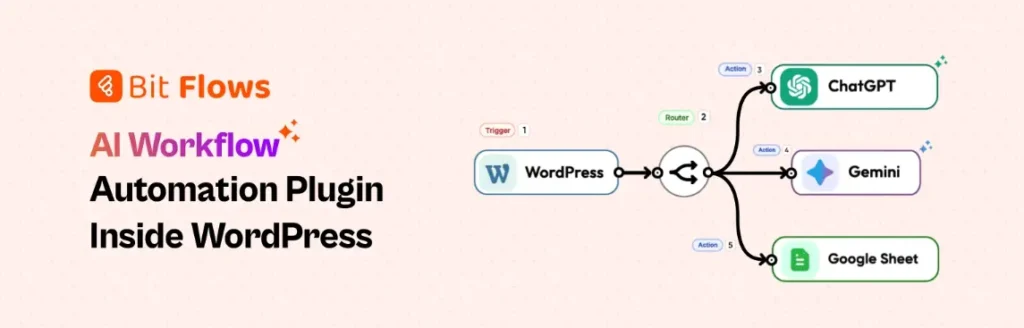
Bit Flows is useful for multi-step workflows where WordPress events need to trigger actions in other apps or plugins. Examples include sending form submissions to a CRM, creating tasks after purchases, moving data between marketing tools, or chaining several actions together.
Practical take
Bit Flows is the better fit when automation needs multiple steps, branches, delays, repeaters or AI-assisted workflow logic. It behaves more like a self-hosted workflow builder than a simple connector.
Key features
- Visual multi-step builder
- Unlimited workflows, tasks and connections on current paid plans
- 391+ integrations listed on the current pricing page
- Incoming/outgoing webhooks
- Schedule-based workflows
- Router, repeater, iterator and delay tools
- AI Agent, MCP Client and human-in-the-loop features
Pros: Strong for complex WordPress-centered automations and self-hosted workflow control.
Cons: Complex flows can consume hosting resources and need more debugging discipline than a simple one-step integration.
Pricing: Current Starter annual pricing is $59/year for one site; lifetime plans are also available.
Verified from the official product source.
Bit Integrations
Bit Integrations is useful for simpler no-code connections where data from one WordPress plugin needs to be sent to another plugin or external service.
I do not add automation on day one unless the workflow is already clear. First let a process become repetitive enough that you understand the edge cases; then automate it. Automating a badly defined process only makes the mistakes happen faster.
For alternatives, see our WordPress automation plugin roundup.
Practical take
Bit Integrations is the lighter choice when the job is event-to-destination data transfer: a form submits, an order changes or a WordPress action runs, then mapped data goes to another platform.
Key features
- No-code integrations and field mapping
- 403+ platforms advertised on current pricing
- Unlimited data transfers on paid plans
- Conditional logic and smart tags
- Incoming/outgoing webhooks
- Custom API requests
- Execution logs and failed-task alerts
Pros: Straightforward for one-step and conditional integrations.
Cons: Long multi-step workflows with loops and delays are better suited to Bit Flows.
Pricing: Free version includes selected integrations. Current Starter annual pricing is $35/year for one site; Starter Lifetime is $99 one-time.
Verified from the official product source.
10. Page Builders and Gutenberg Blocks: Pick One Design System
Page builders are powerful, but they also shape your site’s markup, editing workflow, reusable components, responsive controls, and long-term maintenance. This is not a category where I would casually mix several tools.
Elementor

Elementor remains a common choice for visual drag-and-drop building, especially when a site relies on a large template/add-on ecosystem. It is a good fit when the team already knows the builder and can keep the add-on stack under control.
Practical take
Elementor makes sense when visual editing speed and a large ecosystem matter more than staying close to the native block editor. Pro extends the builder into theme templates, forms, dynamic content, popups and WooCommerce layouts.
Key features
- Drag-and-drop visual editor
- Theme Builder
- Dynamic content
- Form Builder
- Popup Builder on eligible plans
- WooCommerce widgets/templates
- Custom CSS/code on eligible plans
Pros: Large ecosystem and mature visual workflow.
Cons: A builder adds its own runtime/design layer, so performance and maintainability depend on disciplined widget use. Features vary significantly by plan.
Pricing: Free plugin available. Elementor uses plan- and region-dependent pricing on its live pricing page, so the exact amount and renewal price should be checked at checkout.
Verified from the official product source.
Breakdance
Breakdance is a strong alternative for users who want a visual builder with dynamic-data support, forms, WooCommerce tools, and a more integrated set of design elements.
Practical take
Breakdance targets users who want a full visual builder with dynamic data, forms, popups and WooCommerce controls built into one system. The benefit is fewer add-ons; the trade-off is stronger builder lock-in.
Key features
- 80 elements in Free and 145 in Pro on current pricing
- Header/menu builder
- Dynamic data, loops, conditions and repeaters
- Built-in forms and popups
- WooCommerce integration
- CSS Class Manager and presets in Pro
- Client Mode and integrations
Pros: Strong built-in feature coverage and an unlimited-site Pro option.
Cons: Teams should standardize classes/templates because the presentation layer becomes closely tied to Breakdance.
Pricing: Free plan supports unlimited websites with limits. Pro is currently $99.99/year for one site or $199.99/year for unlimited sites.
Verified from the official product source.
Spectra and Kadence Blocks


If you prefer the native block editor, block libraries such as Spectra and Kadence Blocks can extend Gutenberg without replacing the entire editing experience. This often creates a lighter editorial workflow for blogs, documentation sites, and straightforward business websites.
See our WordPress page builder comparison.
Practical take
Both Spectra and Kadence Blocks extend Gutenberg instead of replacing WordPress with a separate canvas. That often creates a cleaner editorial handoff. The important choice is to select one primary block system rather than stacking several libraries.
Key features
- Spectra Pro adds premium block controls and design tooling
- Spectra Pro standalone plan supports up to three sites
- Kadence Blocks loads assets based on blocks actually used
- Kadence Blocks Pro adds dynamic content, advanced forms and query loops
- Both provide free versions and design libraries
Pros: Native-editor workflow and better content portability than many proprietary builders.
Cons: Using multiple block libraries can duplicate CSS, controls and patterns.
Pricing: Spectra Pro is currently $69/year for up to three sites. Kadence Blocks Pro is currently $119/year for up to five sites.
Verified from the official product source.
11. Custom Fields and Structured Content: Essential for Dynamic Websites
Advanced Custom Fields (ACF)

ACF is one of the most useful plugins when WordPress content needs structure beyond a title and body. Product specifications, team-member details, property data, event information, comparison fields, directory attributes, and editorial metadata are common examples.
Practical take
ACF is one of the fastest ways to turn WordPress content into a structured data model. It works best when templates read the fields consistently so editors can change data without touching layout code.
Key features
- Wide set of field types in Free
- Field groups with location rules
- PRO Repeater field
- PRO Flexible Content
- PRO Gallery and Clone fields
- ACF Blocks
- Options Pages in PRO
Pros: Mature developer ecosystem and broad compatibility with themes/builders that support custom fields.
Cons: ACF stores data but does not design the front end. Complex field architectures need naming conventions and documentation.
Pricing: Free version available. ACF PRO Personal is $49/year for one site; Freelancer $149/year for ten sites; Agency $249/year unlimited.
Verified from the official product source.
Meta Box
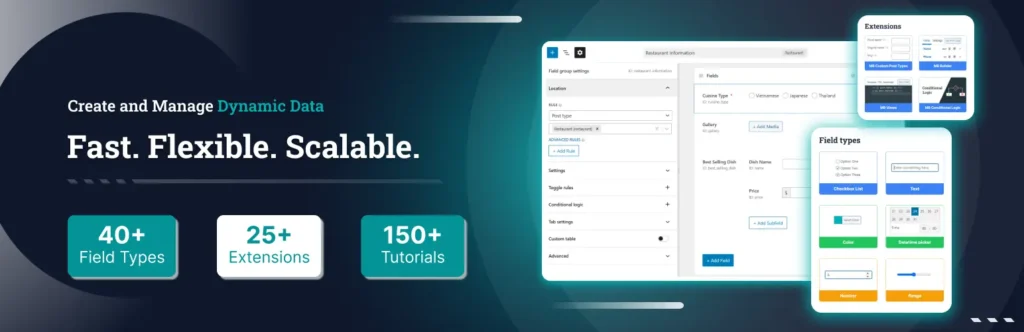
Meta Box covers a similar custom-data problem and is popular with developers and advanced site builders who want flexible field types and integration options.
This category is “must-have” only for sites that truly have structured content. A five-page brochure site usually does not need a custom-field framework.
Compare options in our WordPress custom field plugins guide.
Practical take
Meta Box addresses the same structured-content problem as ACF but with a modular extension ecosystem. It is strongest when custom fields need related tooling such as relationships, frontend submission, settings pages or custom tables.
Key features
- Custom fields framework
- CPT/taxonomy tooling in the ecosystem
- Relationships and settings pages
- Frontend submission/user-profile extensions
- Custom table support in paid extensions
- Composer support on paid bundles
Pros: Developer-focused architecture and unlimited-site paid bundles.
Cons: The modular approach means you need to understand which extensions solve which job.
Pricing: Free core. Basic Bundle is currently $149/year unlimited sites; Ultimate $229/year; Lifetime $699 one-time.
Verified from the official product source.
12. Search Plugins: Important for Content-Heavy Sites
Default WordPress search is enough for some small websites. It becomes limiting when users need to search custom post types, custom fields, documents, product data, or large knowledge bases.
SearchWP Live Ajax Search
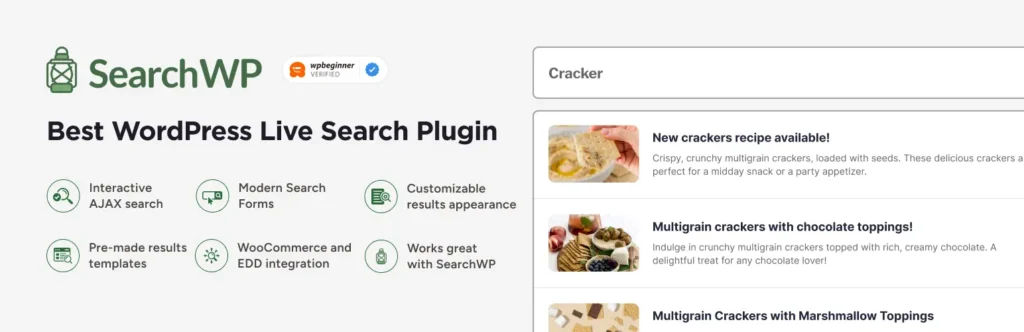
This is useful when you want a faster live-search experience on the front end. It is especially effective when paired with a search/indexing system that already understands the site’s content structure.
Practical take
SearchWP Live Ajax Search improves the search interaction by showing results while a visitor types. It can work without the paid SearchWP engine, so it is useful when you mainly need a faster interface rather than a new relevance model.
Key features
- Live AJAX results
- Works with WordPress search forms
- Can run without paid SearchWP
- Pairs with SearchWP engines when installed
- Template/theme customization options
Pros: Free way to improve the search experience.
Cons: It improves the interface, not the underlying relevance algorithm by itself.
Pricing: SearchWP Live Ajax Search is free. Paid SearchWP is a separate product.
Verified from the official product source.
Relevanssi

Relevanssi is a long-standing option for improving relevance and expanding what WordPress search can index.
For more, see our best WordPress search plugins roundup.
Practical take
Relevanssi changes the underlying search relevance, so it is better for editorial or knowledge sites where visitors search categories, tags, custom fields or excerpts and default WordPress search feels too literal.
Key features
- Relevance-based ordering
- Search comments, taxonomies, custom fields and excerpts in Free
- Weighting controls
- Premium PDF/document indexing
- Premium user-profile and taxonomy-term search
- Premium multisite and advanced tuning
Pros: Substantial search-quality improvement even in the free version.
Cons: The search index adds database/storage work; large sites should review index size and throttling settings.
Pricing: Free version available. Premium is currently €120/year unlimited sites or €402 one-time permanent.
Verified from the official product source.
13. WooCommerce: The Core Plugin for a WordPress Store
If the project sells products or services directly from WordPress, WooCommerce is usually the starting point. It provides the product, cart, checkout, order, tax, coupon, and extension ecosystem that most WordPress stores build on.
The mistake I see most often with WooCommerce is installing extensions before the store’s operational requirements are clear. Start with the checkout, payments, shipping, tax, inventory, and order workflow. Add wishlists, product filters, dynamic pricing, subscriptions, bookings, CRM, and other extensions only when they solve a real business requirement.
Our best WooCommerce plugins guide covers the broader extension ecosystem.
Practical take
WooCommerce is the right starting point when WordPress itself should own the store. The core is free and open source, but the real cost of a production store comes from hosting, payment processing and the extensions your workflow requires.
Key features
- Unlimited products, orders and APIs in core
- Products, cart, checkout and order management
- Flexible payment-gateway ecosystem
- Shipping, tax and coupon support
- REST API and extension ecosystem
- No WooCommerce platform revenue share
Pros: High control over store data, extensibility and costs.
Cons: A customized store can accumulate extension, hosting and maintenance costs; checkout complexity should be kept intentional.
Pricing: Core WooCommerce is free with no monthly platform subscription. WooCommerce says many paid extensions fall roughly in the $29–$299/year range.
Verified from the official product source.
Dokan for Multivendor Marketplaces

Dokan belongs in a different category from a normal WooCommerce add-on. Use it when the business model requires multiple vendors to manage products, orders, stores, commissions, and marketplace workflows from the front end. A normal single-vendor store does not need this layer.
Practical take
Dokan changes WooCommerce from a single-merchant store into a marketplace, so vendor onboarding, commissions, withdrawals, permissions and support workflows matter as much as storefront design.
Key features
- Frontend vendor dashboard
- Unlimited vendors in Dokan Lite
- Vendor product/order management
- Commission and withdrawal workflows
- Paid modules for subscriptions, bookings, shipping and reviews
- Marketplace payment and verification modules in higher plans
Pros: Established WooCommerce multivendor ecosystem and a free tier for validating a marketplace idea.
Cons: Marketplace operations get complex quickly: refunds, tax responsibility, moderation and vendor support still need business rules.
Pricing: Dokan Lite is free. Current annual Starter is $149/year, Professional $249/year and Business $499/year.
Verified from the official product source.
14. Multilingual Plugins: Choose Based on Translation Workflow
Multilingual plugins solve several different problems: translating page content, creating language-specific URLs, translating WooCommerce data, editing theme/plugin strings, or automatically generating translations. Those are not the same job.
TranslatePress
TranslatePress is attractive when you want a visual front-end translation workflow and clear control over how translated pages appear.
Practical take
TranslatePress is easiest to understand visually: open the front end, select text and translate what you see. That is especially practical for marketing teams and page-builder-heavy sites.
Key features
- Front-end visual translation
- Translates page-builder, shortcode and form output
- Manual and automatic translation
- TranslatePress AI in paid plans
- SEO Pack and URL-slug translation in paid plans
- Multiple Languages and DeepL options on eligible plans
- Translations stored in the site database
Pros: Context-rich visual workflow and local storage of translations.
Cons: The free tier is limited for multilingual SEO and multi-language workflows; automatic-translation quotas or API costs need planning.
Pricing: Free version available. Personal is currently €99/year, Business €199/year and Developer €349/year.
Verified from the official product source.
WPML

WPML is a mature multilingual system often used on complex business and WooCommerce sites that need translation management across many content types.
Practical take
WPML is better suited to structured multilingual operations where teams need controlled translation workflows across posts, strings, WooCommerce and page-builder content.
Key features
- Manual translation controls
- Advanced Translation Editor on higher plans
- String Translation
- Translation Management
- WooCommerce and page-builder support
- Full Site Editing support
- AI translation credits on higher plans
Pros: Deep workflow support for complex multilingual sites.
Cons: No free version, and the full system requires more configuration than a lightweight visual translator.
Pricing: Multilingual Blog is currently €39/year, CMS €99/year and Agency €199/year.
Verified from the official product source.
GTranslate

GTranslate is useful when automatic translation and a broad language switcher workflow are priorities.
Practical take
GTranslate is attractive when fast automatic translation matters more than keeping every translation workflow inside WordPress. The free widget handles machine translation, while paid plans add indexable translated URLs and editing.
Key features
- Free language-selector widget
- Machine/AI translation depending on plan
- Unlimited words/pageviews listed on current plans
- Search-engine indexing on paid plans
- Translation editing on paid plans
- URL translation on Business and above
- Language hosting on Enterprise
Pros: Fast launch across many languages and paid plans handle delivery externally.
Cons: The free plan is not designed for search indexing or editing; paid translated pages depend on the external GTranslate service.
Pricing: Free plan available. Paid plans currently start at $12/month; Startup $25, Business $35 and Enterprise $50.
Verified from the official product source.
Loco Translate

Loco Translate is different: it is primarily useful for editing and managing translation strings from themes and plugins. It is not a replacement for a complete multilingual-site architecture.
Compare the main approaches in our multilingual WordPress plugins guide.
Practical take
Loco Translate is mainly for editing WordPress translation files for themes and plugins. Use it when you need to change interface strings, not when you need full multilingual versions of posts and pages.
Key features
- PO file editing in WordPress admin
- Built-in translation editor
- Create/update theme and plugin language files
- Translation API integrations when configured
- Developer-oriented gettext tools
Pros: Free and effective for theme/plugin string localization.
Cons: It is not a full multilingual content system and does not create language-specific post/page versions.
Pricing: The WordPress plugin is free and does not require a Loco cloud account. Loco cloud is a separate optional service.
Verified from the official product source.
15. Social Publishing: Useful for Content Teams, Optional for Everyone Else
Bit Social
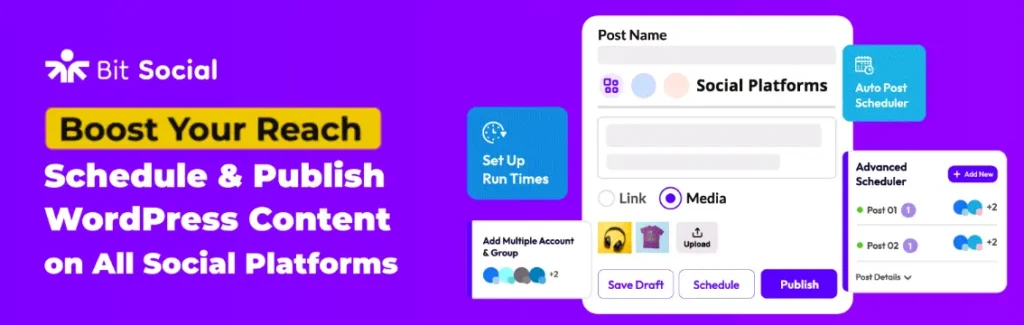
Bit Social is useful when publishing a WordPress post should also trigger or schedule social-media distribution. This can remove a repetitive step for blogs, news sites, agencies, and marketing teams.
Do not install a social auto-poster just because the site has social accounts. It earns its place when the publishing cadence is frequent enough that automation saves meaningful time.
See our WordPress social auto-poster plugin guide.
Practical take
Bit Social is most useful when WordPress is the source of truth for content and social publishing should happen from the same dashboard. Scheduling, recycling older content and filters reduce repetitive publishing work.
Key features
- Auto-post WordPress content
- 13+ supported social platforms on current pricing
- Unlimited scheduling on paid plans
- Social calendar
- Re-share older content
- Custom templates and smart tags
- WooCommerce product sharing
- AI caption/image tools and failed-post alerts
Pros: Centralizes WordPress-to-social publishing and offers annual/lifetime licensing.
Cons: Social APIs change frequently, and current documentation notes Bit Social works only with the Administrator role.
Pricing: Free plan available. Starter Annual is currently $49/year, Starter Lifetime $89 one-time and Agency Annual $99/year.
Verified from the official product source.
16. Activity Logs: Valuable on Multi-User Sites
WP Activity Log
On a site with several administrators, editors, developers, support staff, or client users, knowing what changed and who changed it can save hours of troubleshooting. WP Activity Log records a detailed audit trail of user and system activity.
This is not only a security feature. It is also an operations tool. When a setting changes, a plugin is activated, content is modified, or an SEO issue appears, an activity log can help reconstruct what happened.
Practical take
WP Activity Log becomes valuable on sites with several administrators, editors or developers because troubleshooting becomes a timeline question: who changed what, and when?
Key features
- User/login activity logging
- Plugin, theme, settings and content events
- Dedicated activity-log tables
- Premium advanced search
- Premium scheduled reports and notifications
- Premium session management
- Enterprise external database/SIEM mirroring
Pros: Detailed accountability and useful integrations for multi-user environments.
Cons: Detailed logs grow database data and need retention rules; many reporting and external-storage features are paid.
Pricing: Free version available. Melapress currently lists Premium at $139/year for one site and Enterprise at $189/year for one site.
Verified from the official product source.
17. Broken-Link Monitoring: More Important as the Site Ages
Broken Link Checker
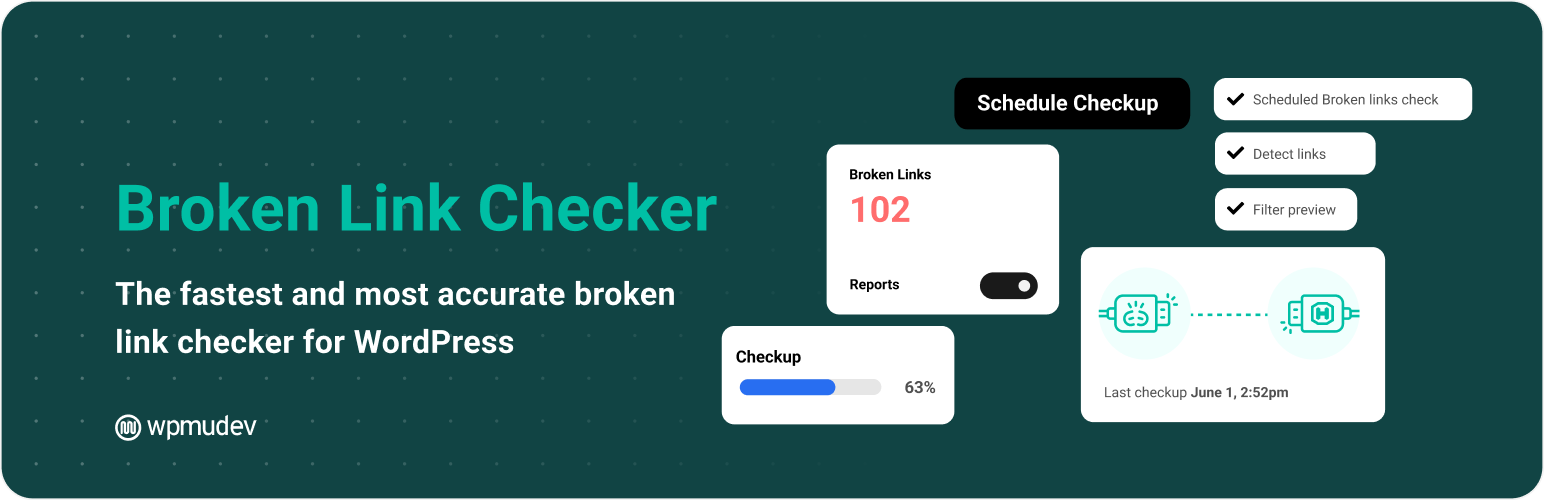
A new five-page website can check links manually. A five-year-old publisher with thousands of internal and external links cannot. Broken Link Checker can repeatedly scan content for dead links, redirects, missing resources, and other link-health problems.
The value increases with content age. External websites disappear, URLs change, images get removed, and internal slugs are updated. Link monitoring helps keep those problems from accumulating unnoticed.
See our best WordPress broken link checker plugins roundup.
Practical take
Broken Link Checker becomes more useful as a site ages because link decay is rarely visible during normal publishing. Scheduled scans add a maintenance layer for blogs, documentation and resource-heavy sites.
Key features
- Broken internal/external link scanning
- Broken-image detection
- Central issue report
- Local scanning mode
- Cloud scanning through WPMU DEV
- Edit, unlink or ignore actions
Pros: Dedicated link-health workflow and cloud scanning can move heavy checks off the local server.
Cons: Local scans can use server resources; cloud mode requires a WPMU DEV connection.
Pricing: Free plugin available. Cloud scanning requires connecting the site to WPMU DEV; broader Hub services follow WPMU DEV account terms.
Verified from the official product source.
A Practical Plugin Stack for Different Types of WordPress Sites
Small Business Website
- One SEO plugin
- One caching/performance solution matched to the host
- Backup plugin or verified off-site backup system
- Form builder
- Analytics connection
- SMTP/mail delivery solution if forms or transactional emails matter
Content or Publisher Site
- SEO plugin
- SEO monitoring
- Performance/caching
- Backups
- Analytics/Search Console
- Broken-link monitoring
- Advanced search if the archive is large
- Social publishing automation if the editorial cadence justifies it
WooCommerce Store
- WooCommerce
- SEO plugin with WooCommerce support
- Performance stack tested specifically with cart/checkout behavior
- Reliable off-site backups
- Security appropriate for a transactional site
- SMTP/transactional mail delivery
- Analytics and conversion tracking
- Only the WooCommerce extensions required by the store’s real operations
Agency or Multi-User Website
- Core SEO, performance, backup, form, and analytics stack
- Activity logging
- SEO monitoring
- Automation for repeatable client or internal workflows
- Role/permission controls where needed
Plugins I Would Not Install Automatically
Some plugin categories are useful but not universally necessary:
- Page builders: unnecessary if the theme and Gutenberg already cover the design.
- Custom fields: unnecessary for simple pages with no structured data.
- Popup plugins: useful for specific campaigns, but not a baseline website requirement.
- Multilingual plugins: only when you will actually maintain translated content.
- Social auto-posters: valuable for active content operations, unnecessary for a site that publishes twice a year.
- Database cleaners: useful as maintenance tools, but not always something that needs to run continuously.
- Multiple security suites: overlap can add complexity without proportionate protection.
- Multiple caching plugins: usually a configuration problem waiting to happen.
How to Evaluate a WordPress Plugin Before Installing It
A good plugin decision is about more than ratings. I would check the following:
- Recent maintenance: Is the plugin being actively updated for current WordPress versions?
- Support pattern: Are support threads answered? Are changelogs clear?
- Scope: Does it solve one problem well, or does it overlap with half your stack?
- Data ownership: Does it store data locally, send it to an external service, or require an account?
- Performance: Does it add front-end scripts, frequent background jobs, remote calls, or large database tables?
- Security model: Does it process uploads, payments, user data, authentication, or privileged actions?
- Exit path: If you remove it later, what data, shortcodes, blocks, or layout dependencies remain?
- Compatibility: Does it work with your PHP version, WordPress version, theme/builder, WooCommerce setup, and caching layer?
A Safer Way to Add New Plugins
- Take or verify a recent backup.
- Install on staging first when the site is business-critical.
- Check front-end pages, forms, login, checkout, search, and any other critical workflow.
- Check performance before and after. A plugin can be functional and still be too expensive for the stack.
- Review new scheduled jobs, database tables, external connections, user roles, and permissions if the plugin creates them.
- Confirm SEO output after changes to themes, builders, redirects, schema, or caching.
- Document why the plugin exists so someone can evaluate it later instead of being afraid to remove it.
How Many WordPress Plugins Is Too Many?
There is no useful universal number. Ten badly coded plugins can cause more trouble than thirty focused, well-maintained plugins. The better question is: how much overlap, front-end weight, background processing, database growth, and operational complexity does the stack create?
I would rather maintain 25 plugins with clear responsibilities than 12 plugins where four of them duplicate caching, security, analytics, or SEO functions.
Audit the stack periodically. Remove inactive experiments, replace abandoned tools, and question plugins that have not provided measurable value in months.
My Recommended Baseline for Most WordPress Sites
If I were building a normal business or content site from scratch, I would begin with categories rather than brand names:
- One SEO plugin
- One performance/caching strategy matched to the host
- One dependable off-site backup system
- One form solution if the site collects information
- Analytics/Search Console connection
- Reliable email delivery when the site sends important mail
- Security layers appropriate for the hosting environment and user roles
Then I would add SEO monitoring, automation, eCommerce, multilingual support, custom fields, page building, activity logs, advanced search, or social publishing only when the site’s requirements justify them.
That approach keeps WordPress flexible without turning the admin area into a collection of overlapping dashboards.
Frequently Asked Questions
What are the must-have WordPress plugins in 2026?
For most sites, the essential categories are SEO, performance/caching, backups, forms when needed, analytics, reliable email delivery, and appropriate security. eCommerce, multilingual, automation, page-builder, custom-field, advanced-search, activity-log, and social-publishing plugins should be added only when the website requires them.
Do I need both Rank Math and Yoast SEO?
No. Use one primary SEO plugin. Running two full SEO suites can create overlapping metadata, schema, sitemap, and indexing controls. Choose the workflow that fits your site and keep the configuration consistent.
Do I need SEO Sentry if I already use an SEO plugin?
They solve different problems. An SEO plugin such as Rank Math or Yoast creates and manages SEO settings. SEO Sentry monitors important output for unexpected changes. It is most useful when you want alerts for regressions after updates, migrations, content changes, or configuration mistakes.
How many WordPress plugins are too many?
There is no fixed safe number. Quality, overlap, front-end assets, scheduled tasks, database usage, and external requests matter more than the raw plugin count. A focused stack of 20 or 30 plugins can be healthier than a smaller stack with duplicated or poorly maintained plugins.
Do plugins always slow down WordPress?
No. Some plugins add almost no front-end cost, while others load scripts, run database queries, call external APIs, or schedule background tasks. Measure the actual effect instead of assuming every plugin has the same performance impact.
Should I use a caching plugin if my host already has caching?
Check the host first. If server-level caching is already enabled, adding another page cache can be redundant or create conflicts. You may still need front-end optimization features, but they should be configured to complement the server stack rather than duplicate it.
Is a backup plugin necessary if my hosting provider takes backups?
Hosting backups are valuable, but important sites benefit from an independent recovery path. Keep at least one backup copy outside the same hosting environment and test restoration before an emergency.
Which WordPress plugins should I avoid installing together?
Avoid overlapping full SEO suites, multiple page-caching plugins, multiple plugins that output the same schema or redirects, and several heavy security suites unless you have a clear reason and know exactly which features are enabled in each. Duplicate functionality is one of the most common causes of configuration problems.
What should I check before installing a WordPress plugin?
Check recent maintenance, compatibility, support activity, data handling, security implications, performance impact, feature overlap, and what happens to your content or data if the plugin is removed. For business-critical sites, test the plugin on staging first.
Are premium WordPress plugins better than free plugins?
Not automatically. Premium plugins can provide advanced features, commercial support, and better workflows, but many free plugins are excellent. Choose based on requirements, maintenance quality, support needs, and total operating cost rather than price alone.


