
A table of contents is one of those small features that can make a long WordPress article feel dramatically easier to use. Readers can scan the page, jump to the section they need, and understand the structure before committing to a 2,000-word guide. The best WordPress table of contents plugins in 2026 do this without creating duplicate headings, broken anchors, or a second heavy navigation system.
I prefer a TOC that is predictable, accessible, and easy to control per post. On Gutenberg sites, a native block is usually cleaner. On large editorial sites, automatic insertion and sticky navigation can save more time. Your ideal WordPress TOC plugin depends on how much control you want and which editor you use.
If you are building a more complete editorial stack, see our best Gutenberg block plugins and best internal linking plugins roundups too.
TL;DR: Best WordPress Table of Contents Plugins in 2026
- Easy Table of Contents: best overall for automatic insertion, broad editor support, and sticky TOC upgrades.
- Rank Math TOC: best if you already use Rank Math and edit with Gutenberg.
- SimpleTOC: best lightweight Gutenberg-native option with strong accessibility choices.
- Heroic Table of Contents: best for simple block-based styling and selective heading control.
- LuckyWP Table of Contents: best mature free option for automatic or manual placement.
- Table of Contents Plus: best for sites that want a classic automatic TOC with a long track record.
Quick Comparison: Automatic vs Block-Based TOC Plugins
| Plugin | Best workflow | Auto insert | Pricing |
|---|---|---|---|
| Easy Table of Contents | Automatic editorial sites | Yes | Free; Pro from $49/year |
| Rank Math TOC | Gutenberg + Rank Math | Block based | Included in free Rank Math |
| SimpleTOC | Minimal Gutenberg sites | Block based | Free |
| Heroic TOC | Styled Gutenberg block | Template mode/block | Free |
| LuckyWP TOC | Flexible legacy/editor mix | Yes | Free |
| Table of Contents Plus | Classic automatic TOC | Yes | Free |
What Makes a Good WordPress TOC Plugin?
- Stable anchors: links should keep working when headings are edited or reordered.
- Heading control: you should be able to include or exclude H2, H3, and other levels.
- Per-post override: automatic insertion is useful only when you can disable it where it does not belong.
- Accessible markup: keyboard users and assistive technology should be able to understand and use the TOC.
- Low frontend weight: a simple list of links should not require a large JavaScript bundle.
- Editor fit: Gutenberg-first sites benefit from native blocks, while mixed-editor sites may need shortcodes and auto insertion.
1. Easy Table of Contents – Best Overall WordPress TOC Plugin
Easy Table of Contents Easy Table of Contents is the most flexible all-round option in this list. It can automatically generate a TOC from headings, insert it into selected post types, support shortcodes, work with Gutenberg and major page builders, and give you detailed control over heading levels, appearance, and placement.
Its biggest strength is scale. Once configured, editors do not have to remember to add a block to every article. The 2026 releases also continue to improve sticky TOCs, compatibility, and accessibility-related behavior.
Features
- Automatic TOC generation from headings
- Auto insertion by post type
- Shortcode support and broad editor compatibility
- Heading include and exclude controls
- Smooth scrolling and hierarchical lists
- PRO adds Gutenberg block, sticky TOC, heading highlighting, read time, and ACF support
Pros: Flexible, mature, actively maintained, and works across many WordPress editing setups.
Cons: The settings panel is much larger than a minimalist block plugin, and premium sticky features add another layer of configuration.
Best for: Content-heavy blogs, documentation sites, and publishers that want automatic TOCs.
Pricing: Free version available. Easy Table of Contents PRO currently starts at $49 per year for one site.
2. Rank Math Table of Contents – Best for Rank Math + Gutenberg Users

Rank Math Table of Contents Rank Math includes a Table of Contents block for the WordPress Block Editor. It detects headings, lets you hide individual items, edit TOC labels, choose heading levels, control list styles, and style colors without installing a dedicated TOC plugin.
I would use this when Rank Math is already active and the site uses Gutenberg. One less plugin is usually better than adding a second plugin just to produce a list of anchor links.
Features
- Native Gutenberg TOC block
- Automatic heading detection
- Hide or rename individual headings in the TOC
- Numbered, bulleted, or plain list styles
- Global TOC settings inside Rank Math
- SiteNavigationElement schema for its TOC headings
Pros: No extra plugin when Rank Math is already installed, simple editor workflow, and useful built-in controls.
Cons: Only works as a block in the Block Editor, so Classic Editor and many page-builder workflows need another solution.
Best for: Gutenberg sites already using Rank Math SEO.
Pricing: Included in the free Rank Math plugin. Rank Math PRO is optional and not required just for the TOC block.
3. SimpleTOC – Best Lightweight Gutenberg TOC
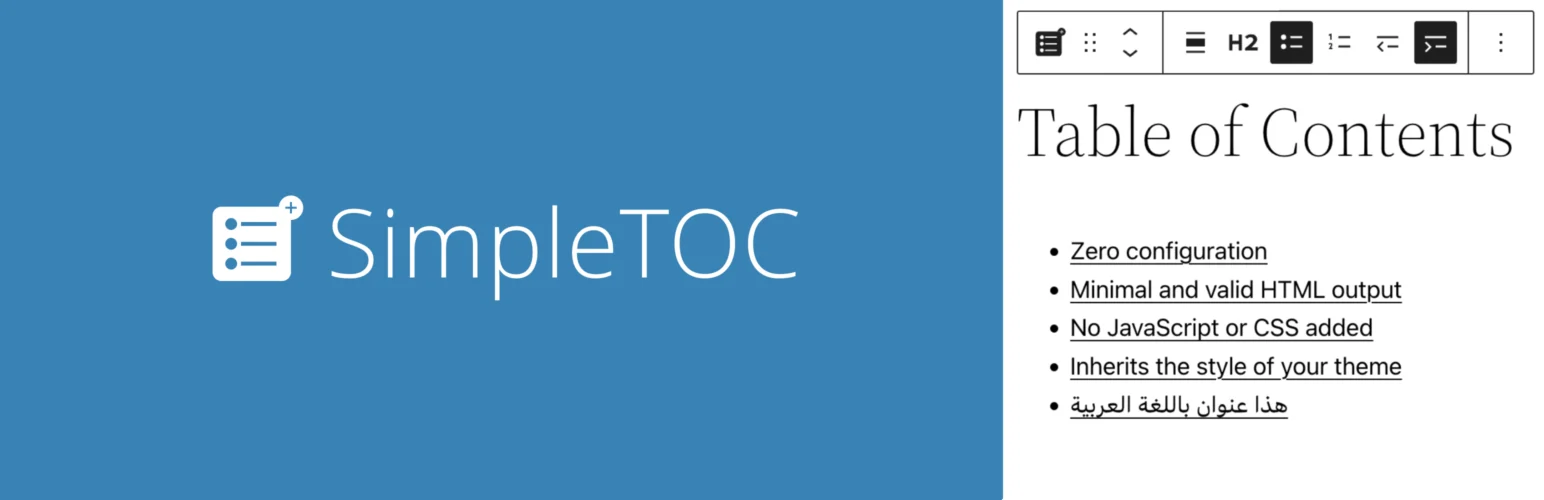
SimpleTOC SimpleTOC is the cleanest option here if you want a TOC to behave like a normal Gutenberg block. Add the block, and it creates a nested list from the page headings with minimal markup and native block styling controls.
The plugin is intentionally restrained. It uses no JavaScript or CSS by default for the basic TOC, supports theme.json styling, and uses native details and summary semantics for collapsible behavior.
Features
- Gutenberg-native TOC block
- Minimal valid HTML output
- No JavaScript or CSS by default for basic use
- Native WordPress color, spacing, and typography controls
- Configurable heading depth and list type
- Designed with WCAG 2.2 AA accessibility goals
Pros: Lightweight, accessible, easy to style with theme.json, and excellent for modern block themes.
Cons: It does not offer the large automatic-insertion workflow or advanced sticky sidebar system of heavier TOC plugins.
Best for: Block-theme and Gutenberg users who prefer minimal markup and native WordPress controls.
Pricing: Free on WordPress.org.
4. Heroic Table of Contents – Best for Visual Block Control

Heroic Table of Contents Heroic Table of Contents is another Gutenberg-focused plugin, but it puts more emphasis on visual styles and editing the generated list. It detects headings automatically and lets you hide or relabel headings without changing the original article heading.
This is useful when editors want a polished TOC block but do not want to manage a large global settings screen. Its Template Mode can also help when the block is used inside post templates rather than individual articles.
Features
- Automatic heading detection
- Four built-in TOC styles
- Hide and relabel headings without editing the article heading
- Collapsible TOC option
- Bulleted, numbered, or plain list choices
- Template Mode for post templates and custom post types
Pros: Easy visual workflow, good heading controls, and useful template support.
Cons: Smaller ecosystem and fewer advanced automatic/sticky features than Easy Table of Contents.
Best for: Editors who want a simple styled Gutenberg TOC with per-block control.
Pricing: Free on WordPress.org.
5. LuckyWP Table of Contents – Best Mature Free Flexible Option

LuckyWP Table of Contents LuckyWP Table of Contents supports automatic insertion, shortcode placement, Gutenberg blocks, and widgets. It has been a popular free TOC plugin for years and gives you useful controls over hierarchy, heading levels, labels, and display.
Its flexibility is the reason it remains attractive. You can use it in a more traditional automatic way or insert the TOC manually. I would still test compatibility carefully on a new WordPress 7.x site because its official tested-version information has lagged behind the newest WordPress releases.
Features
- Automatic or manual insertion
- Gutenberg block and shortcode support
- Hierarchical TOC output
- Heading-level controls
- Show and hide behavior
- Large existing user base and mature settings
Pros: Feature-rich free version, flexible placement, and familiar workflow.
Cons: Official compatibility metadata has not kept pace with the newest WordPress versions, so I would test it on staging before standardizing on it.
Best for: Existing sites that want a mature free TOC with automatic and manual placement options.
Pricing: Free on WordPress.org.
6. Table of Contents Plus – Best Classic Automatic TOC
Table of Contents Plus Table of Contents Plus is built around the classic automatic TOC pattern. It scans headings, inserts a contents list based on your rules, and works well for sites that want predictable article navigation without requiring editors to add a block each time.
It is less about Gutenberg-native design and more about a proven automatic workflow. That can still be the right choice for older sites or teams with a large archive where consistency matters more than block-level styling.
Features
- Automatic table of contents generation
- Placement rules based on heading count and post type
- Hierarchical heading structure
- Anchor links and smooth navigation
- Shortcode controls
- Current WordPress 7.1 compatibility listing on WordPress.org
Pros: Simple automatic workflow, long track record, and good fit for large existing archives.
Cons: The interface and approach feel more traditional than modern block-first TOC plugins.
Best for: Older WordPress sites and publishers that want automatic TOCs across many existing posts.
Pricing: Free on WordPress.org.
Do You Actually Need a TOC on Every Post?
No. I usually add a table of contents when an article has enough sections that a reader benefits from jumping around. A short 700-word post with three brief headings can feel more cluttered with a TOC than without one. On the other hand, tutorials, comparison guides, research posts, documentation, and long listicles usually benefit from clear section navigation.
Also watch for duplicate TOCs. Your theme, SEO plugin, documentation plugin, or single-post template may already generate one. Installing another WordPress table of contents plugin can create two navigation boxes and duplicate anchor behavior, which is worse than having no TOC.
Conclusion
The best WordPress table of contents plugins in 2026 are Easy Table of Contents for automatic workflows, Rank Math for existing Rank Math users, SimpleTOC for lightweight Gutenberg sites, Heroic TOC for visual block control, LuckyWP for flexible free placement, and Table of Contents Plus for classic automatic insertion. Choose based on your editor and publishing workflow, then make sure only one TOC system is active on each post.
Frequently Asked Questions
What is the best WordPress table of contents plugin?
Easy Table of Contents is my best overall choice for automatic insertion and broad compatibility. SimpleTOC is my preferred lightweight Gutenberg option, while Rank Math is ideal if you already use Rank Math SEO.
Does a table of contents improve SEO?
A TOC can improve navigation, content structure, and direct linking to sections. It may support SEO indirectly, but adding a TOC does not guarantee higher rankings. The content still needs to satisfy search intent.
Which WordPress TOC plugin is the lightest?
SimpleTOC is one of the lightest choices in this list because its basic block uses minimal HTML and no JavaScript or CSS by default. Rank Math is also efficient if the plugin is already installed for SEO.
Can Gutenberg create a table of contents without a plugin?
WordPress core does not currently provide a full automatic TOC block for every use case. You can build one manually with anchors and links, but a dedicated block or existing SEO plugin makes long articles much easier to maintain.
Why am I seeing two tables of contents on my WordPress post?
Usually two systems are active at once. Check your theme, single-post template, SEO plugin, and TOC plugin. Keep one source of truth and disable or remove the duplicate TOC.